How to Free Up Phone Storage Without Losing Important Photos
Running out of phone storage can interrupt photo capture, app updates, and everyday tasks. Learn how to find what uses the most space, verify your backups, remove unnecessary files safely, and keep your important photos and documents protected on iPhone and Android.

What you’ll need
Tap to tick things off before you start.
Your Phone Is Full, but What Should You Delete?
When your phone runs out of storage, even simple tasks can become frustrating. A photo may refuse to save, and an app update may fail because there is no room left. Before deleting pictures at random, take a moment to identify what is using your storage. Start by checking your phone's storage settings to see which apps and files take up the most space. This helps you free room without accidentally losing important memories.

Check What Is Actually Using Your Storage
Open your phone's Settings and find the storage breakdown to see what's taking up the most space. On iPhone, go to Settings, tap General, then iPhone Storage. On Android, look for Storage in Settings, keeping in mind that menu names vary by device. Review the capacity bar and categories such as Photos, Videos, Apps, Downloads, Messages, and System. Note the largest categories first, and avoid deleting anything until you know what each contains.

Find the Largest Files Taking Up Space
Open the Photos and Videos category in your phone's storage settings and review the files by size. Look for unusually large recordings first, since a single 4K vacation video can occupy several gigabytes. Check the sizes of other videos before moving on to large apps, downloads, and message attachments. Note which items consume the most space, but do not delete anything yet. Identifying the biggest storage users helps you prioritize cleanup.

Check Your Photo Backup Before Deleting Anything
Open Google Photos on your Android phone or iCloud Photos on your iPhone, then check the backup or synchronization status. In Google Photos, tap your profile picture to find the backup information and confirm that your latest photos have finished uploading. If the status shows that a backup is still in progress, keep your photos untouched until it completes. Remember, cloud synchronization is not always an independent backup, so avoid deleting files until you understand how they are protected.

Verify Your Photos Are Accessible in the Cloud
Sign in to your own iCloud or Google Photos account on a computer or another trusted device. Open several pictures from your library, including recent photos, to confirm they display correctly. In the example shown, a family vacation photo is open in Google Photos, with additional thumbnails available for inspection. Check that important memories are present before relying on cloud storage. Remember, synchronization is not an independent backup, and deleting a synced photo may remove it from connected devices too.

Protect Your Photos With an Independent Backup
Before deleting any photos from your phone, save an independent copy of your most valuable memories. Download the original photo and video files from your cloud account to a computer or external drive. In the file manager, open the backup folder and preview several files directly from the external drive to check that they are accessible. Keep this separate copy intact until you are confident your photos are safely preserved in another location.

Understand What Happens When You Delete Synced Photos
Before deleting a photo, review the warning on your phone to understand how removal may affect other connected devices. Services like iCloud Photos and Google Photos synchronize changes across their libraries, so deleting an image in one place can remove it elsewhere. Keep your separate backup untouched, and check your service's deletion and recovery policies before proceeding. If you're unsure, select Cancel and verify that your backup contains the original photo.

Remove Unnecessary Files From Downloads
Open the Files app on your iPhone or your file manager on Android, then navigate to Downloads. Review older PDFs, event flyers, installation packages, and other files you no longer need. Tap a file to preview it before deciding whether to delete it, especially if the filename is unfamiliar. Keep essential documents, such as insurance records, and anything difficult to replace. Check dates and file sizes to identify outdated downloads worth removing.

Clear Downloaded Streaming Content
Open the downloads section in your streaming apps and review saved videos, music, and podcasts. In Netflix, for example, select an episode you have already watched and tap Remove Download to free up local storage. Check file sizes to prioritize larger downloads you no longer need. This removes the offline copy, not your account or viewing history. You will need an internet connection to stream that content again later.

Clear Browser Cache Without Losing Important Data
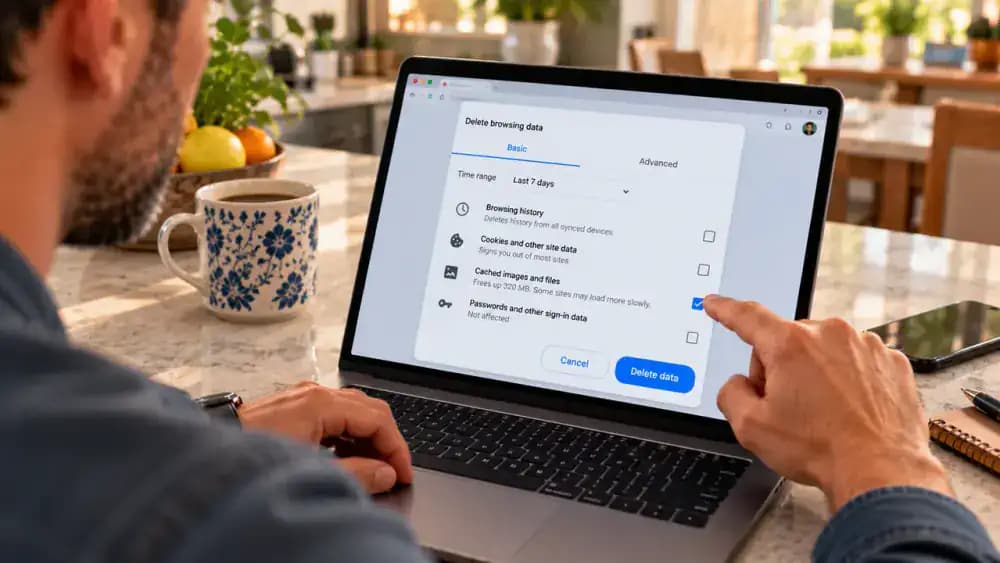
Open Chrome settings on your Android phone and navigate to the Clear browsing data screen. Select Cached images and files while leaving browsing history, cookies and site data, and saved passwords unchecked. Review your selections before tapping Clear data to avoid removing information you want to keep. Clearing cached files may free up storage, although the amount varies. Remember that clearing cookies can sign you out of websites.
Review Large Apps Before Removing Anything
Open your phone's storage settings and sort installed apps by size if that option is available. Look for space-heavy games, video editors, and social media apps, then tap an entry to inspect its details. Compare the app's installation size with its stored documents and data to understand what's taking up space. Before removing anything, consider how often you use it and whether important files or offline content need to be preserved.

Offload Apps Without Losing Important Data
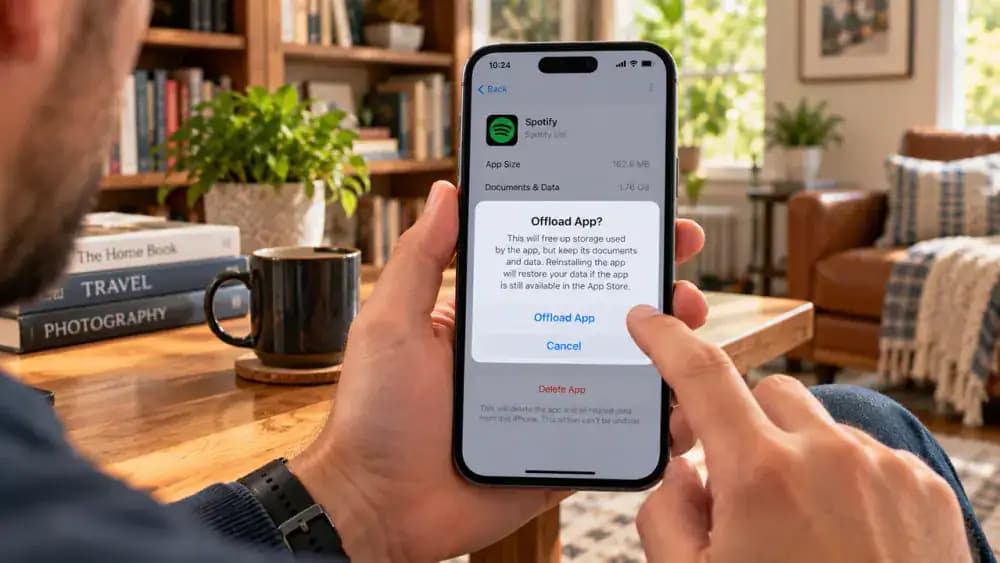
Review the app's storage details before choosing to offload it. On iPhone, open Settings, select General, tap iPhone Storage, and choose an app you rarely use. Check its App Size and Documents and Data values, then review the confirmation message. Offloading removes the app but retains its associated documents and data. Before proceeding, verify your account credentials and protect important files, since some locally stored information may still need attention after reinstalling.
Review Large Message Attachments Safely
Open your messaging app and review shared attachments to find large videos, photos, and documents that may be using valuable storage space. On iPhone, check iPhone Storage or the details page for an individual conversation. On Android, browse attachments within your messaging app. Open unfamiliar files to identify their contents before deciding what to keep. Save important items separately, especially family photos and essential documents, before removing anything you cannot easily replace.

Find and Review Duplicate Photos
Open the Photos app on your iPhone and locate the Duplicates collection under Utilities. Review the suggested matches, comparing each photo's details and image quality before deciding whether to merge them. On Android, check your gallery or a trusted file manager for duplicate detection. Keep the clearest original and independently back up important photos before making changes. Leave uncertain matches untouched until you can verify which copies you need.

Review Large Videos Before Removing Them
Open your Photos or Gallery app and inspect longer recordings that may occupy several gigabytes, especially older 4K videos. Tap the playback timeline to review different sections and identify what each recording contains before deciding whether to keep it. Check that an independent backup exists and can be accessed before deleting anything. Trimming or compressing a video can reduce its size, but retain the original until you verify the replacement plays correctly.

Check Recently Deleted Before Emptying It
Open the Recently Deleted album in Photos or Gallery and inspect its contents before removing anything permanently. Deleted photos and videos may remain here temporarily, continuing to use device storage until they are erased. Check each thumbnail carefully, especially family portraits and vacation clips, and confirm that important files have independent backups you can open. Only permanently delete items you no longer need. Once removed from this folder, some memories may be impossible to recover.

Check Storage Space After Cleanup
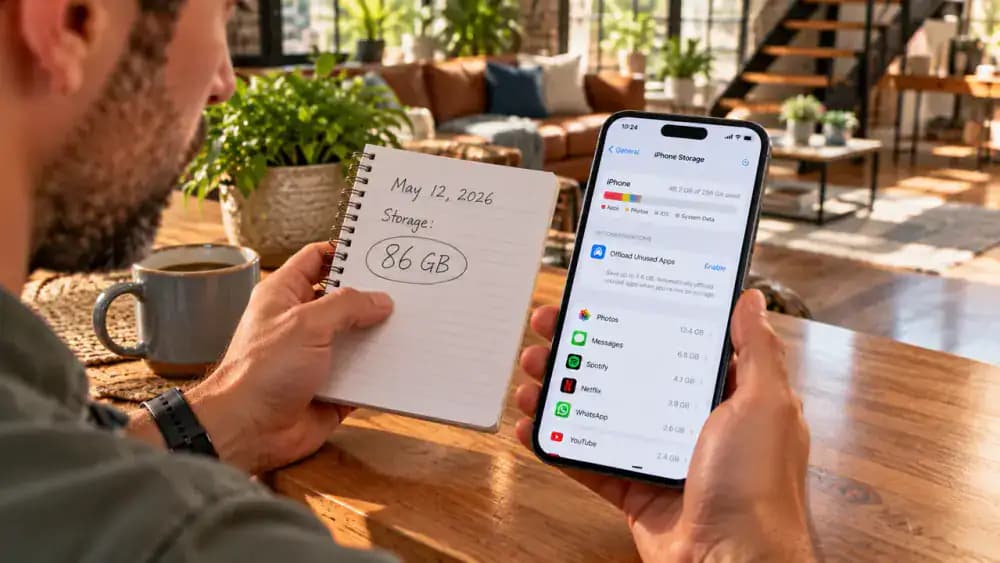
Return to your phone's storage settings to check the space currently available. On iPhone, open Settings, tap General, then select iPhone Storage. On Android, open Settings and look for Storage. Compare the available space with the reading you recorded before cleanup. For example, the phone may now show 24 GB available instead of 8 GB. Wait for the storage breakdown to finish updating before assessing the change, since estimates can take a moment to recalculate.
Verify Your Important Photos Still Open
Open the Photos app and choose several important pictures, including older family memories you would hate to lose. Tap each photo to display it at full size, then inspect the details to ensure the image loads clearly. Check a few different dates rather than relying on recent pictures alone. If an image is stored in the cloud, confirm you can access it before deleting anything else or assuming your photos are safely available.

Confirm Your Important Documents Are Still Accessible
Open your phone's Files app on iPhone or file manager on Android, then locate an important document, such as an insurance policy or tax record. Tap to open it and scroll through multiple pages to confirm the contents load correctly. For cloud-stored files, wait for the full document to appear. Keep any downloaded or locally saved copies until you have verified access, especially before removing files to free up storage space.

Make Sure Your Essential Apps Still Work
Open the apps you rely on most, including email, banking, messaging, and authentication tools, to check that they launch and display your information normally. Here, open an email and confirm its contents appear as expected. If an app requests a new sign-in, make sure you have the correct credentials before proceeding. Keep authentication data intact, and never delete account information or recovery details simply to free up phone storage.

Build a Simple Monthly Storage Maintenance Routine
Create a recurring monthly reminder to keep your phone storage manageable. In your calendar, schedule a Phone Storage Check for the first Sunday of each month and include three tasks: review storage usage, verify photo backups, and clear unnecessary downloads. Before removing files, confirm that important photos are backed up and accessible. Spending a few minutes on this routine each month helps prevent storage problems from returning and protects valuable memories.

Keep a Separate Backup of Irreplaceable Memories
Connect your external SSD to the laptop and open the folder containing your independent photo backup. Select several pictures and open each one to confirm the files are readable, as shown in the image preview. Check different dates and occasions rather than relying on a single photograph. Repeat this quick inspection every few months, and keep the backup separate from your synchronized photo library so accidental deletions or account access problems are less likely to affect both copies.

Protect Your Account Recovery Information
Before deleting downloaded files or clearing app data, locate any documents that help you regain access to your accounts. Open the Downloads folder on your phone and select a recovery document to review its filename, file type, and storage location. Confirm that important recovery codes and authentication backups are safely stored elsewhere, preferably in a trusted password manager or another protected location. Never delete the only copy, or you could lose access permanently.

Know When to Contact Official Support
When missing files, unfamiliar storage entries, or cloud account access problems appear, stop making changes until you understand the issue. On your iPhone, open Safari and select the official Apple Support website, then search for relevant guidance on storage, missing photos, or account access. You can also consult Google Support or your phone manufacturer's help resources. Avoid unfamiliar cleanup apps that promise instant fixes or request unnecessary permissions, especially when important files or memories are at risk.

The One Rule That Protects Your Memories
Before removing files, compare important originals with their digital copies so you know exactly what you are keeping. Here, a printed family photograph is checked against the same image on a smartphone, while a connected external drive represents a separate storage option. Keep independent backups of irreplaceable photos, personal documents, and recovery information. Check that backup files are accessible and complete before deleting anything, and never erase the only copy of something you cannot replace.

Make Sure Your Photos Are Still Available
After cleaning up your phone, open several older photos, recent videos, and important documents from their saved locations. Zoom in on an older family photo to confirm its details load clearly, rather than relying on a thumbnail preview. Check that videos play and documents open fully, too. If anything is missing or inaccessible, stop deleting files and investigate before continuing. Preserving important memories and records matters more than freeing another gigabyte.

Confirm Your Essential Apps Still Work
Open your banking, messaging, and authenticator apps one at a time to confirm each launches and responds normally. Tap the relevant account entry when needed, but do not initiate payments or change security settings. Keep recovery information private, and never share authentication codes during this check. If an app unexpectedly requests recovery details or you cannot access an account, stop and investigate through the provider's official support channels before continuing.

Make Your Monthly Storage Check a Habit
Hold your iPhone open to Settings > General > iPhone Storage and review the categories to identify what occupies the most space. Use a monthly checklist to track your progress, then check that your photo backups are current before removing unnecessary downloads. Pay particular attention to large videos and offline media, which can consume substantial storage. Review first, verify backups separately, and delete only files you no longer need.

Never Delete Your Only Copy
Check where an important file is stored before deciding to remove it. In the file manager, select the document and review its details to confirm whether it resides in internal storage or another location. Then verify that a separate, accessible backup exists before making changes. Cloud synchronization alone may not protect against accidental deletion. If you cannot confirm another reliable copy, leave the original untouched until you can.

Keep Your Storage Free and Your Memories Safe
If you lose account access or suspect a problem with your phone, visit the official Apple or Android support website before making further changes. Select the contact support section to find trusted guidance without sharing personal information on unverified pages. Check your storage monthly, confirm that your photos and documents are backed up, and review essential apps. These habits help protect valuable memories while keeping your phone organized and ready for everyday use.

A nearly full phone can turn simple tasks into a frustrating scramble. You try to take a photo, but a storage warning blocks the shot. An app update stalls because there is not enough room, and suddenly you are tempted to delete a handful of pictures just to get things working again. The problem is that random deletions often recover little space while putting important memories at risk. Large videos, unused apps, message attachments, downloads, and temporary files may be consuming far more storage than you realize.
You can free up phone storage without losing important photos by following a careful process on your iPhone or Android device. Start by checking which categories use the most space, then verify that your photos and documents are safely backed up through iCloud Photos, Google Photos, or another trusted service. Make sure synchronization is complete and that you can access your files through your account before removing local copies. From there, you can clear unnecessary downloads, review oversized apps, and remove other files you no longer need. The goal is to recover usable space while keeping your memories, documents, and essential account access safe.
Where people go wrong
Deleting Photos Before Checking Your Storage Breakdown. Deleting random photos may free very little space if large videos, unused apps, downloads, or message attachments consume most of your storage. Open your phone's storage settings first, compare the largest categories, and target unnecessary files instead of risking valuable memories.
Assuming Cloud Sync Means Your Photos Are Safely Backed Up. Seeing photos in iCloud Photos or Google Photos does not automatically mean you have an independent backup. Confirm synchronization has finished, sign in to the correct account, and open several files through the cloud service. Never delete the only copy of important photos or documents.
Clearing App Data Without Knowing What Will Disappear. Clearing application storage can remove downloaded files, saved settings, offline content, or information needed to regain access. Review each app's storage options before making changes, distinguish offloading from uninstalling, and protect authentication credentials. Avoid deleting unfamiliar files or data you cannot confidently restore.
Forgetting to Check Your Phone After Cleanup. Removing files is not the final step. Check available storage again, open important photos and documents, and confirm essential apps still work. Some cleanup methods sign you out or remove offline downloads. Schedule monthly storage reviews, verify backups, and retain another copy of valuable information.

Questions people ask
Start by opening your iPhone or Android storage settings to see which categories use the most space. Review photos, videos, apps, downloads, messages, and system data before deleting anything. Remove unnecessary downloads, temporary files, and unused apps first. Always verify that valuable photos and documents have another accessible copy before removing local files.
Fixed it?
Get one guide like this every Thursday.