How to Fix a Wireless Printer That Keeps Showing Offline on Windows or Mac
Printer powered on but showing offline? Learn how to check your Wi-Fi connection, clear stuck print jobs, fix printer settings, and get your wireless printer working again on Windows or Mac.
What you’ll need
Tap to tick things off before you start.
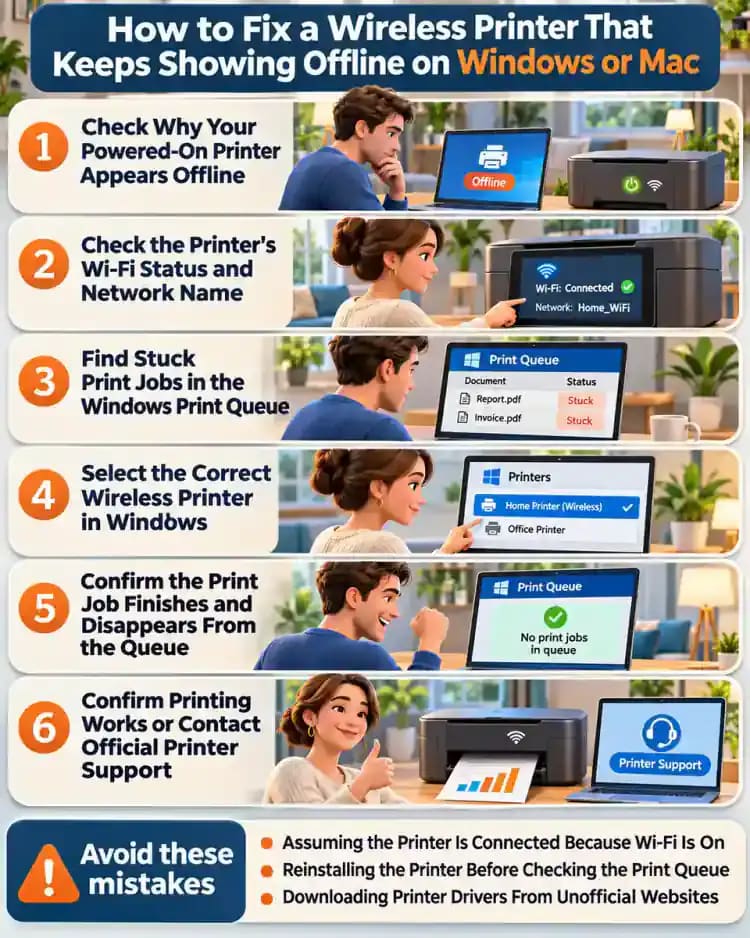
Check Why Your Powered-On Printer Appears Offline
Look at your printer and computer before changing any settings. The printer may have its power light on and paper loaded correctly, while your laptop displays a Printer Offline warning and a document waiting in the print queue. Confirm that the printer is actually powered on, then check its display for error messages. Note whether the offline warning appears immediately or only after you attempt to print a document.
Identify What the Offline Warning Means
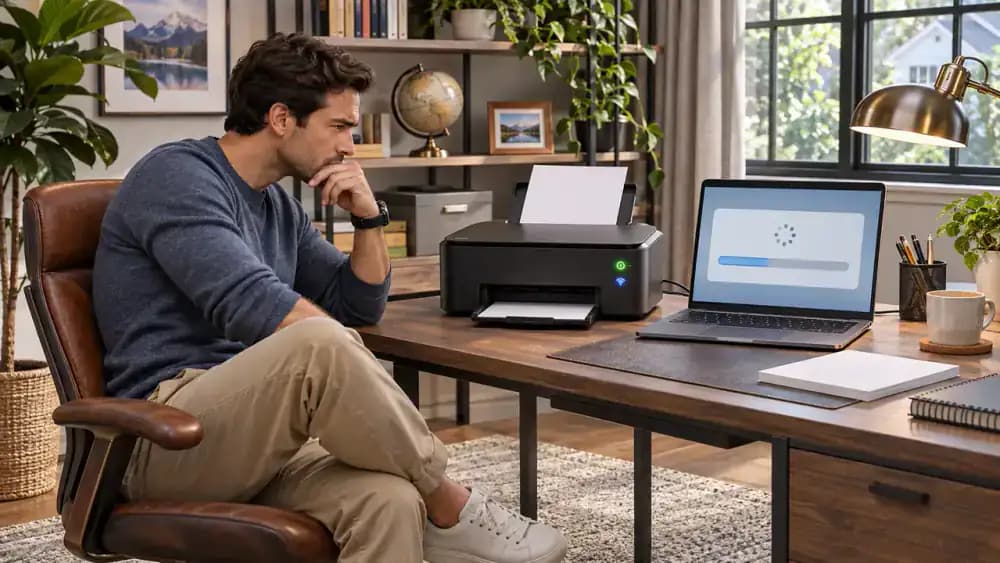
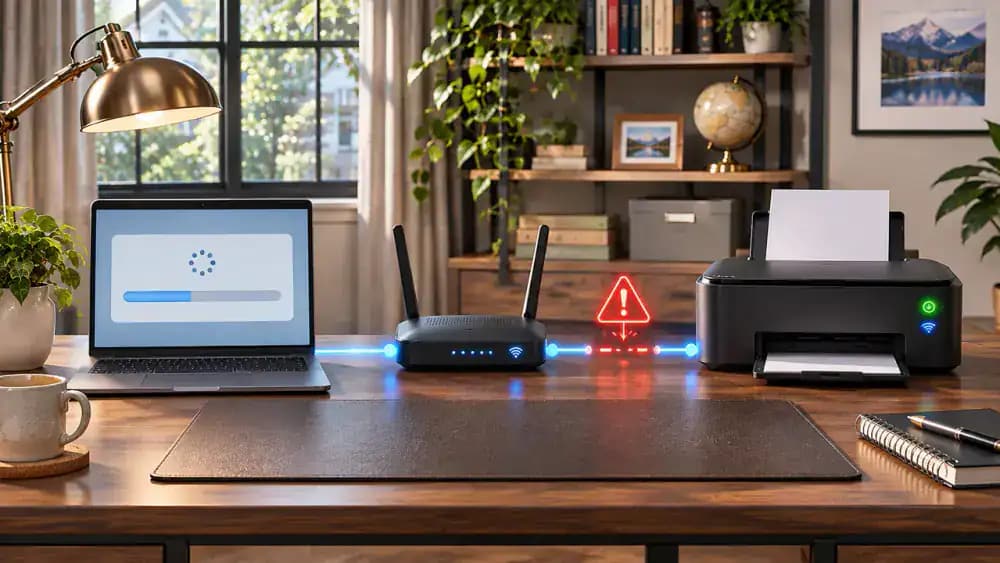
When your computer displays an Offline status, it means the expected communication with the printer is not working. The diagram shows a laptop, Wi-Fi router, and printer with an interrupted connection, highlighting one possible cause. Check three areas before troubleshooting further: wireless connectivity, printer settings, and the print queue. A disconnected printer is not necessarily broken, and a single stuck print job can sometimes prevent other documents from printing.
Find Your Printer Model and Operating System Version
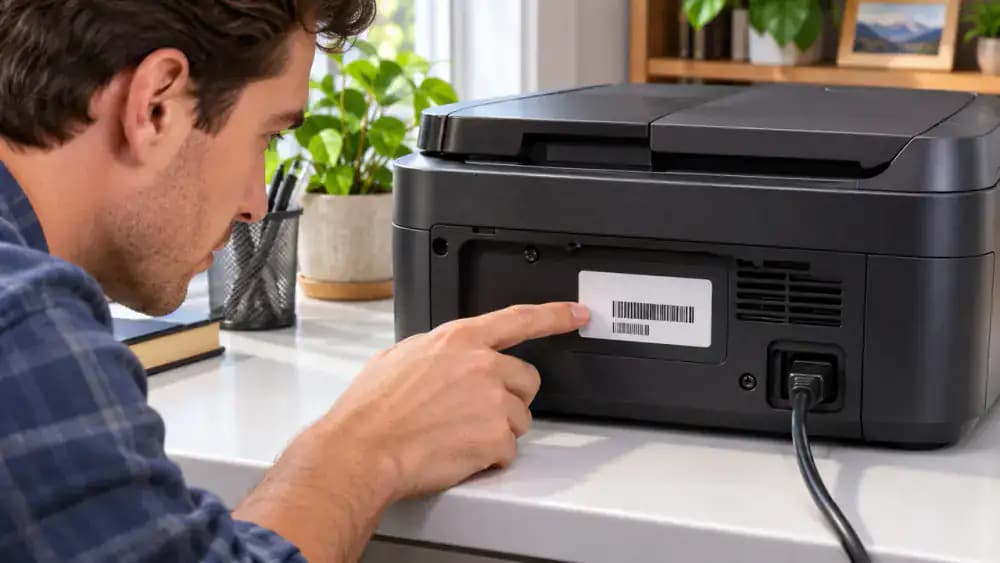
Locate the printer's brand and model number on its front panel or rear identification label, as shown in the image. Next, identify your computer's operating system. On Windows, open Settings > System > About to check your Windows version. On a Mac, open System Settings > General > About. Write down these details before continuing, since printer menus, connection options, and compatible drivers vary by model and operating system.
Save Your Documents Before Changing Printer Settings
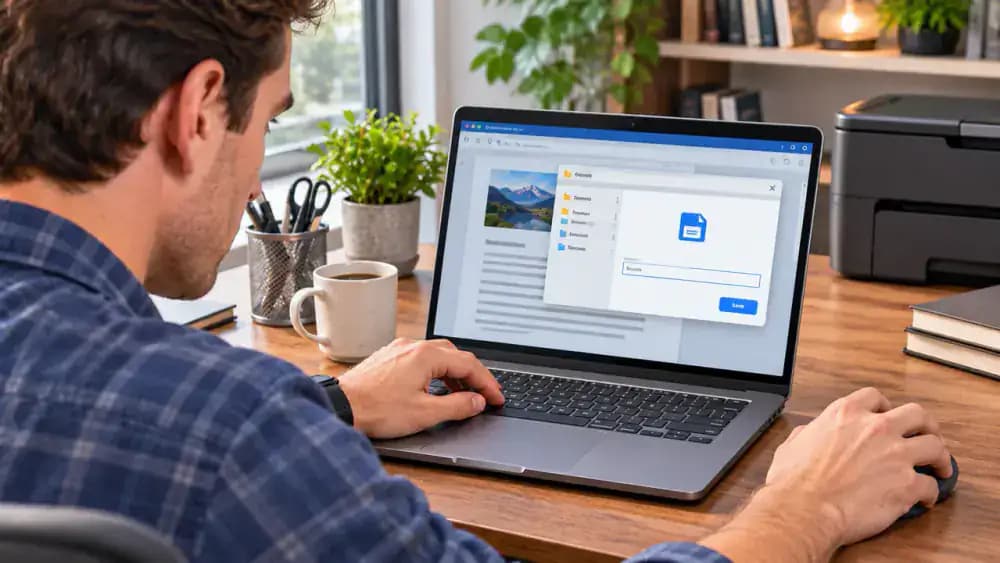
Save any open documents before troubleshooting, especially files currently waiting in the print queue. On Windows, select File > Save in your document editor. On a Mac, press Command-S to save your work. The image also highlights three important precautions: protect your documents, use official troubleshooting tools, and keep network passwords private. Start with reversible checks and avoid deleting printer configurations or changing firewall settings unnecessarily.
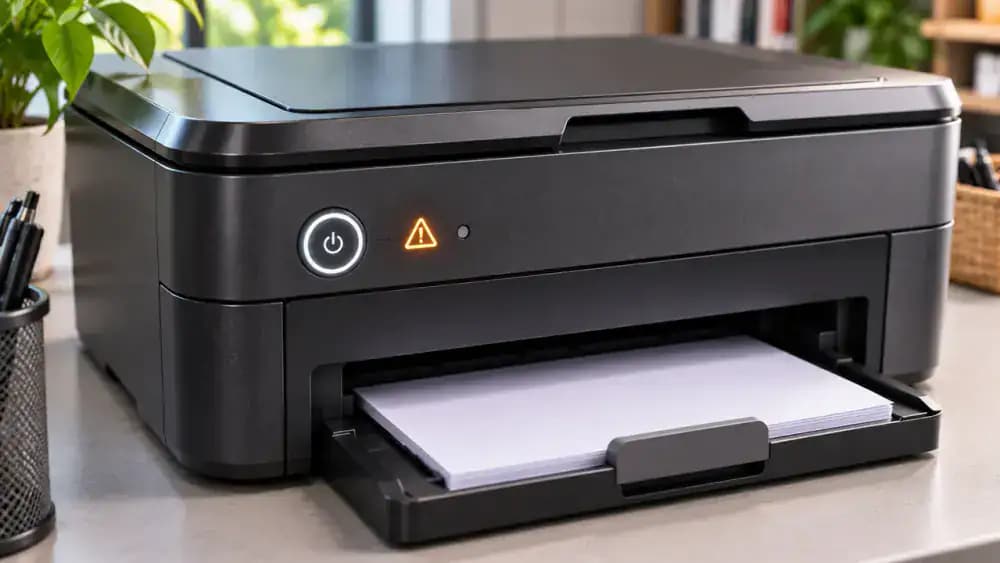
Inspect Printer Power, Paper, and Error Messages
Look at the printer's power button and confirm its indicator light is on. If the printer is sleeping, press the appropriate button to wake it and check the display. As shown in the image, inspect the control panel for warning icons, then verify that the paper tray is properly seated and all covers are closed. Address any paper, ink, or toner warnings before investigating the wireless connection.
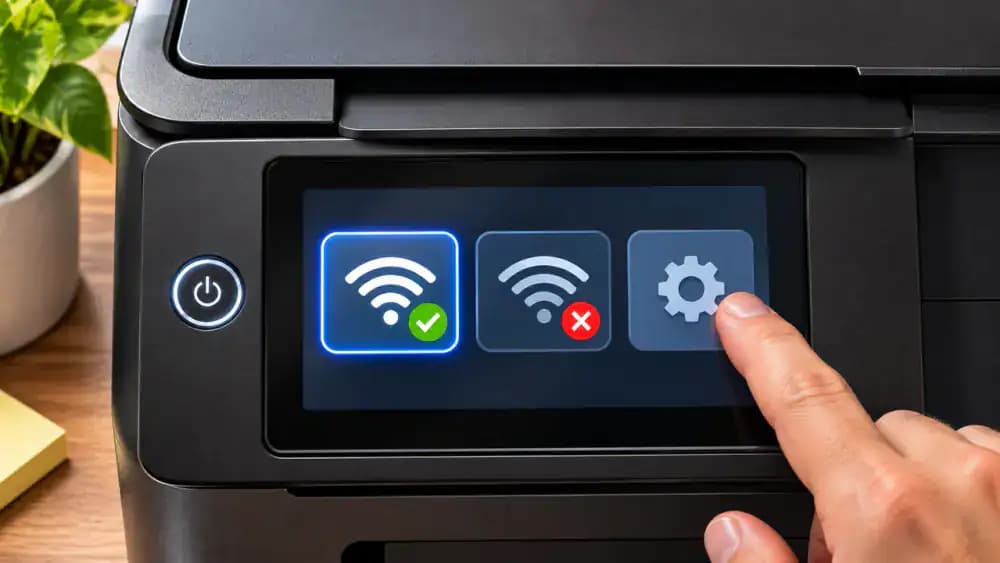
Check the Printer's Wi-Fi Status and Network Name
Find the Wi-Fi icon on your printer's display or control panel. Open Network or Wireless Settings, as illustrated, and check whether the connection status shows Connected or Disconnected. If disconnected, review the available wireless networks and select your intended home or office network. Note the network name displayed when connected, since you will compare it with your computer's connection next. Never share your Wi-Fi password during troubleshooting.
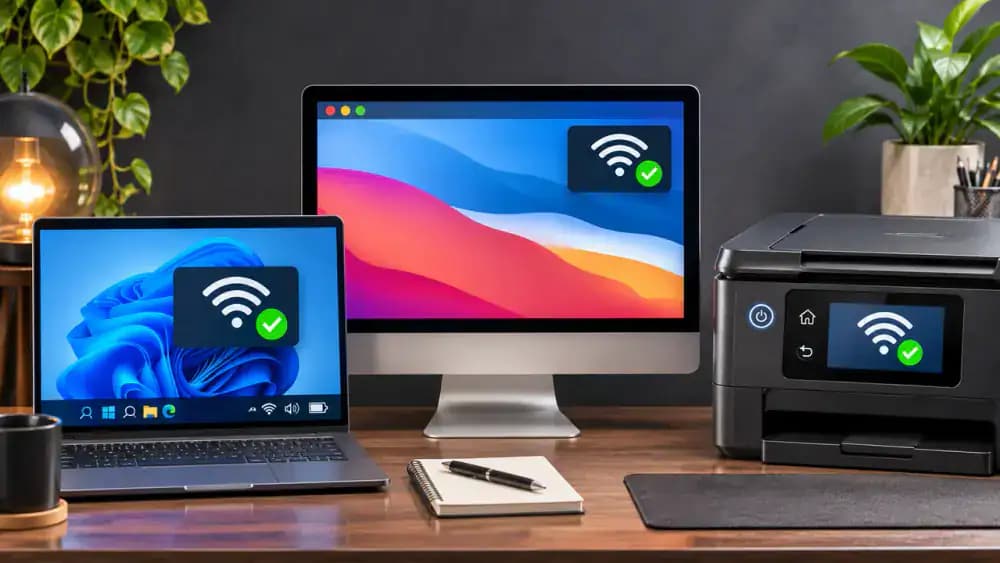
Compare the Wi-Fi Networks on Your Computer and Printer
On Windows 11, click the network icon near the clock and expand the Wi-Fi list to identify your connected network. On a Mac, open the Wi-Fi menu in the menu bar. Compare that network name with the one displayed in your printer's wireless settings. The image illustrates a printer connected to GuestNetwork instead of HomeNetwork. If they differ, connect the printer to your intended network and recheck its status.
Make Sure Guest Wi-Fi Is Not Blocking Your Printer
Check whether your printer is connected to a guest Wi-Fi network instead of your main home network. The image shows how guest network isolation can block communication between a laptop and printer, even when both have wireless connections. Open the printer's wireless settings and select your trusted home network if necessary. Keep router security features enabled, and confirm both devices are on the intended network before continuing.
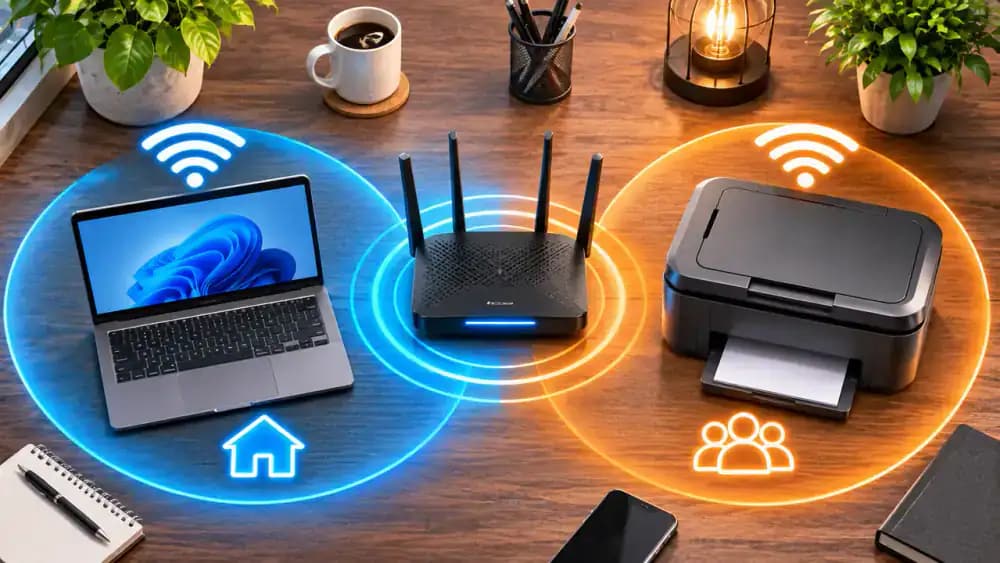
Verify Your Printer Supports the Available Wi-Fi Band
Check your printer's wireless specifications on the manufacturer's official website to see whether it supports 2.4 GHz, 5 GHz, or both. The image illustrates a printer using 2.4 GHz while a laptop connects through 5 GHz on the same router. If your printer supports only 2.4 GHz, select a compatible wireless network in its settings. Different bands can communicate when both belong to the same accessible local network.
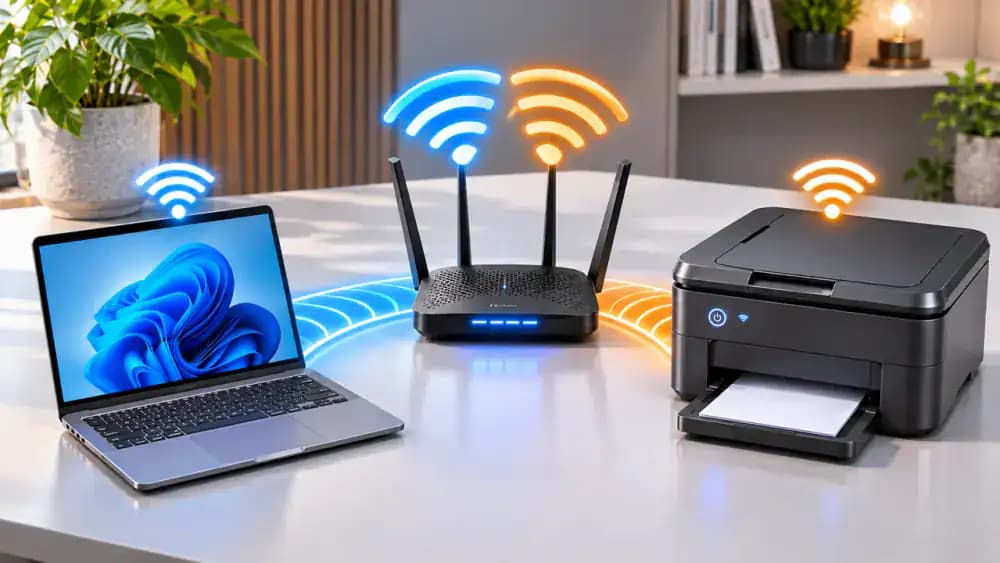
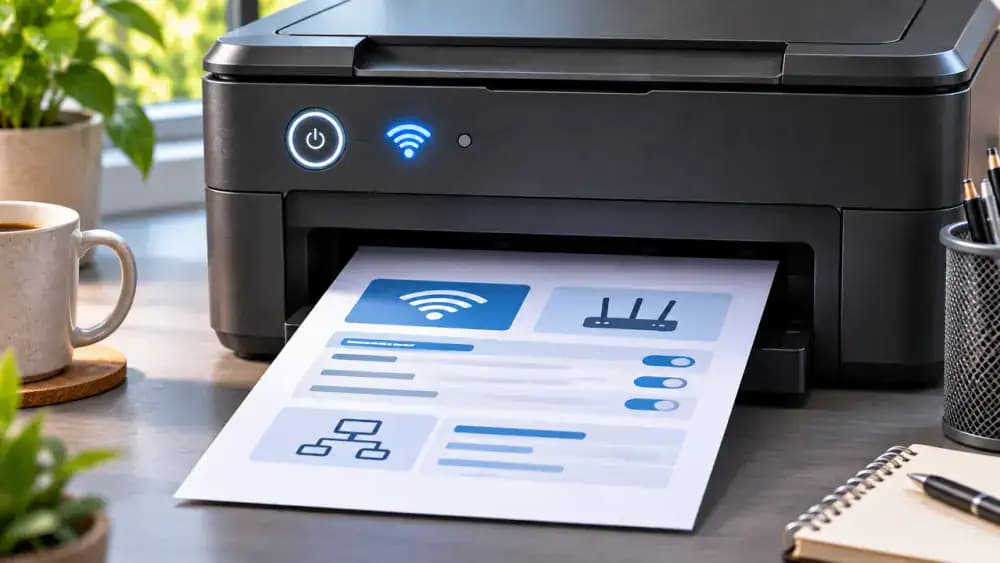
Print a Network Configuration Report From Your Printer
Open your printer's control panel and navigate to Settings or Network Settings. Look for an option labeled Print Network Report or Network Configuration Page, then print it directly from the printer. As illustrated, examine the connection status, network name, and IPv4 address. A connected status and valid local IP address are encouraging, but do not guarantee computer communication. Keep the report private because it contains network information.
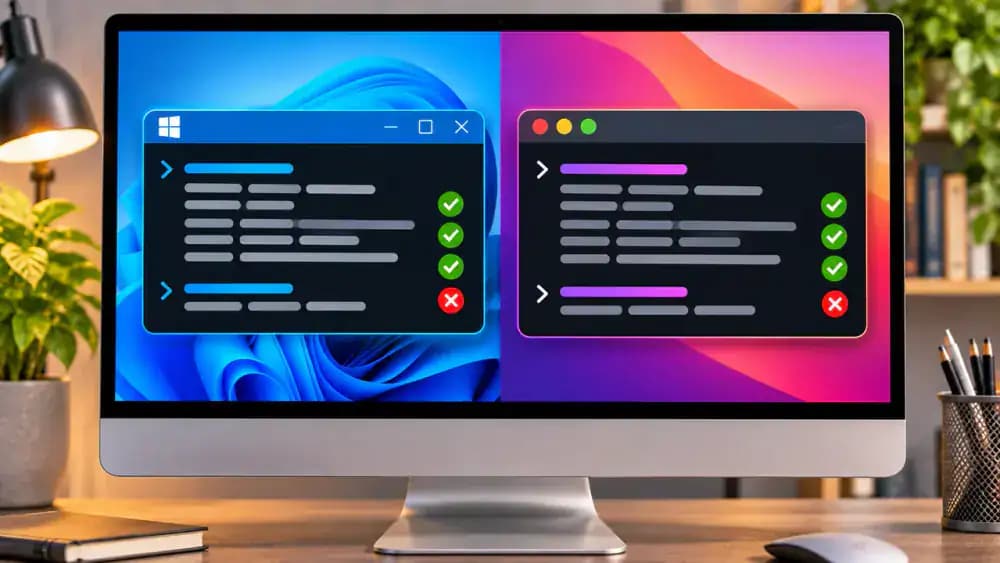
Test Your Printer's Network Connection With Ping
Find the printer's local IP address on its network report. On Windows, open Command Prompt and enter ping followed by that address, such as ping 192.168.1.45. On a Mac, open Terminal and enter ping -c 4 192.168.1.45. The image illustrates possible replies and timeouts. Successful replies suggest network reachability, but do not guarantee printing works. Some printers ignore ping requests, so a timeout alone is inconclusive.
Find Stuck Print Jobs in the Windows Print Queue
On Windows 11, open Settings and navigate to Bluetooth & devices > Printers & scanners. Select your wireless printer, then click Open print queue to view documents waiting to print. As illustrated, check each document's status for errors or jobs that remain pending. A stalled document can sometimes prevent newer jobs from printing. Note which jobs are affected before canceling anything, especially if you need to preserve important documents.
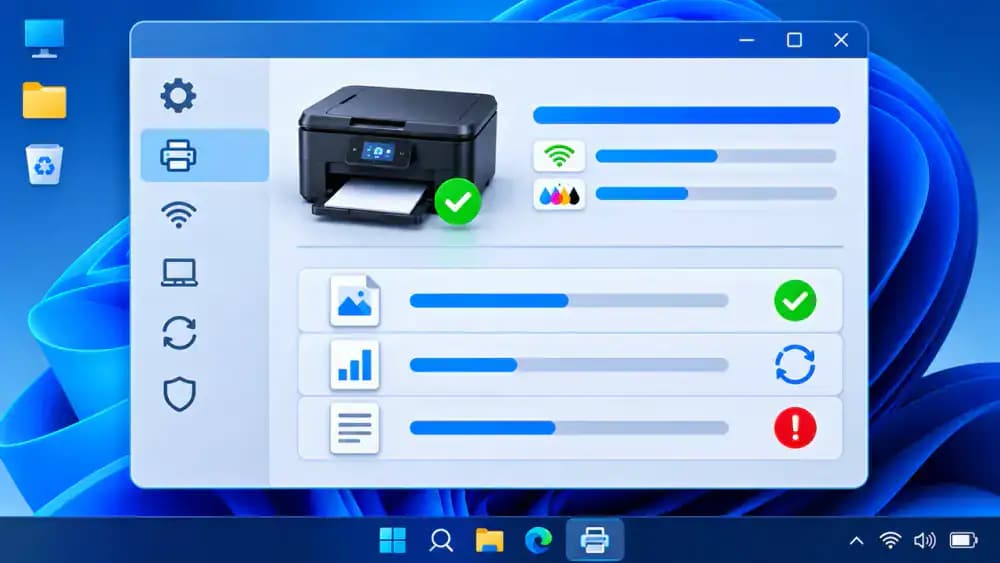
Cancel Stuck Print Jobs Without Clearing the Entire Queue
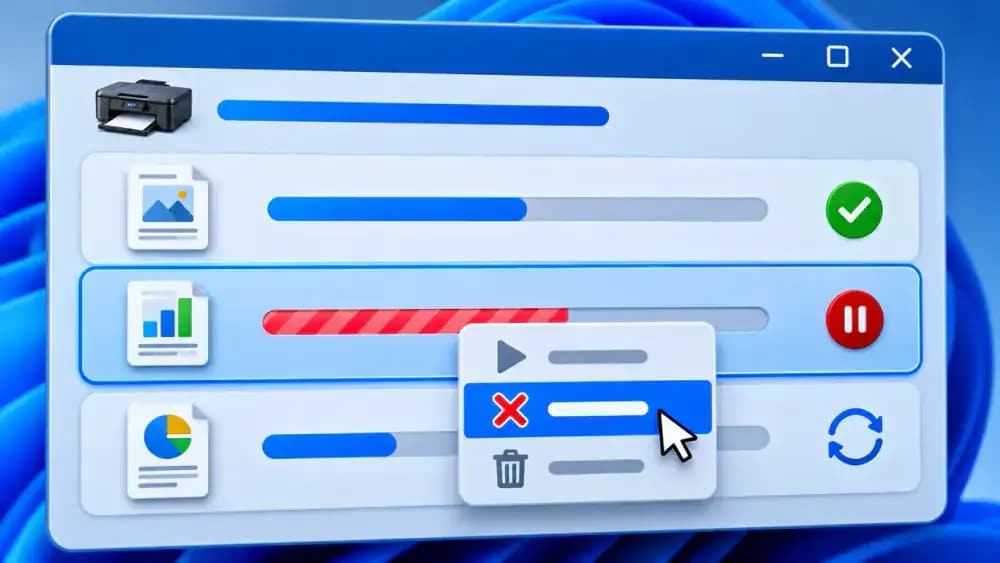
In the Windows print queue, locate a document showing an error or remaining stuck. Select the unwanted job and choose Cancel, as illustrated with Sample Document. Confirm that the selected job disappears while other documents remain queued. Repeat only for jobs you no longer need. Before canceling anything on a shared printer, check whether another person's documents are waiting. Save original files because canceled print jobs must be submitted again.
Disable Use Printer Offline and Pause Printing in Windows
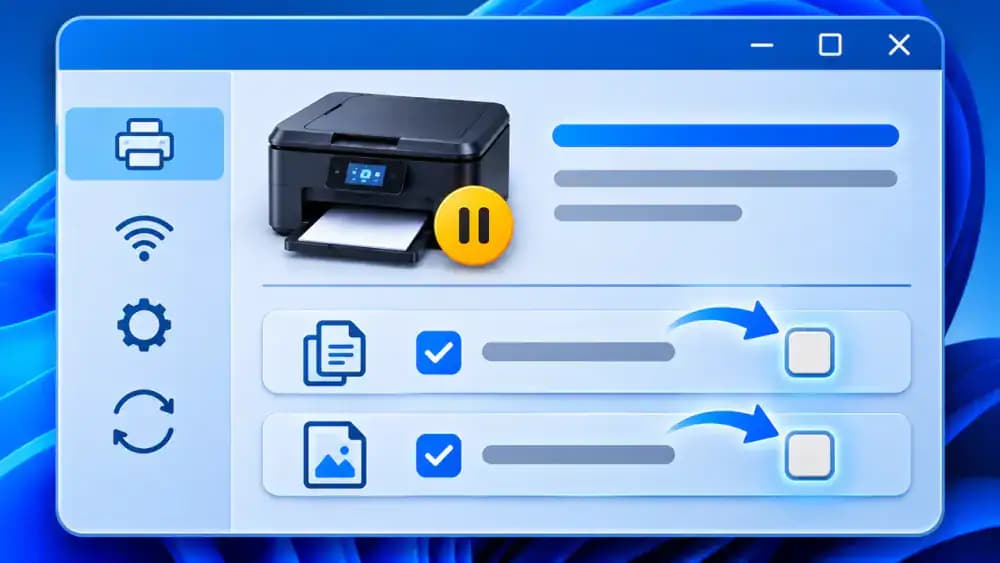
Open the classic Windows print queue and select the Printer menu. Look for Use Printer Offline and Pause Printing, as shown in the image. If either option has a checkmark, click it to disable that mode. Reopen the menu to confirm both options are unchecked. These controls may appear differently or be unavailable in newer Windows versions. Avoid changing unrelated settings, and check whether pending documents begin printing afterward.
Restart the Windows Print Spooler to Refresh Stuck Print Jobs
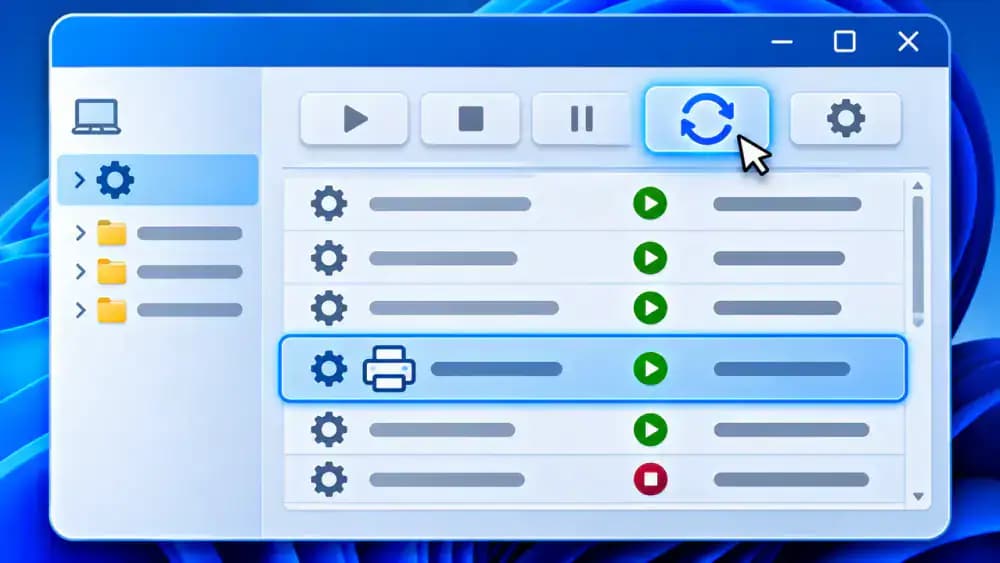
Press Windows+R to open the Run dialog, type services.msc, and select OK. In the Services window, find Print Spooler, right-click it, and choose Restart, as illustrated. This restarts the Windows service responsible for managing print jobs. Wait for its status to return to Running, then reopen your printer queue to check remaining documents. Restarting this service may interrupt active printing, especially on shared computers.
Clear Stuck Print Jobs and Resume Printing on Mac
Open System Settings on your Mac and select Printers & Scanners. Choose your wireless printer, then click Printer Queue to view pending documents. As illustrated, locate any stalled jobs and click the X beside a document you no longer need. If the printer is paused, select Resume to restart printing. Check whether remaining jobs begin processing. Save important documents before canceling jobs so you can submit them again if necessary.
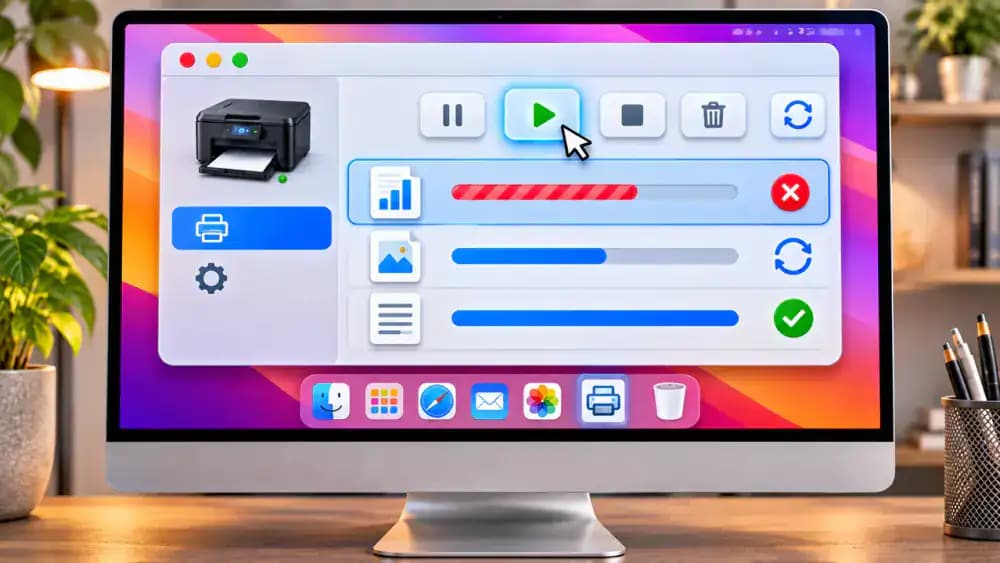
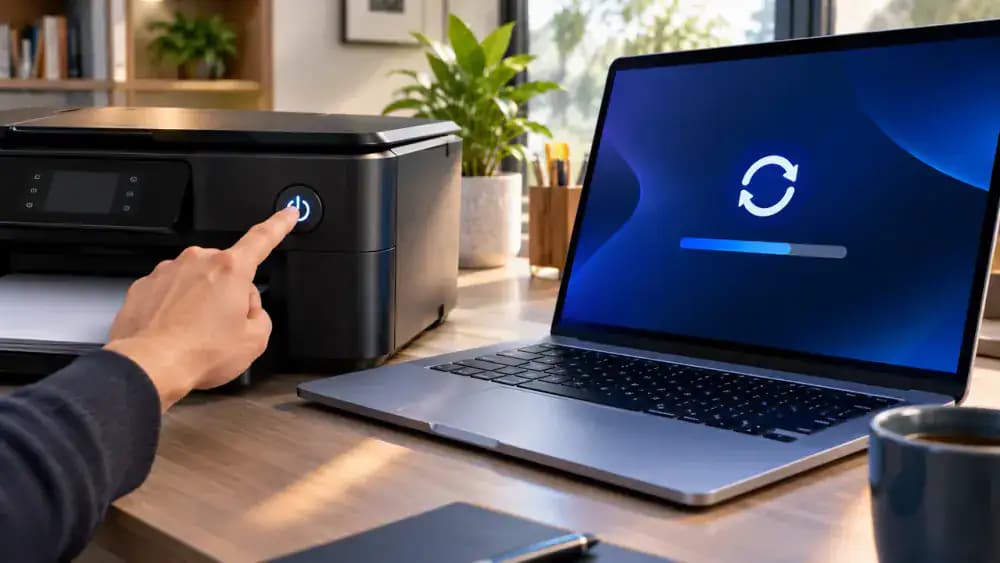
Restart Your Printer and Computer Without Resetting Settings
Press your printer's power button and wait until it shuts down completely before turning it back on. Next, restart your computer using its normal shutdown menu. On Windows 11, select Start > Power > Restart. On a Mac, open the Apple menu and choose Restart. As illustrated, allow both devices to finish starting before checking the printer's status again. This can resolve temporary communication problems without changing saved configurations.
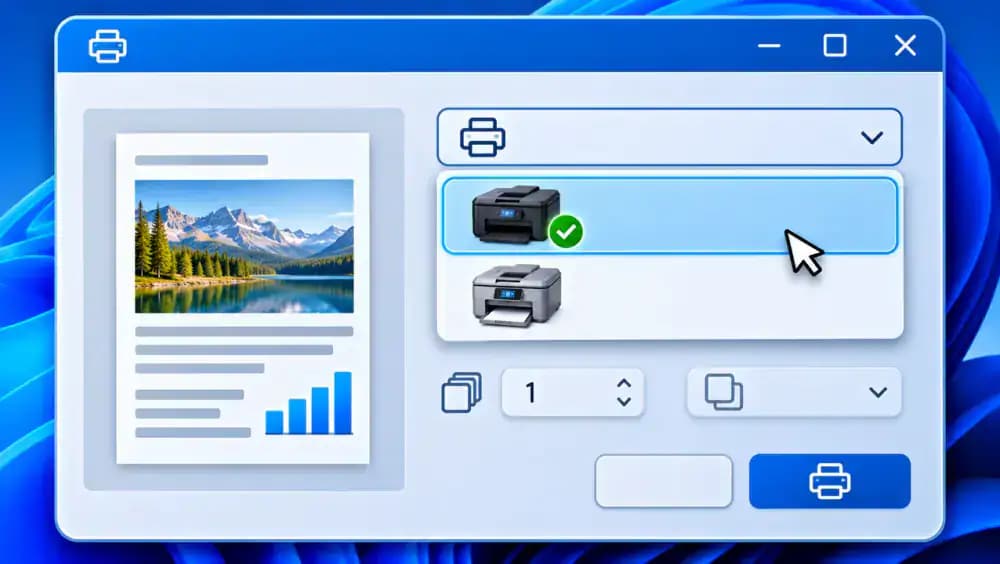
Select the Correct Wireless Printer in Windows
Open Windows 11 Settings and navigate to Bluetooth & devices > Printers & scanners. Look for duplicate printer entries, such as Home Office Printer and Home Office Printer Copy 1, as illustrated. Select each entry to inspect its status, then open your document's Print dialog and choose the intended printer. An outdated entry may cause offline warnings even when another connection is available. Keep existing printer configurations until you verify which one works.
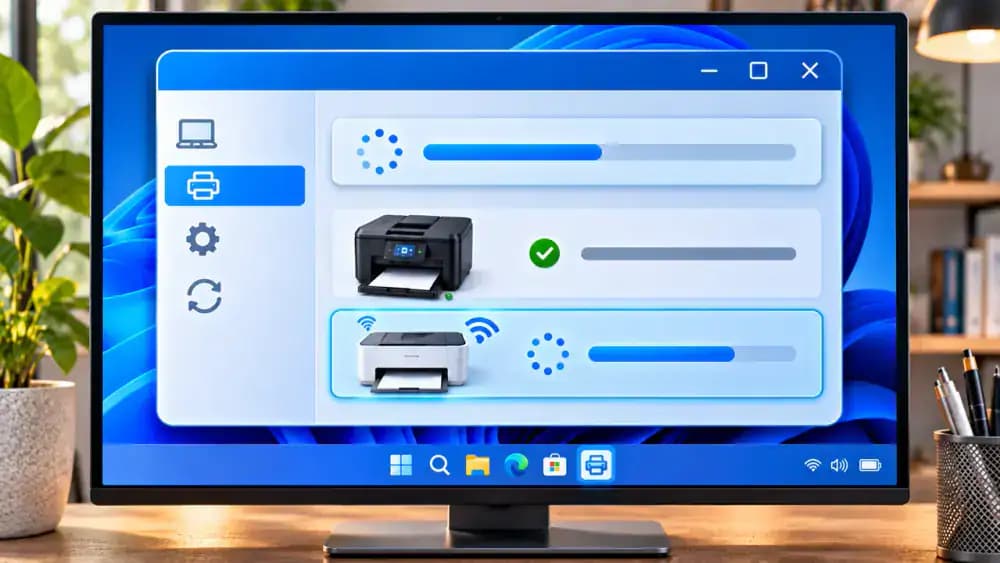
Add Your Wireless Printer Again Without Removing the Old Connection
Open Windows 11 Settings and go to Bluetooth & devices > Printers & scanners. Click Add device and wait while Windows searches for available printers. As illustrated, select the discovered printer that matches your model and follow the prompts to add it. Leave the existing printer entry untouched to preserve its settings. If Windows cannot find your printer, confirm its Wi-Fi connection and network name before trying again.
Reconnect Your Wireless Printer Through macOS Settings
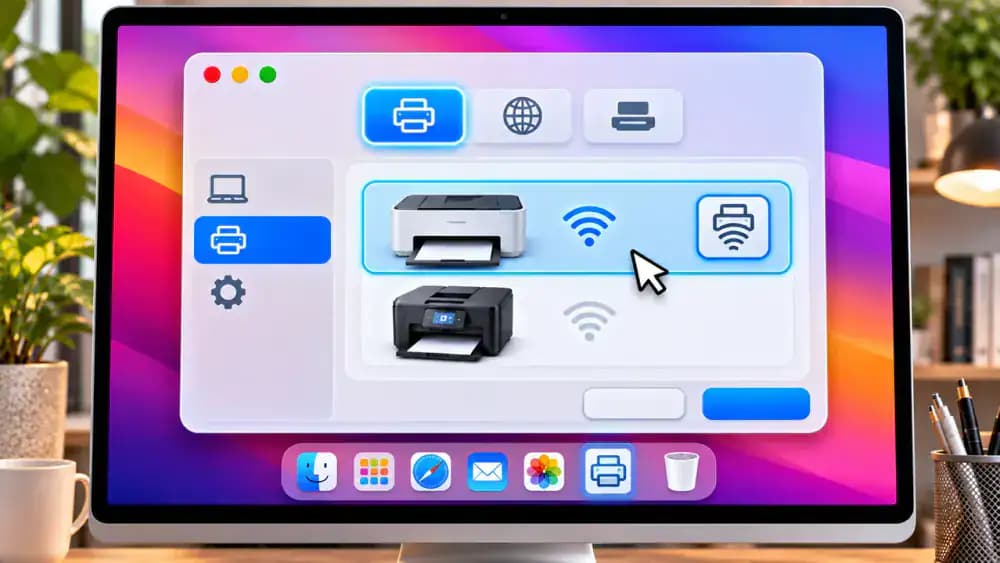
Open System Settings on your Mac and select Printers & Scanners. Click Add Printer, Scanner, or Fax, then locate your wireless printer in the available devices list. As illustrated, select the matching model and check the Use field for AirPrint or another compatible option before clicking Add. Keep your existing printer configuration until the new connection works. If the printer does not appear, verify its Wi-Fi connection first.
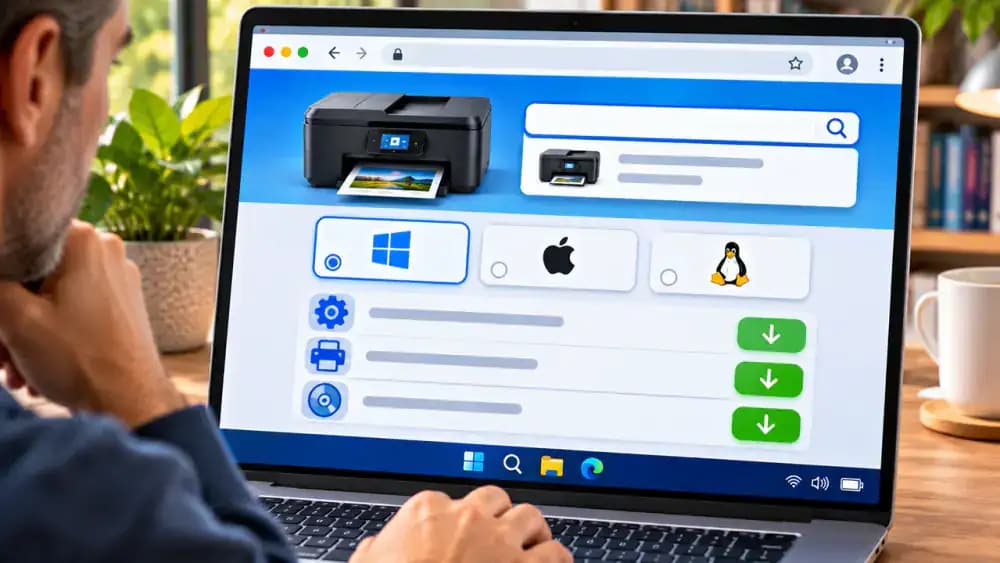
Find Compatible Printer Drivers on the Manufacturer's Official Website
Visit your printer manufacturer's official support website and search for the exact model number you identified earlier. As illustrated, open the matching product page, select Windows 11 or your macOS version, and review the recommended drivers and setup software. Check compatibility and installation instructions before downloading anything. Install only software your printer requires, and avoid third-party driver websites. Firmware updates are generally unnecessary for routine offline printer troubleshooting.
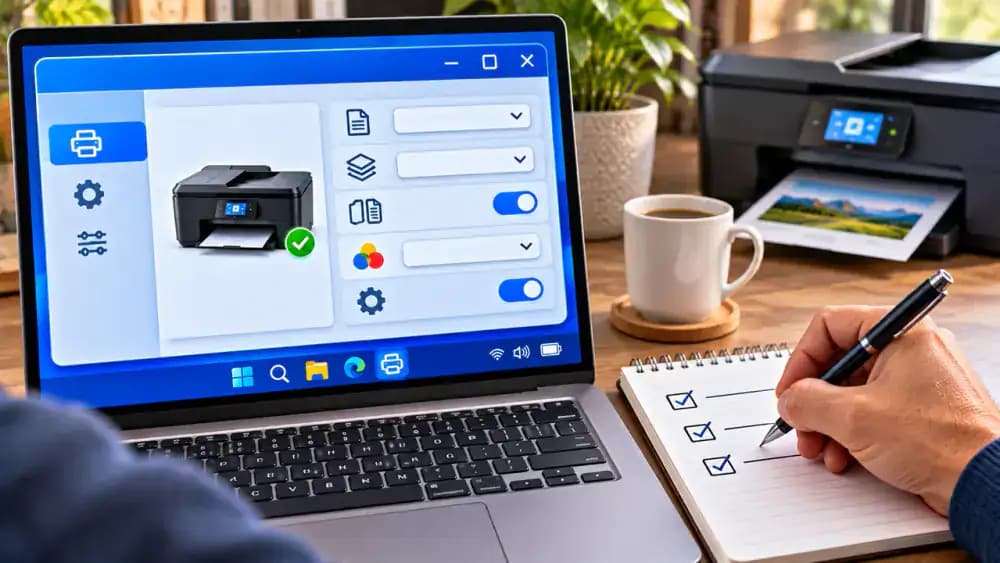
Back Up Custom Printer Preferences Before Removing Old Entries
Open your printer preferences and review custom paper sizes, print quality, color settings, and double-sided printing options. As illustrated, take screenshots of important Windows settings and record saved macOS print presets in a notebook. Note any preferences you regularly use because removing a printer may erase them. Keep the original printer entry until you successfully print using its replacement. Do not assume custom settings will transfer automatically.
Print a Test Page to Verify Your Wireless Printer Connection
On Windows 11, open Settings > Bluetooth & devices > Printers & scanners, select your intended printer, and choose Print test page. On a Mac, open a simple document, select File > Print, and choose the correct wireless printer. As illustrated, send a single page containing generic text without personal information. Check whether the printer produces the page completely, with readable text and no errors. Also confirm the job leaves the print queue.
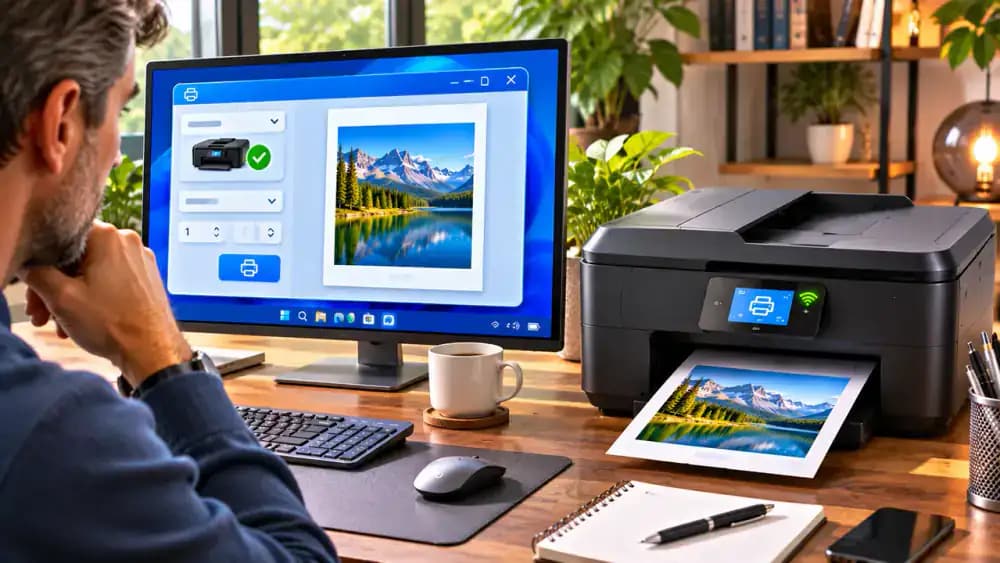
Confirm the Print Job Finishes and Disappears From the Queue
After sending your test page, reopen the print queue on Windows or Mac and watch the job's status. As illustrated, a completed job should disappear from the active queue while the printer produces the expected page. If the document remains Pending or displays Error, compare that message with the printer's control panel. An empty queue alone does not confirm success, so inspect the physical printout before considering the issue resolved.
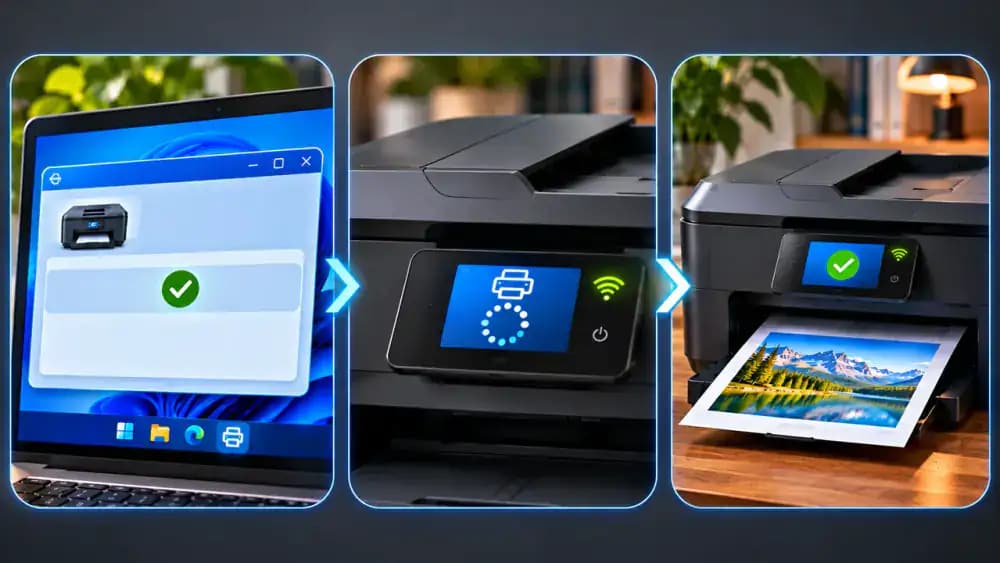
Diagnose Why Your Wireless Printer Still Won't Print
If the test page fails, identify the symptom before making further changes. The image separates three possibilities: a disconnected Wi-Fi indicator, a print job stuck on Pending, or an error on the printer display. Recheck network connectivity for wireless problems and inspect the queue or official drivers for stalled jobs. For persistent printer errors, record the exact message and model number before contacting manufacturer support.
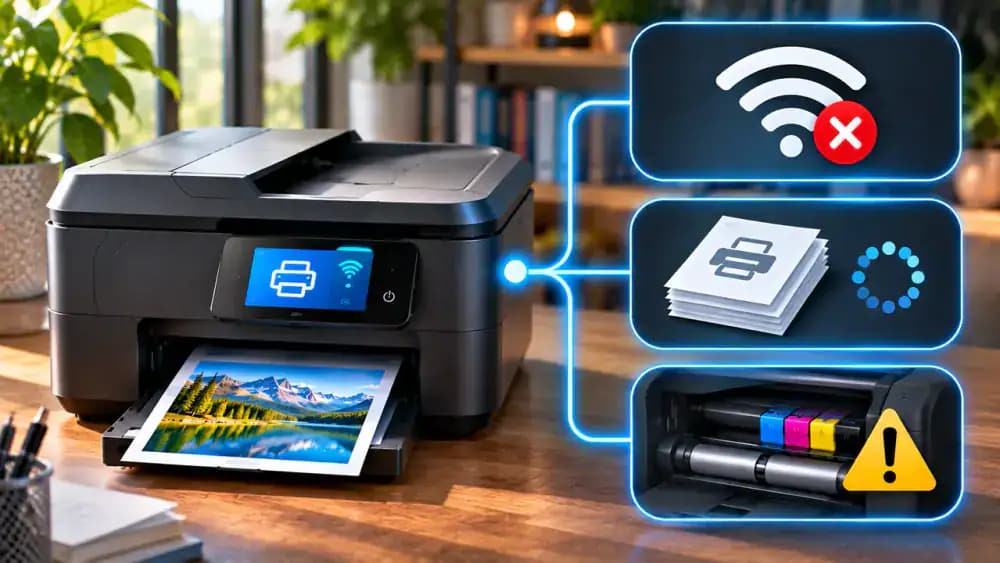
Improve Wi-Fi Signal Strength by Repositioning Your Printer
Check the Wi-Fi signal indicator on your printer, especially if it frequently switches between online and offline. As illustrated, thick walls, metal shelving, and distance from the router can weaken reception. If practical, turn off the printer and move it to a stable, open surface closer to the router. Leave adequate ventilation space and avoid stretching cables. Reconnect the printer and check its signal indicator before testing printing again.
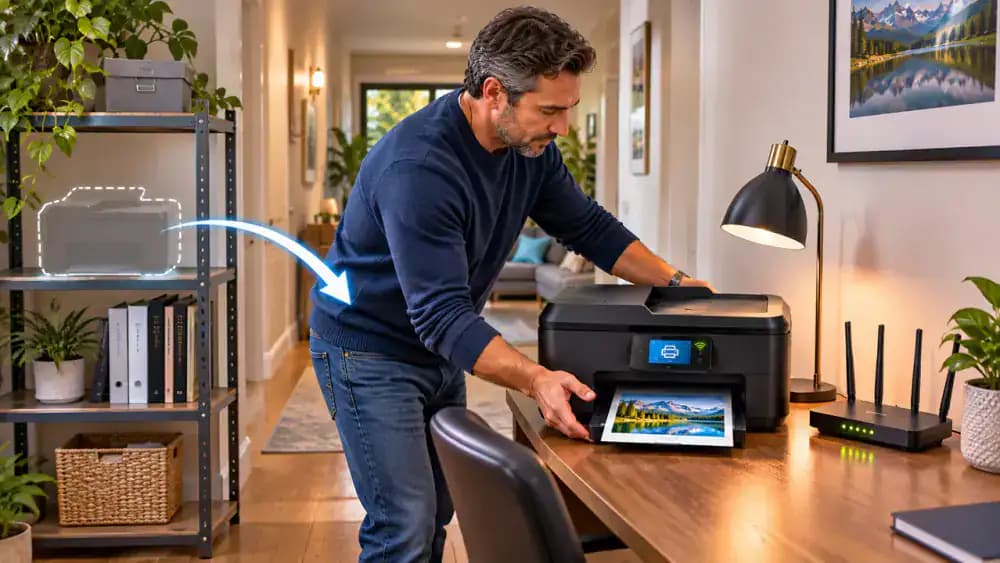
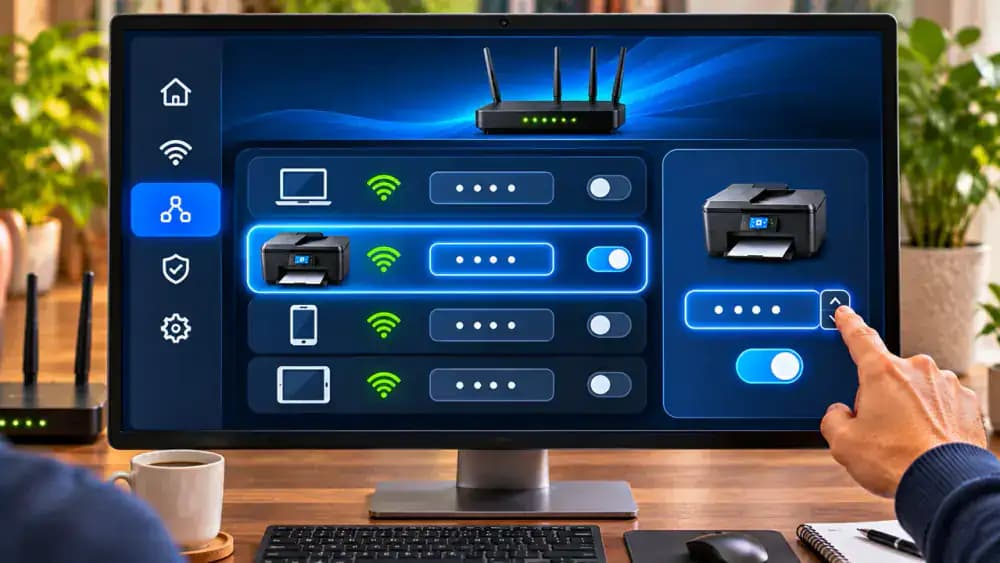
Reserve a Consistent IP Address for Your Wireless Printer
Open your router's administration interface and locate Connected Devices or a similar section. Find your printer and note its current local IP address. As illustrated, routers supporting DHCP reservations let you assign a consistent address to that device. Follow your router manufacturer's instructions and use an available address within your existing network range. Avoid conflicting assignments or unrelated security changes. This may help prevent recurring offline errors caused by changing addresses.
Review Your Print Queue Before Sending Large Documents
Before printing a large document, open your printer's queue through Windows or macOS printer settings. As illustrated, look for old failed jobs, duplicate documents, or paused printing. Review each filename carefully and cancel only jobs you recognize and no longer need. If offline errors keep returning, record the date, printer status, and symptoms in a notebook. These details can help identify recurring problems without changing printer configurations.
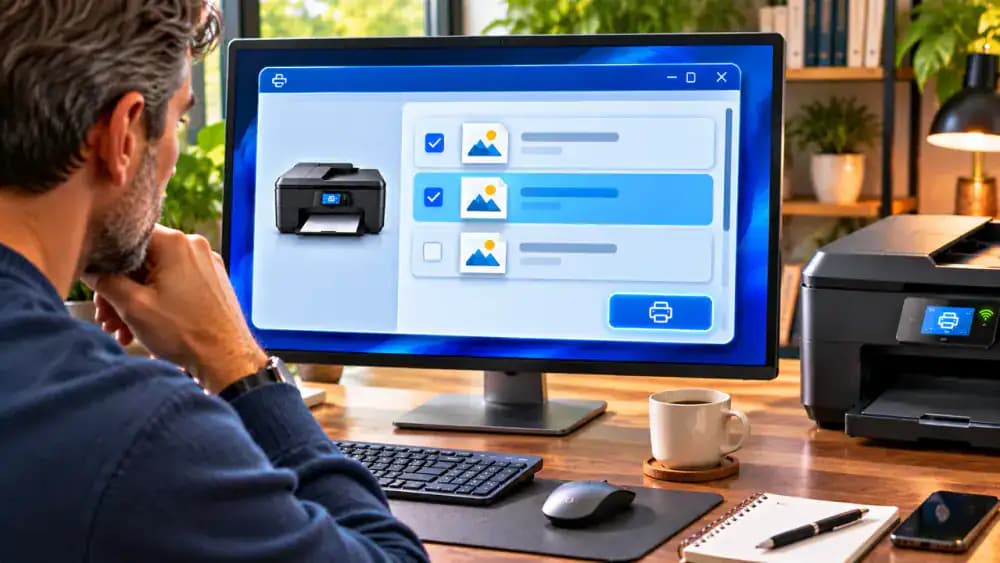
Follow These Five Checks Whenever Your Printer Goes Offline
Use the five-stage troubleshooting checklist illustrated to work through future offline printer problems. Start by checking the printer's power, paper, and error messages. Next, verify its Wi-Fi connection and network compatibility. Inspect the print queue for stalled or paused jobs, then reconnect the printer through Windows or macOS settings if necessary. Finally, print a test page and confirm both the physical output and queue status before considering the problem resolved.
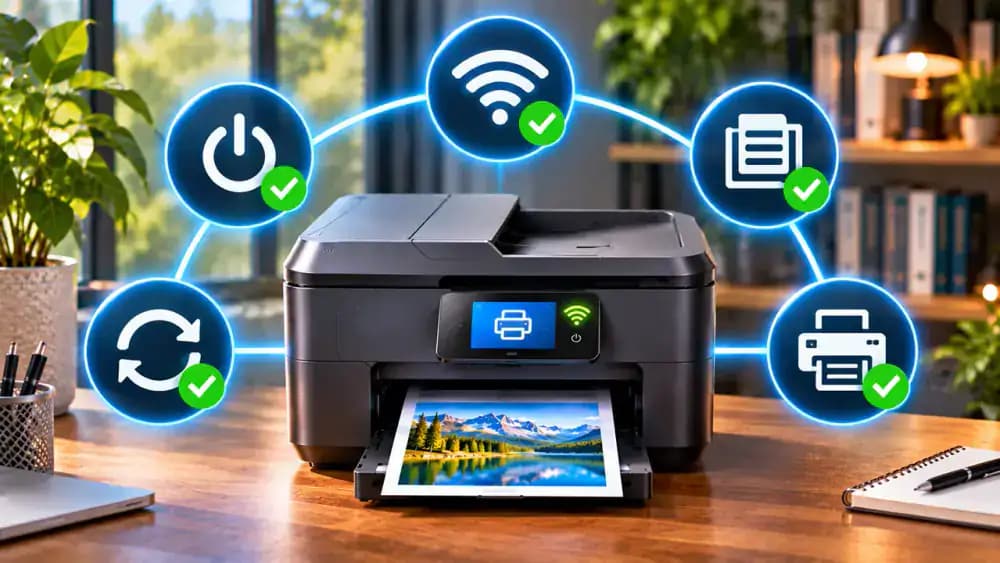
Confirm Printing Works or Contact Official Printer Support
If your printer produces a complete test page and the job clears from the queue, printing is working again. The image also shows what to do if the printer remains offline: visit the manufacturer's official support website and provide your printer model, operating system, and exact error details. Keep passwords and sensitive information private. For additional troubleshooting guides, explore the Tech and Device Fixes collection on 1lessproblem.com.
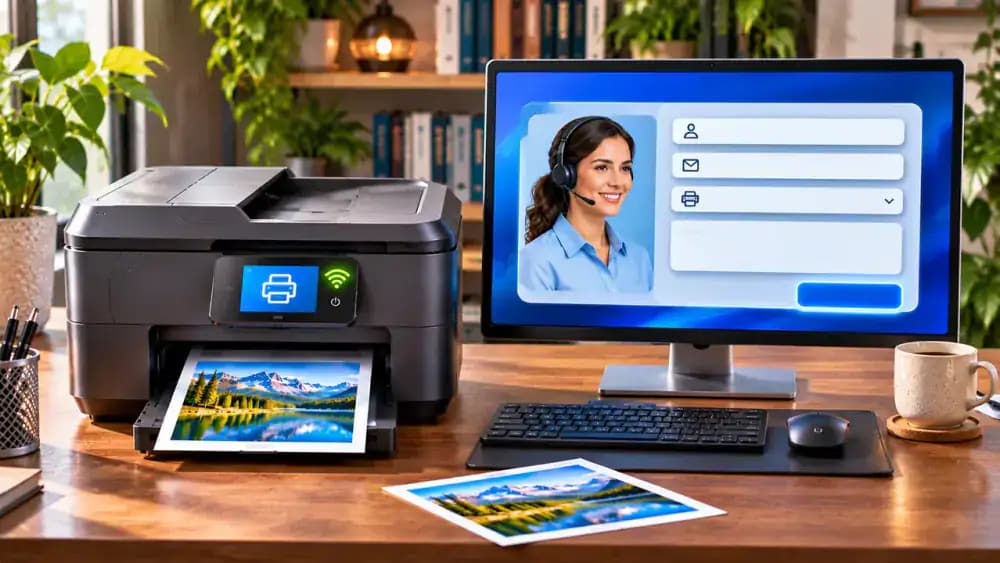
Your wireless printer is turned on, the Wi-Fi appears to be working, and there's paper in the tray. Yet Windows or macOS insists the printer is offline, leaving your documents stuck in the print queue. It's a frustrating problem, especially when you need to print something quickly. Fortunately, an offline printer doesn't necessarily mean anything is broken. The issue is often caused by a dropped network connection, an incorrect printer setting, or a stalled print job. Most of these problems can be resolved in just a few minutes without replacing equipment or paying for technical support.
This guide walks you through practical troubleshooting steps for wireless printers on Windows and Mac. You'll learn how to check your printer's connection, identify Wi-Fi compatibility issues, clear stuck print jobs, restart printing services, and reconnect your printer when necessary. We'll also cover how to verify that printing works again and prevent recurring connection problems. All fixes use built-in operating system settings or official manufacturer software, without disabling firewall protection or making unnecessary firmware changes.
Where people go wrong
Assuming the Printer Is Connected Because Wi-Fi Is On. A lit Wi-Fi indicator doesn't guarantee your printer can communicate with your computer. The devices might be connected to different networks, or guest network isolation could block communication. Check both network connections and confirm your printer supports the router's wireless frequency before changing other settings.
Reinstalling the Printer Before Checking the Print Queue. Removing and reinstalling a printer is often unnecessary when a stuck print job or paused queue is causing the offline message. First, open the print queue, cancel unnecessary jobs, and check the printer's status. On Windows, restart the Print Spooler service if needed.
Downloading Printer Drivers From Unofficial Websites. Searching for a quick driver fix can lead to unfamiliar download sites offering outdated or potentially unsafe software. Use Windows or macOS printer settings and download drivers only from the printer manufacturer's official website. Avoid unnecessary firmware modifications or disabling firewall protection to restore connectivity.
Removing the Printer Without Saving Custom Settings. Deleting a printer configuration can erase custom paper sizes, print presets, and other preferences you rely on. Before removing the device, record important settings and confirm the correct printer model. Reconnect it through Windows Printers & scanners or macOS Printers & Scanners, then print a test page.
Questions people ask
A powered-on printer can still appear offline if it loses its Wi-Fi connection, connects to a different network, or has a paused print queue. Check the printer's display for errors and confirm its wireless connection. Then open your computer's printer settings to verify the correct device is selected and available.
Fixed it?
Get one guide like this every Thursday.