How to Speed Up a Slow Windows 11 PC for Free
Is your Windows 11 computer taking forever to start or struggling to open everyday apps? Try five built-in checks to identify performance problems, reduce unnecessary startup activity, free up storage, and keep Windows secure without buying anything.

What you’ll need
Tap to tick things off before you start.
Check How Your Windows 11 PC Responds to Everyday Tasks
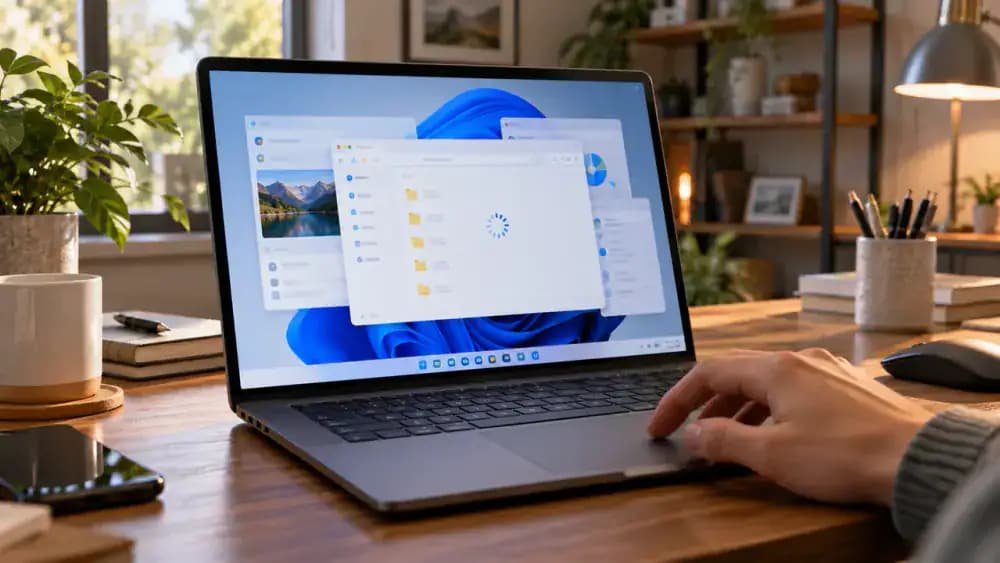
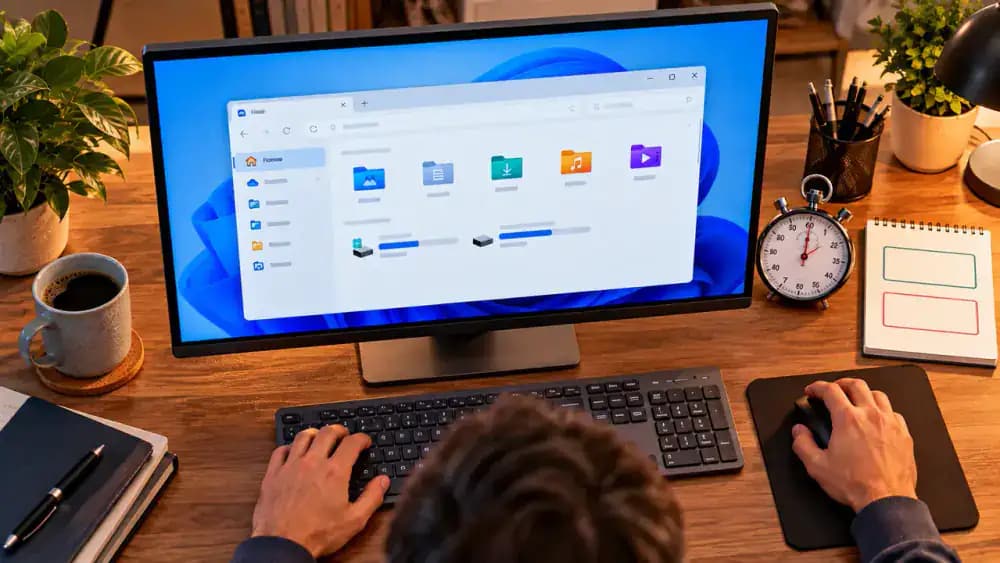
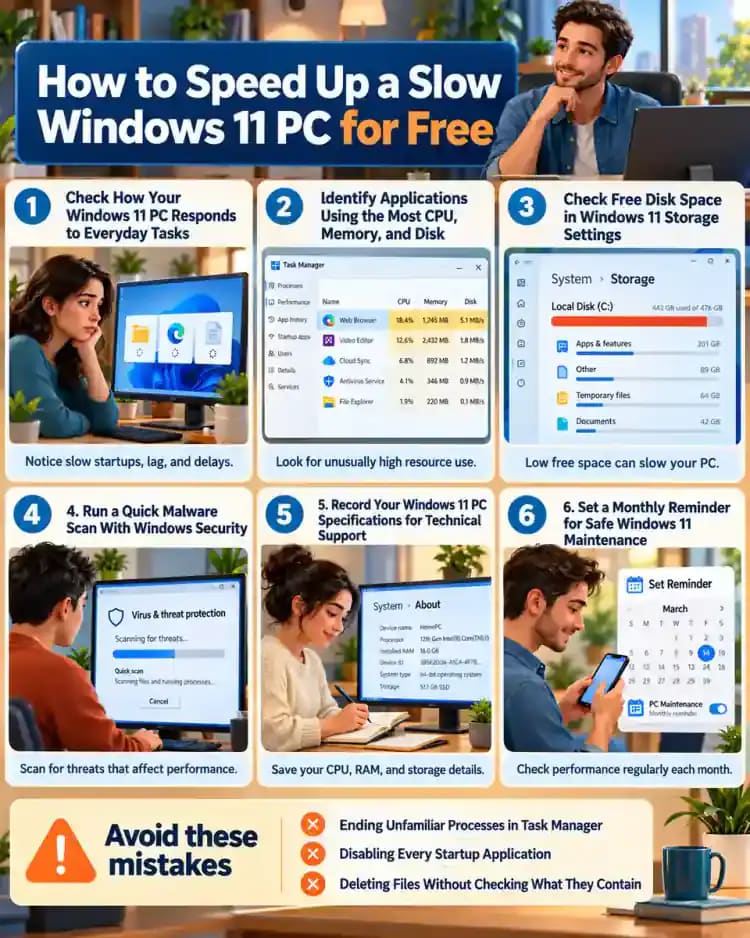
Start by opening File Explorer from the taskbar and noticing how long it takes to appear. Next, try launching another application you regularly use. Watch for delayed windows, loading indicators, or temporary freezing, as shown in the example. Pay attention to whether the slowdown happens consistently or only occasionally. Choose one repeatable task to test again after troubleshooting so you can compare responsiveness under similar conditions without relying on guesswork.
Recognize the Most Common Windows 11 Performance Bottlenecks
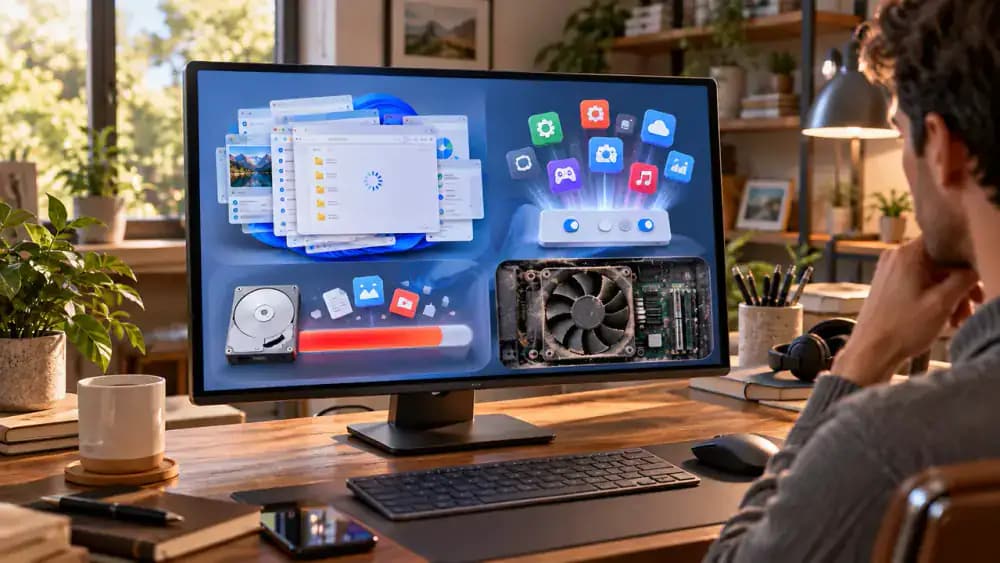
Look at the four potential causes shown: excessive memory usage from open applications, too many programs launching at startup, limited free storage space, and aging hardware. Each can affect Windows 11 differently, so identifying the likely bottleneck matters before making changes. Notice whether your computer slows down during startup, while multitasking, or when opening files. These patterns can help narrow your investigation and prevent unnecessary adjustments to system settings.
Save Your Work, Verify Backups, and Connect Power
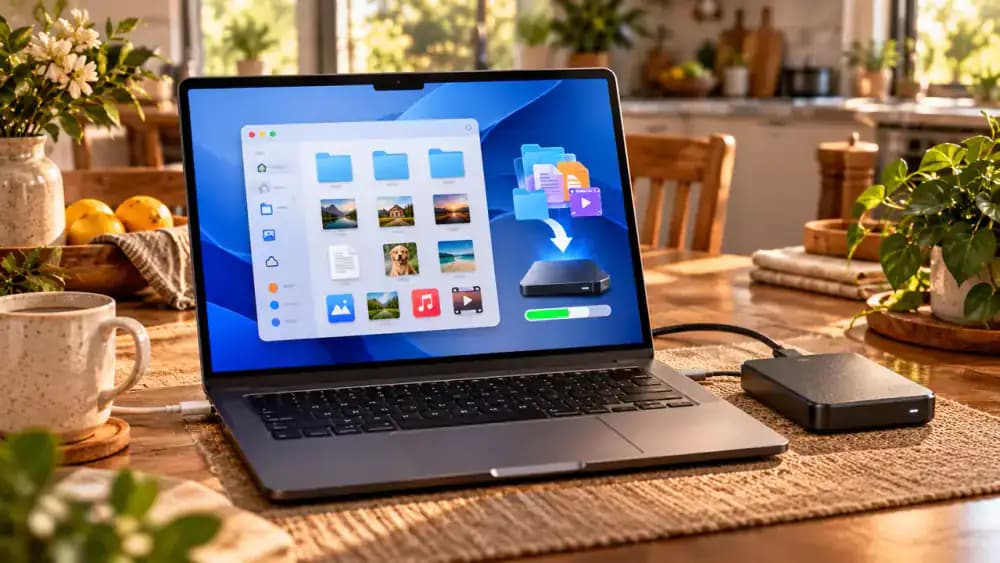
Press Ctrl + S to save any open documents, then close applications you do not need during troubleshooting. Open File Explorer and check that your important files are backed up to a reliable destination, such as an external drive or configured cloud storage. Verify that expected files are present and accessible. If you use a laptop, connect its power adapter before continuing. These precautions reduce the risk of interrupted work or accidental data loss.
Measure How Long File Explorer Takes to Open
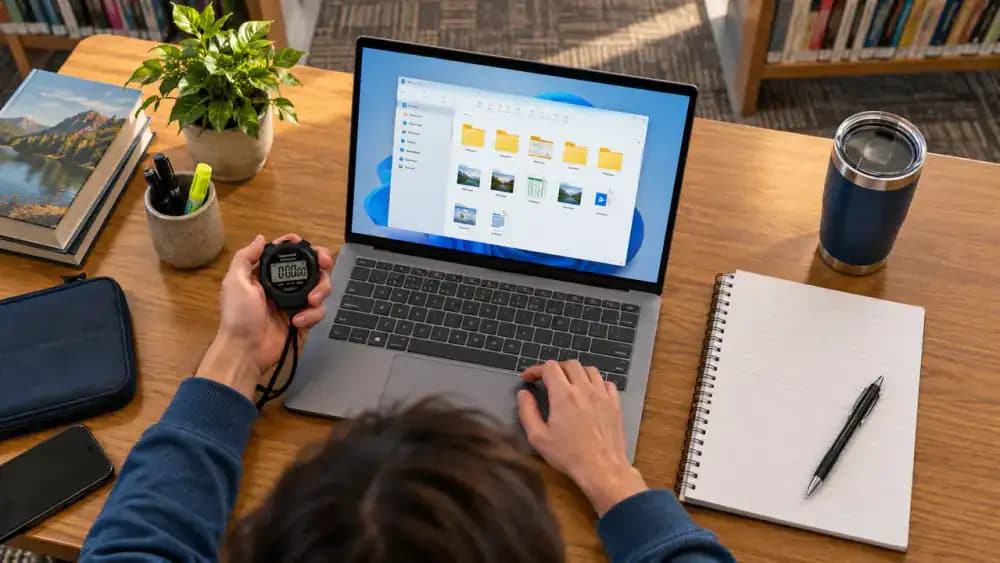
Choose a simple task you can repeat later, such as opening File Explorer from the Windows 11 taskbar. Start a stopwatch as you click the icon, then stop it when the window becomes usable. Record the approximate time and note any freezing, hesitation, or delayed response. Keep other running applications consistent between tests. This gives you a practical starting point for comparing performance after making changes, rather than relying on impressions alone.
Open Task Manager Using the Ctrl + Shift + Esc Shortcut
Press Ctrl + Shift + Esc simultaneously on your keyboard to launch Task Manager directly. The window opens to the Processes page, where you can see running applications and background processes. Look for the CPU, Memory, Disk, and Network columns, which show how different processes use system resources. You can also explore the navigation sidebar. For now, simply observe the information without ending processes or changing settings, especially if an entry is unfamiliar.
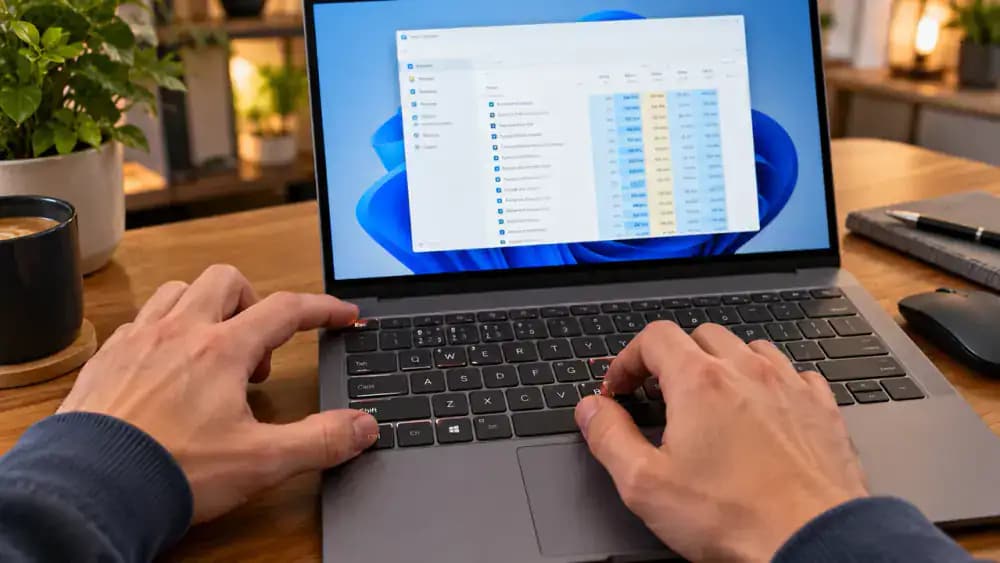
Identify Applications Using the Most CPU, Memory, and Disk
In Task Manager, select Processes and examine the CPU, Memory, and Disk columns. Click CPU to sort applications by processor usage, then repeat with Memory and Disk to find resource-heavy programs. Watch which applications consistently appear near the top, particularly when your computer feels sluggish. A brief spike in usage is normal and does not necessarily indicate a problem. Avoid ending unfamiliar processes, especially essential Windows or security services.
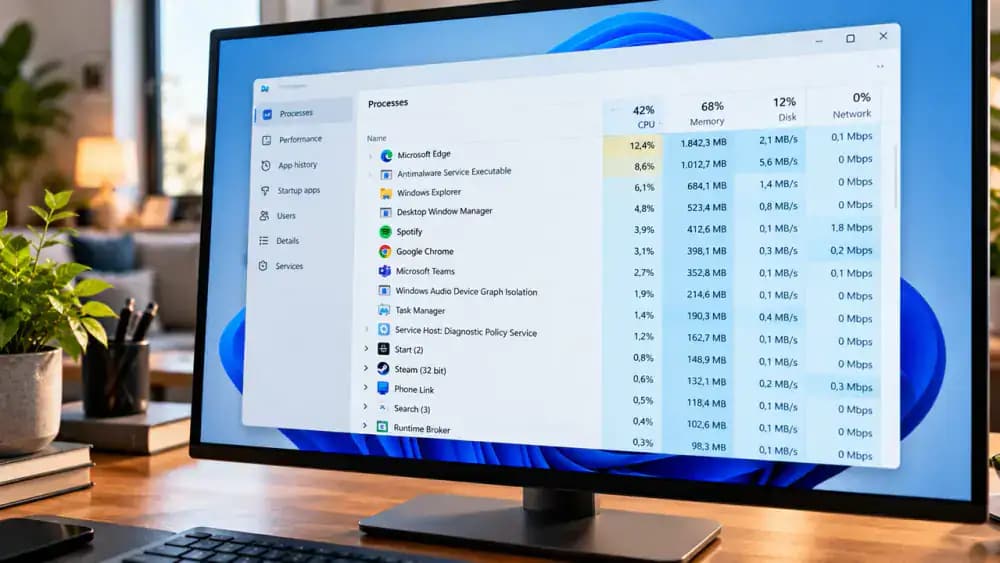
Check CPU, Memory, and Disk Activity in Performance Graphs
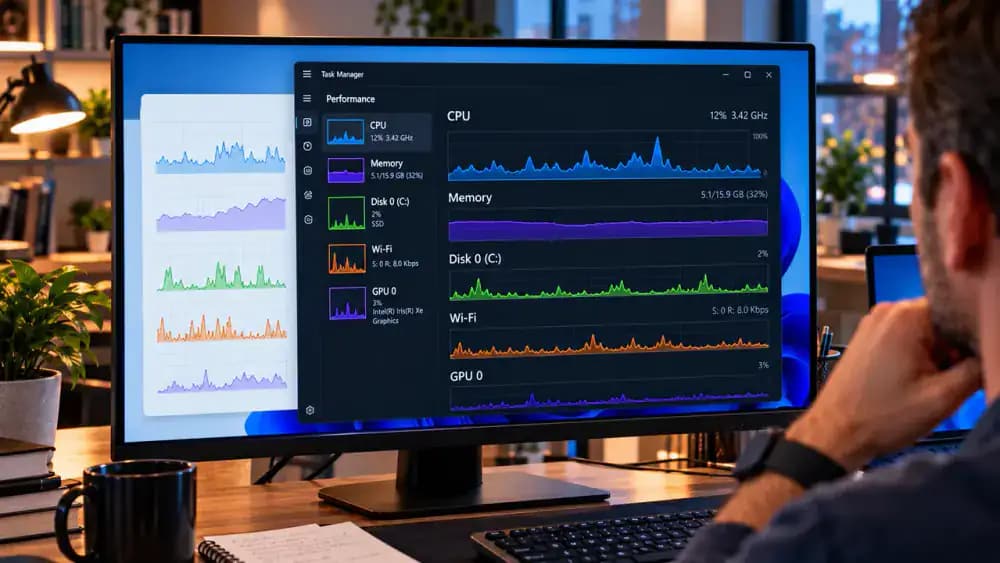
Click Performance in Task Manager's left sidebar, then select CPU, Memory, and Disk individually to examine their activity graphs. Look at processor utilization, RAM consumption, and disk active time. Keep Task Manager visible while opening a familiar folder in File Explorer, and watch how the readings change. Brief spikes are normal, but consistently high usage during slowdowns may suggest a bottleneck. These graphs provide useful clues rather than definitive diagnoses.
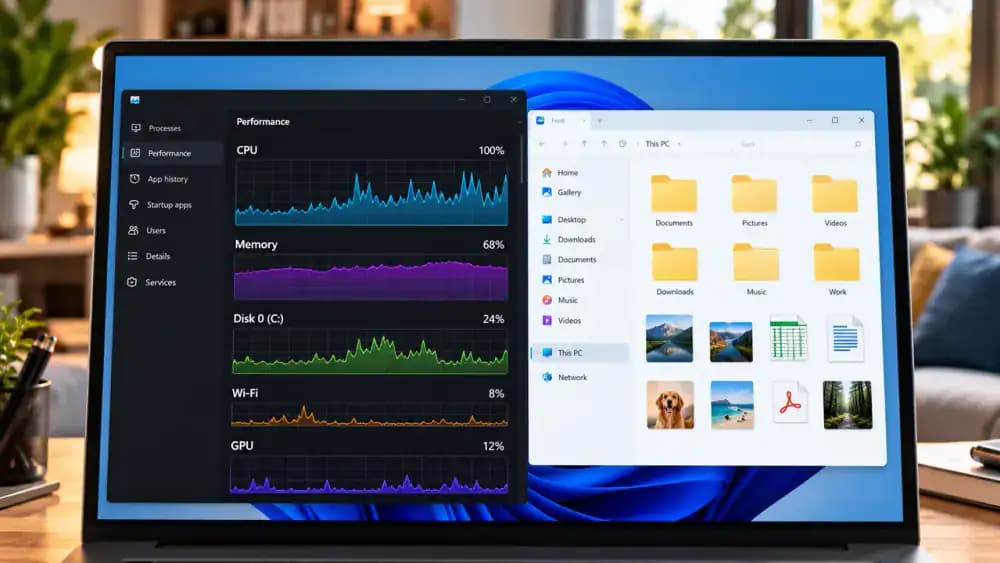
Close Unnecessary Applications Without Ending System Processes
Return to Task Manager's Processes page and identify any familiar application consistently using substantial resources. If you no longer need it, switch to that application, save unfinished work, and close it using the standard Close button. Check Task Manager again to see whether memory or CPU usage decreases. Some browser processes may remain active in the background. Never force unfamiliar Windows processes or essential security services to stop.
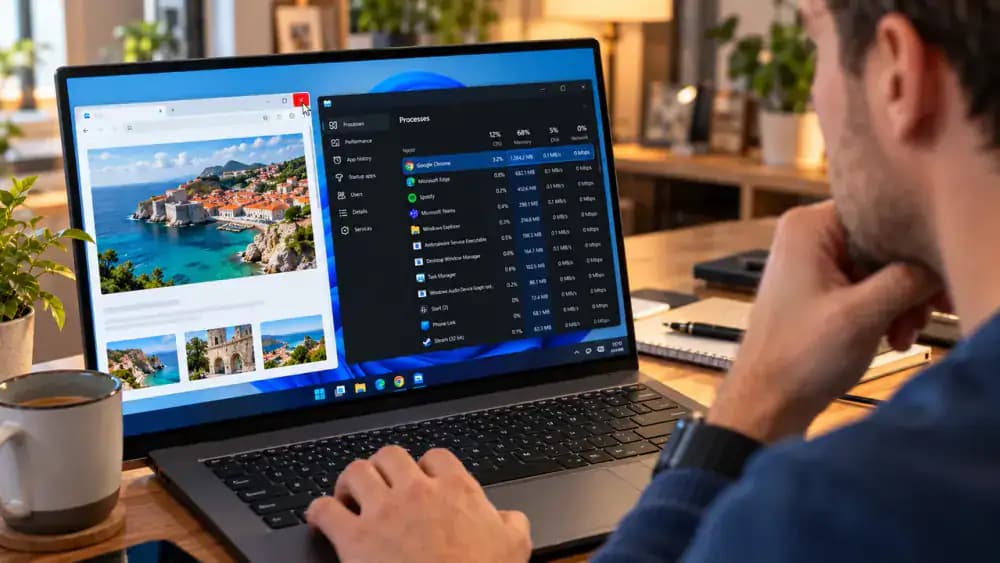
Find Programs That Launch Automatically With Windows 11
Click the Start button, open Settings, then navigate to Apps > Startup. You'll see applications configured to launch when you sign in, along with individual On and Off switches. Review each application name and its startup impact information, when available. Look for recognizable programs you rarely need immediately after starting your computer. Don't change any switches yet. Keep security software, essential accessibility tools, and unfamiliar system applications enabled while reviewing the list.
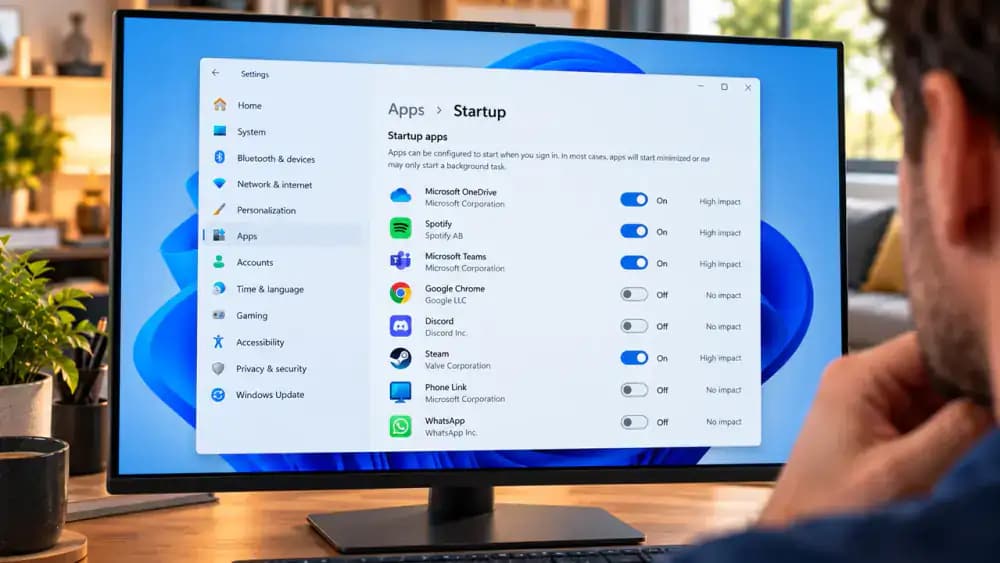
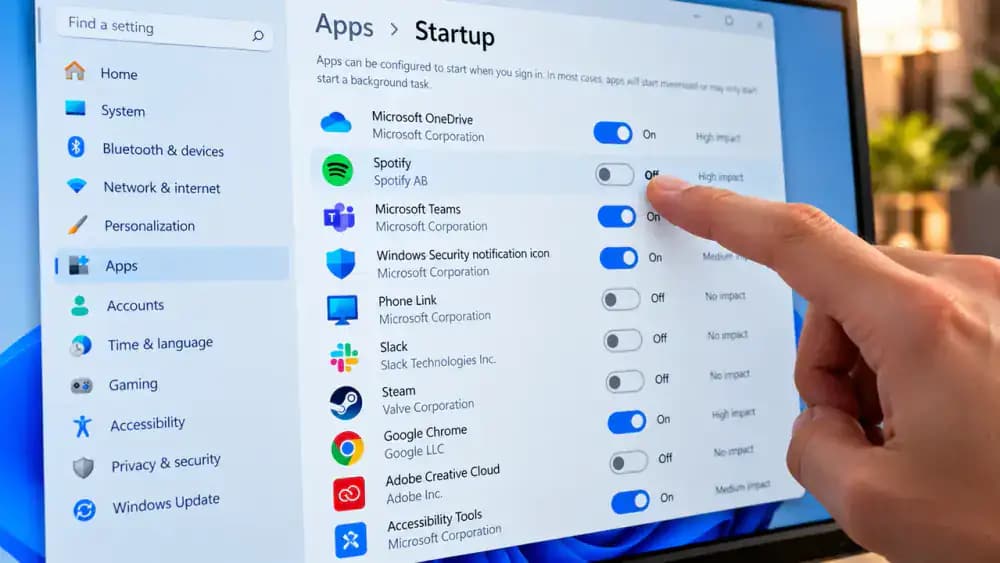
Turn Off Startup Apps You Don't Need Immediately
In Settings > Apps > Startup, find a recognizable application you don't need running automatically, such as a music player. Click its switch from On to Off. The application remains installed and can still be opened manually from the Start menu. Leave security software, essential accessibility tools, and unfamiliar applications enabled. If you later need a program to launch automatically, return to this page and switch it back On.
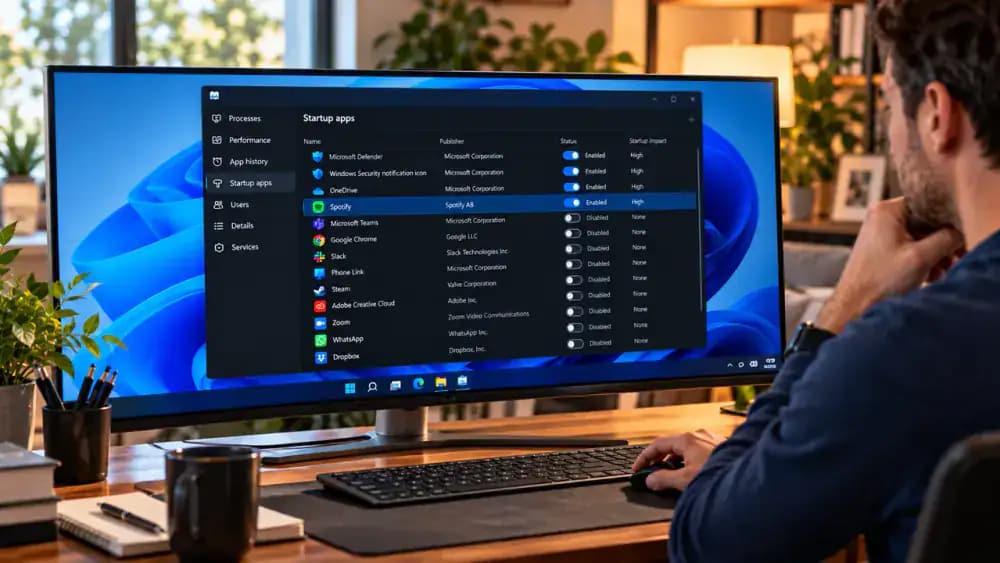
Check Startup Impact Before Disabling More Applications
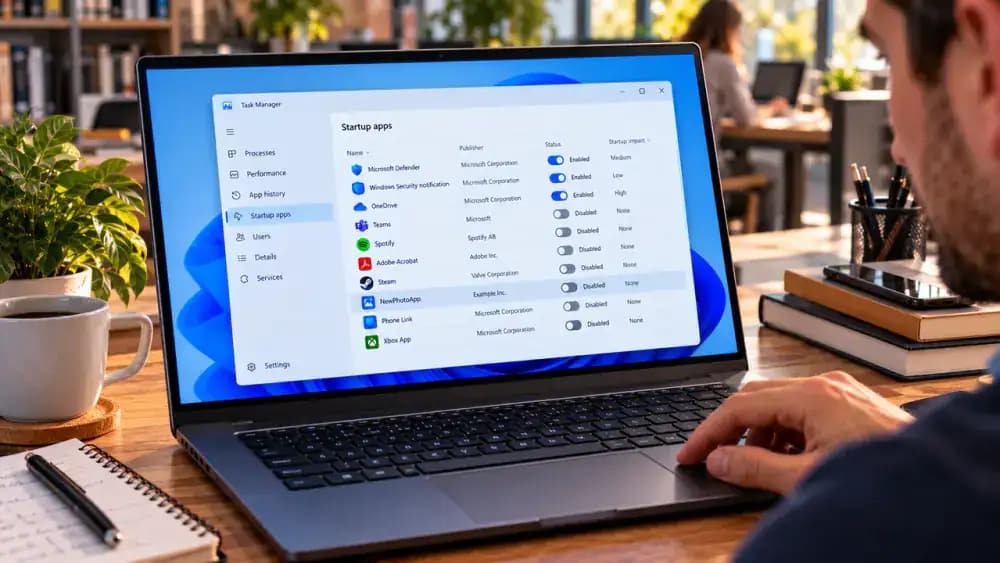
Open Task Manager using Ctrl + Shift + Esc, then select Startup apps from the left sidebar. Click the Startup impact column to compare applications labeled High, Medium, or Low. A High rating suggests greater resource usage during startup, but doesn't automatically justify disabling the application. Review each program's name, publisher when available, and current status. Keep antivirus protection, essential accessibility tools, and unfamiliar system utilities enabled unless you understand their purpose.
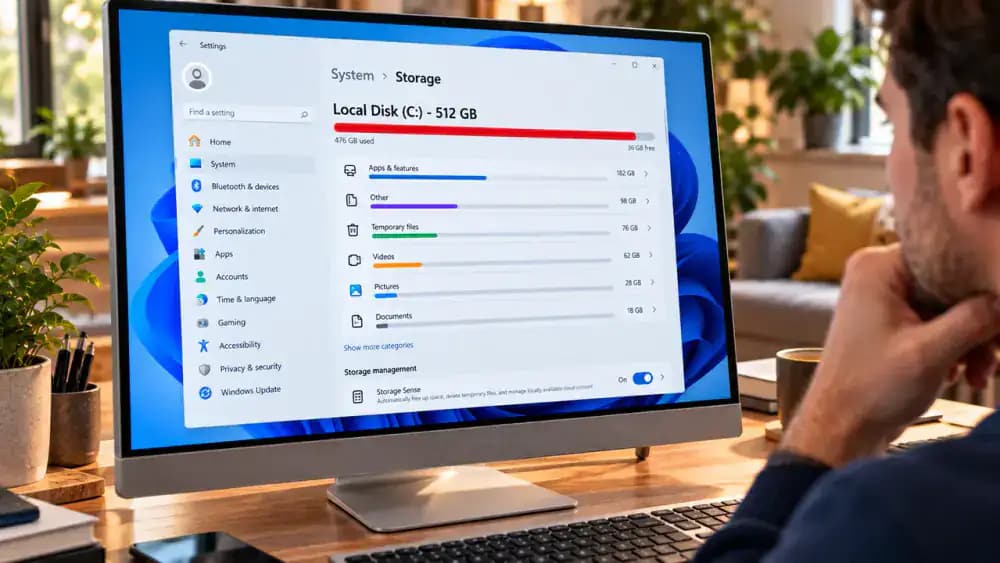
Check Free Disk Space in Windows 11 Storage Settings
Open Settings, select System, then click Storage to see how much space your main drive uses and how much remains available. Examine the capacity bar and categories such as Installed apps, Temporary files, and Other. These categories help identify where storage space is being consumed. A nearly full drive may contribute to sluggish performance, but it isn't always the cause. Review the information without deleting or modifying any files yet.
Inspect Temporary File Categories Before Deleting Anything
In Settings > System > Storage, click Temporary files and allow Windows to calculate the available cleanup categories. Review entries such as Temporary files, Thumbnails, Recycle Bin, and Downloads, noting their descriptions and selection states. Pay particular attention to Downloads and Recycle Bin, which may contain important personal files. Leave unfamiliar categories untouched until you understand their contents. Do not click Remove files yet, and verify your important backups before proceeding.
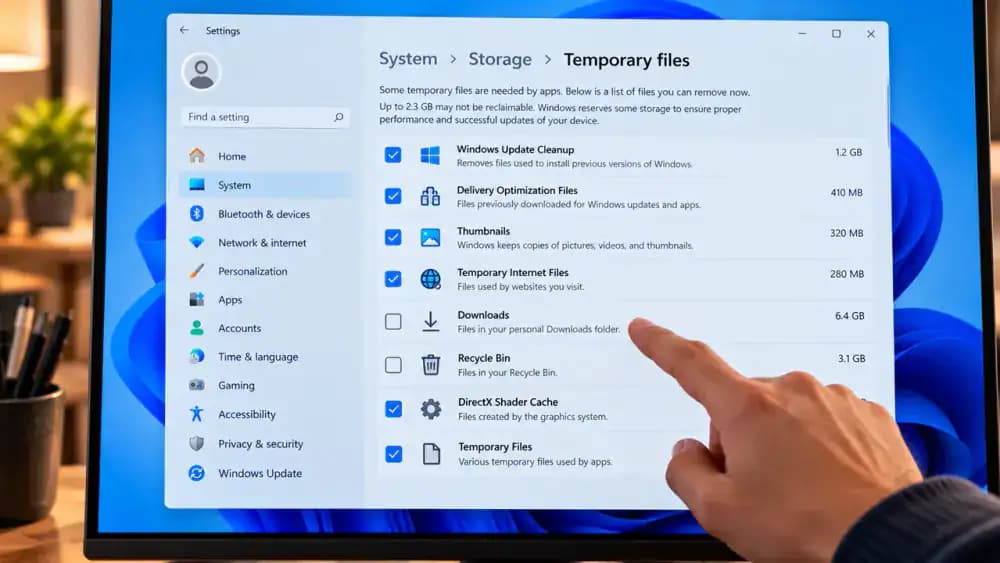
Remove Selected Temporary Files Without Losing Important Data
On the Temporary files page, select only cleanup categories you recognize and no longer need. Keep Downloads, Recycle Bin, and unfamiliar categories unchecked unless you have carefully verified their contents. Review your selections, click Remove files, and confirm if Windows asks. Allow the cleanup to finish, then return to Settings > System > Storage to check available space. Removing unnecessary files may free storage, but faster performance is not guaranteed.
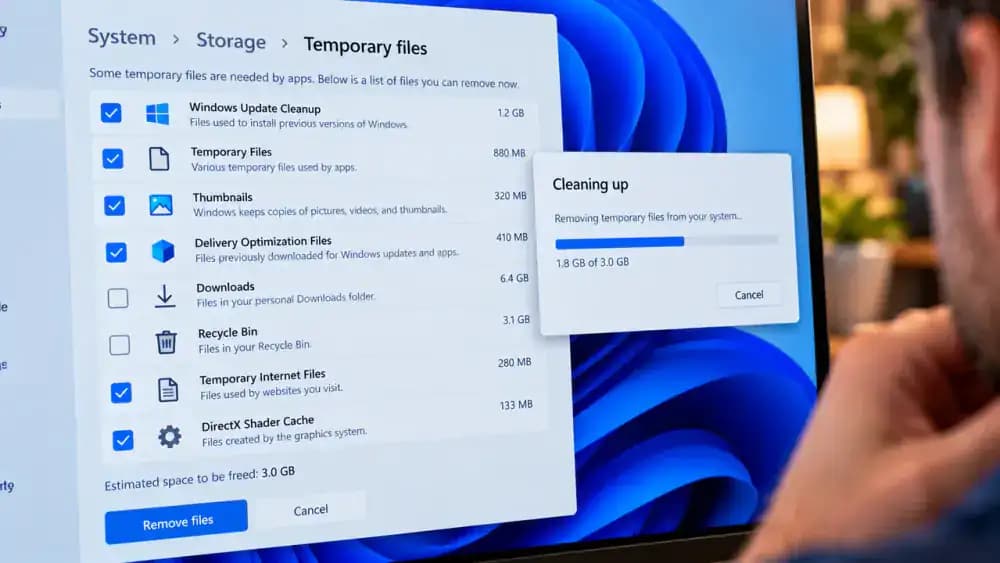
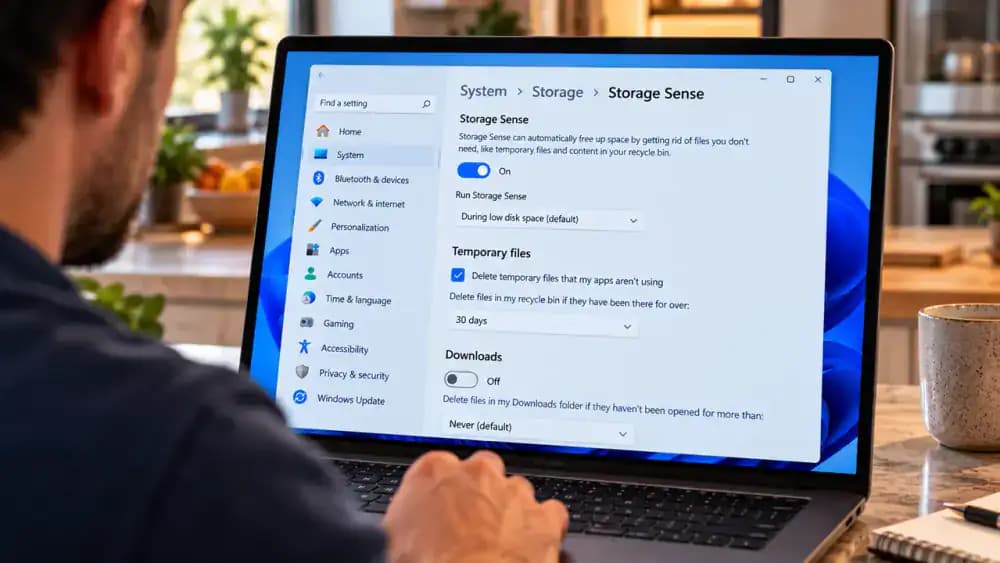
Set Up Storage Sense Without Automatically Deleting Personal Files
Return to Settings > System > Storage and open Storage Sense to review automatic cleanup options. Check the settings for temporary files, Recycle Bin, and Downloads before enabling anything. Keep Downloads cleanup set to Never, and remember that Recycle Bin retention settings can permanently remove deleted files. If you enable Storage Sense, use conservative settings that protect personal data. This feature helps manage storage clutter but cannot fix every performance problem.
Check for Windows 11 Security and Reliability Updates
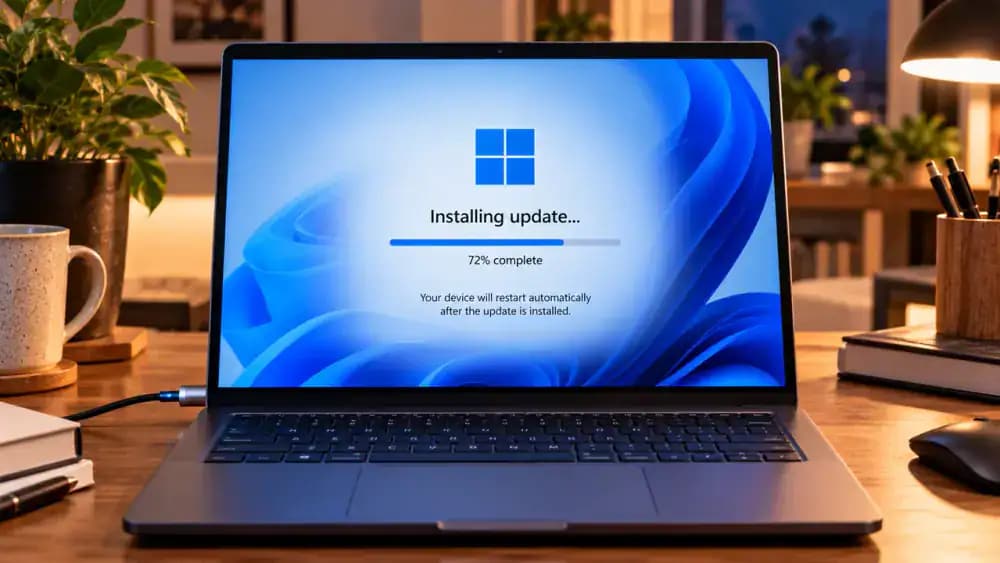
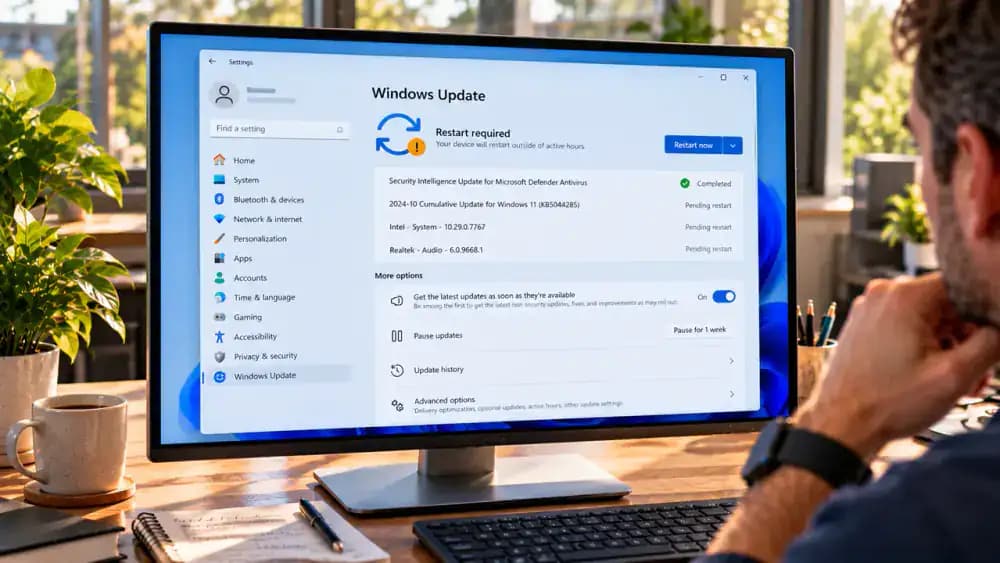
Open Settings and select Windows Update from the left sidebar. Click Check for updates and allow Windows to search for available updates. Review any security, cumulative, or reliability updates listed, then install appropriate updates through the official Windows interface. Keep your laptop connected to power during installation. If Windows requests a restart, save your work first. Updates may resolve software issues, but noticeable performance improvements are not guaranteed.
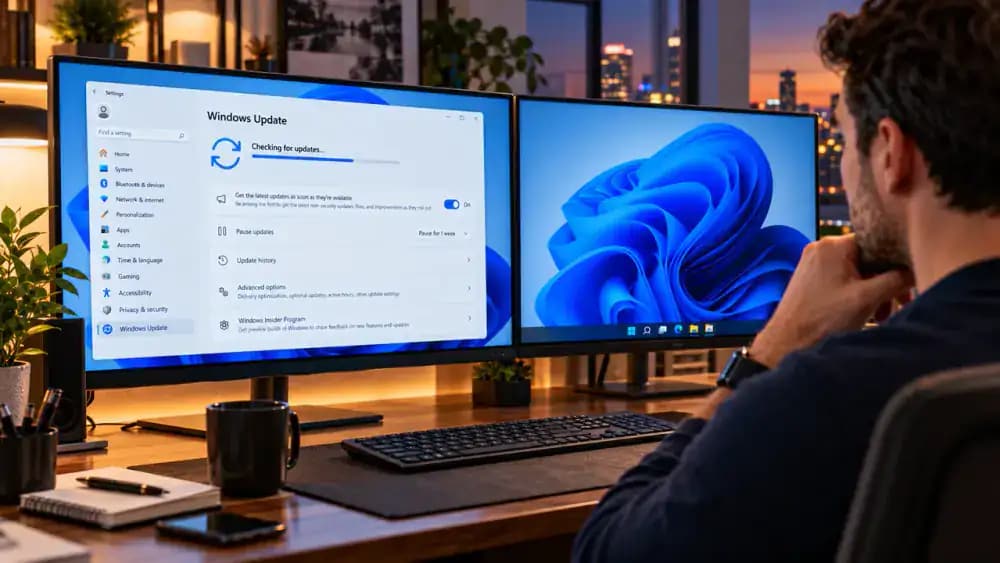
Download and Install Windows 11 Updates Without Interruptions
In Settings > Windows Update, review available updates and click Download and install when offered. Keep your laptop connected to power and allow Windows to complete the process without interruption. If a restart is required, save open documents before selecting Restart now or scheduling it. After installation and any required restart, return to Windows Update and click Check for updates again. Review any remaining updates, installation errors, or pending restart notifications.
Run a Quick Malware Scan With Windows Security
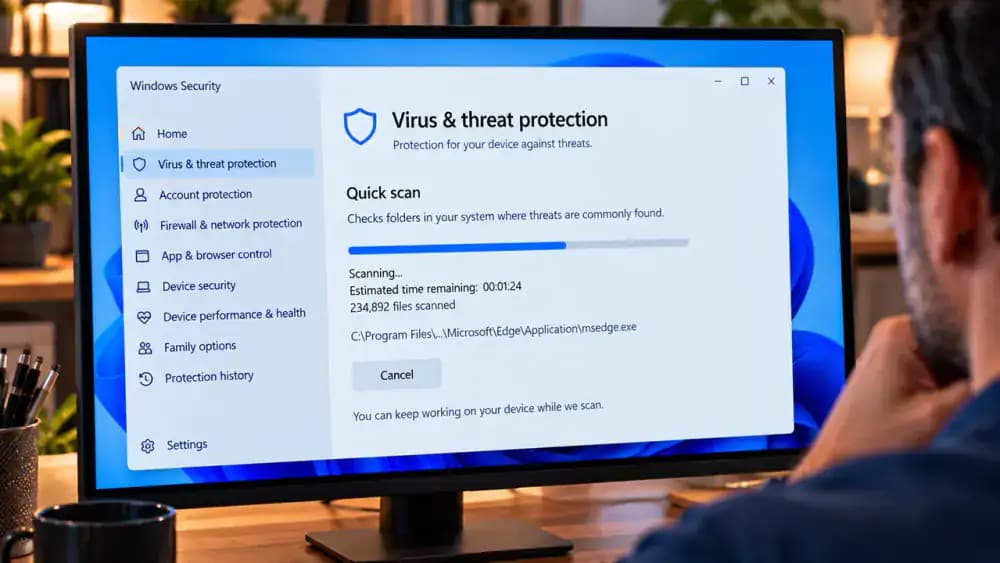
Open Start, search for Windows Security, and launch the built-in security application. Select Virus and threat protection, then click Quick scan under Current threats. Microsoft Defender will check common locations where malicious software may hide. Allow the scan to finish while keeping real-time protection enabled. Review any findings and follow the recommended actions displayed by Windows Security. A clean scan does not rule out every possible performance problem.
Check Microsoft Defender Scan Results and Protection History
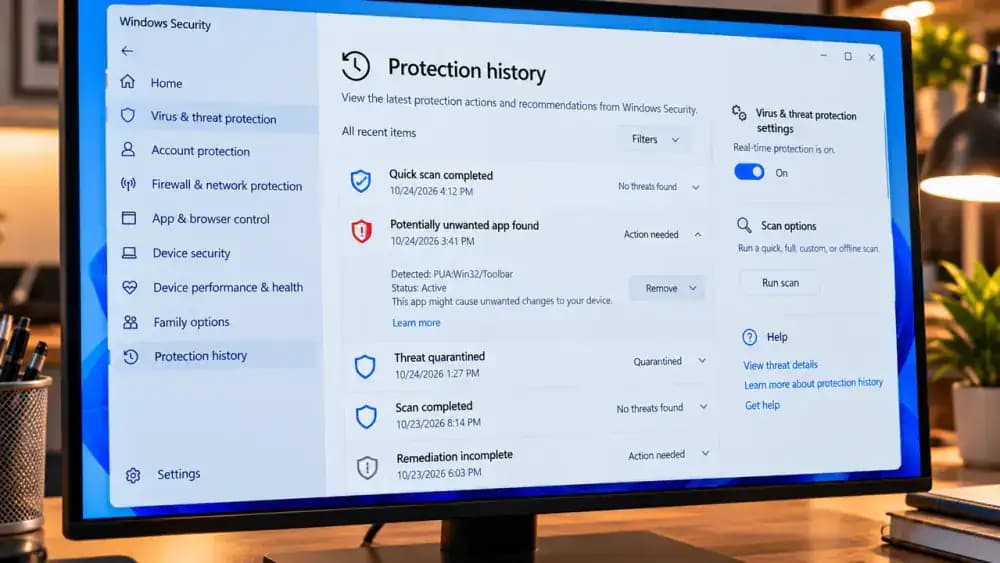
After the Quick scan finishes, review the results under Virus and threat protection, including the last scan details and any detected threats. Click Protection history to examine previous security events and recommended actions. If Windows identifies a threat, follow its official guidance rather than deleting unfamiliar files manually. If nothing is detected, remember that Quick scans have limitations. Keep real-time protection enabled and avoid unverified malware removal utilities.
Restart Windows 11 to Complete Updates and Apply Changes
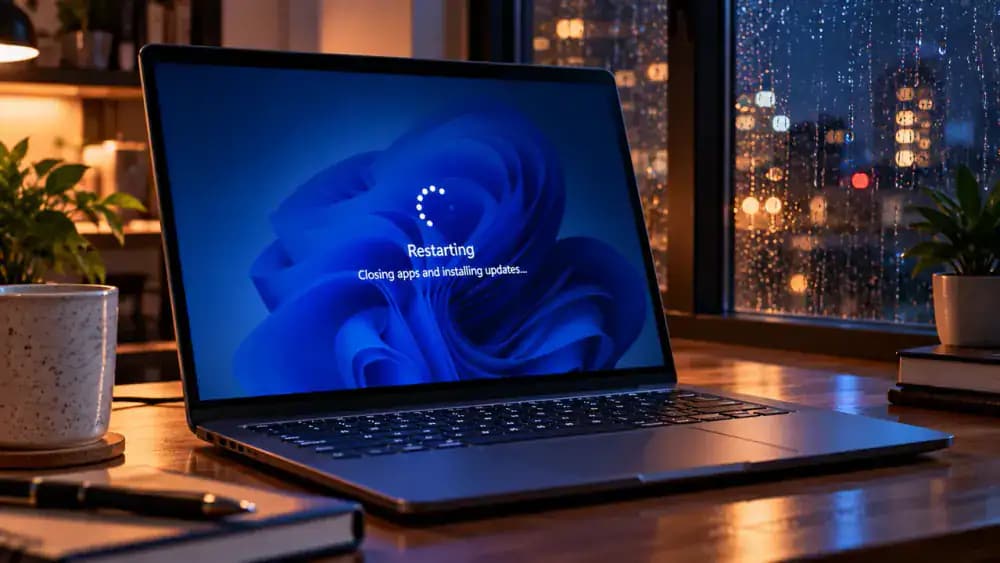
Save your open documents, close running applications, and click Start > Power > Restart. Allow Windows 11 to shut down and restart normally without interrupting the process. If updates are pending, your computer may take longer than usual to finish restarting. Once the sign-in screen appears, log in and wait for the desktop to become responsive. Restarting can clear temporary memory usage and complete updates, but performance improvements are not guaranteed.
Retest File Explorer and Compare Your Computer's Response Time
After Windows 11 restarts, open File Explorer using the same method you tested earlier. Start your stopwatch when you click its taskbar icon and stop when the window becomes usable. Record the new time beside your original measurement. Keep background applications and other testing conditions as similar as possible. Compare both results and repeat the test if needed. One faster attempt alone does not establish a consistent performance improvement.
Compare CPU, Memory, and Disk Usage After Restarting
Press Ctrl + Shift + Esc to reopen Task Manager, then select Performance from the left sidebar. Review the CPU, Memory, and Disk graphs while repeating the same application launch you tested earlier. Compare current activity with your previous observations, keeping background applications and testing conditions similar. Look for sustained resource usage rather than brief spikes. Lower activity may suggest reduced background demand, but individual readings cannot confirm an overall performance improvement.
Check Whether Your Computer's Hardware Is Limiting Performance
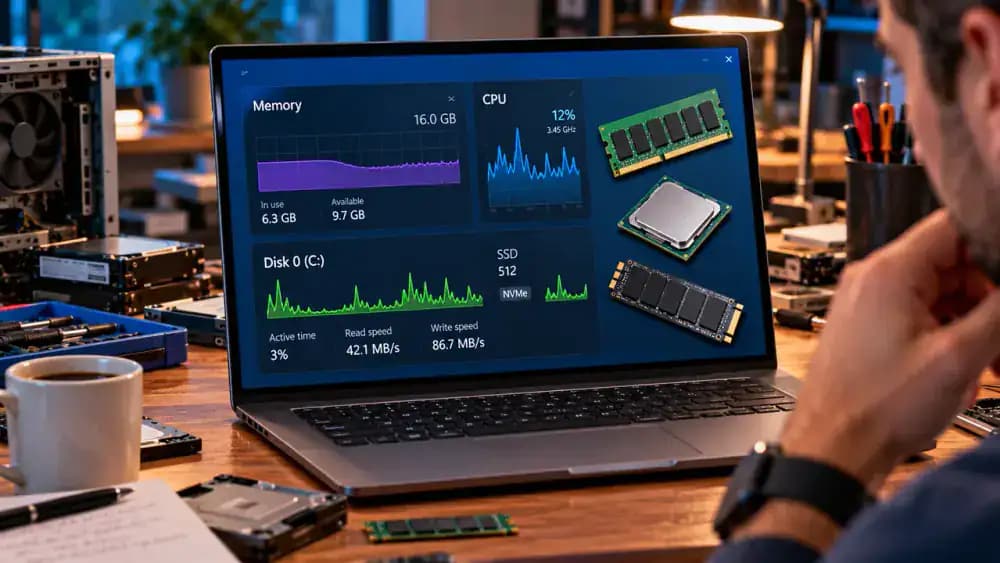
If Windows 11 remains sluggish, open Task Manager and select Performance to inspect your hardware information. Click Memory to check installed RAM and usage, Disk to review drive type and activity, and CPU to examine processor details. Consistently high memory consumption or disk activity may indicate a hardware bottleneck, especially on older computers. However, these readings cannot confirm hardware failure. Contact your computer manufacturer's official support if problems persist.
Record Your Windows 11 PC Specifications for Technical Support
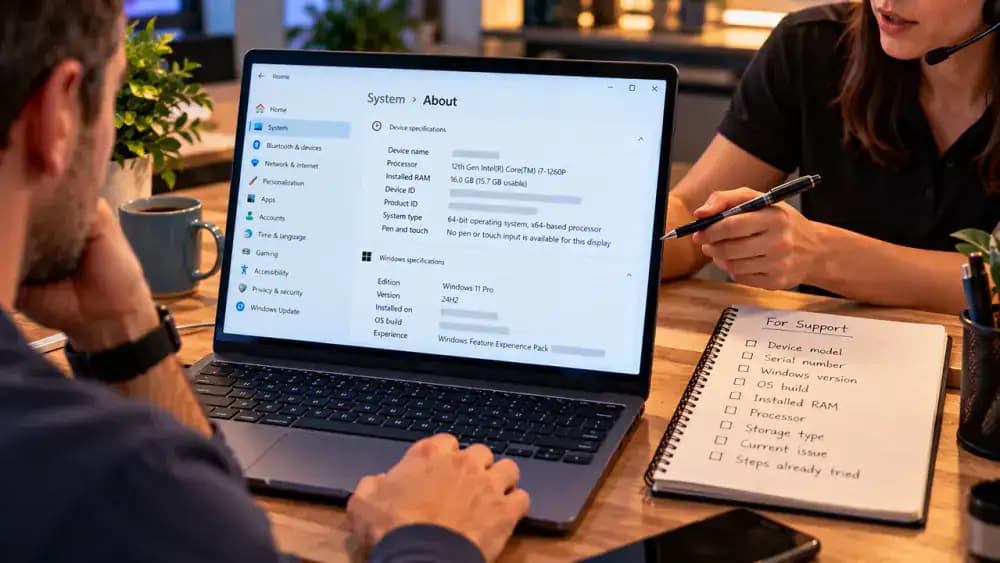
Open Settings > System > About to find your processor, installed RAM, system type, and Windows specifications. Write down these details, then check your computer's manufacturer label or official support utility for its exact model. Record recurring symptoms, error messages, and when slowdowns occur. Avoid sharing device IDs, product IDs, or serial numbers publicly. Having this information ready helps official manufacturer support or a qualified technician investigate persistent performance problems more efficiently.
Keep Windows 11 Updated to Prevent Avoidable Software Problems
Open Settings > Windows Update and review the current update status. Confirm that updates are not paused, then click Check for updates to look for available security and reliability fixes. Review pending downloads, installations, and restart notifications. Keep automatic updates enabled and schedule restarts when you can safely interrupt your work. Checking regularly helps maintain security, compatibility, and system reliability, although updates cannot eliminate every performance bottleneck or hardware limitation.
Review Startup Apps After Installing New Software
Whenever you install new software, open Settings > Apps > Startup to check whether it automatically launches when you sign in. Review the application names and switches, then turn Off any recognizable optional programs you don't need immediately, such as a music player. You can still open these applications manually. Leave security software, essential accessibility tools, and unfamiliar applications enabled. Regular reviews can help prevent unnecessary startup activity from accumulating.
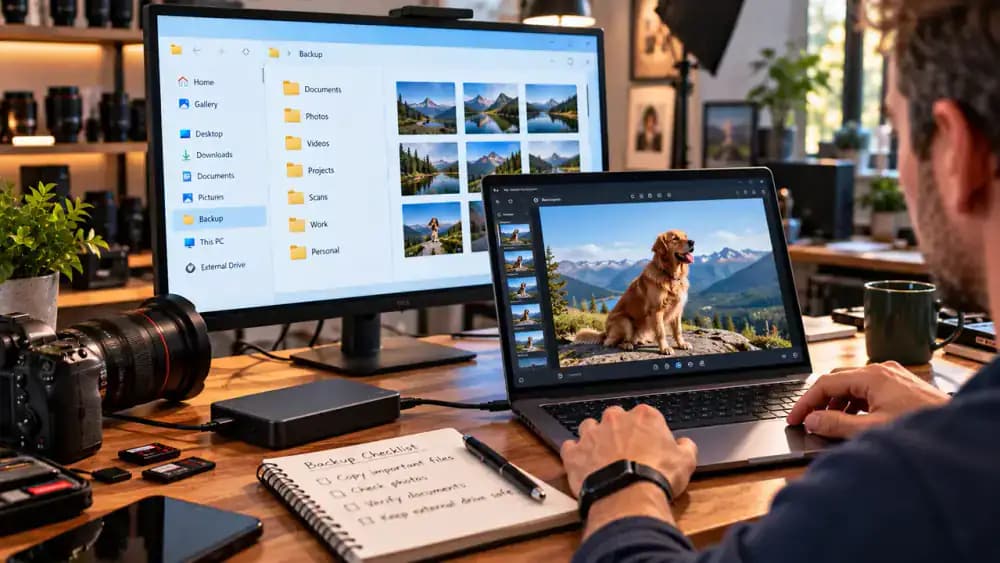
Check Available Storage and Verify Your File Backups
Open Settings > System > Storage to review available disk space and identify categories using the most storage. Inspect Temporary files carefully without deleting Downloads, personal documents, or unfamiliar system files. Next, open File Explorer and navigate to your external drive or another independent backup location. Confirm that important folders are present and try opening a sample file. Remember that successfully opening one file does not verify your entire backup.
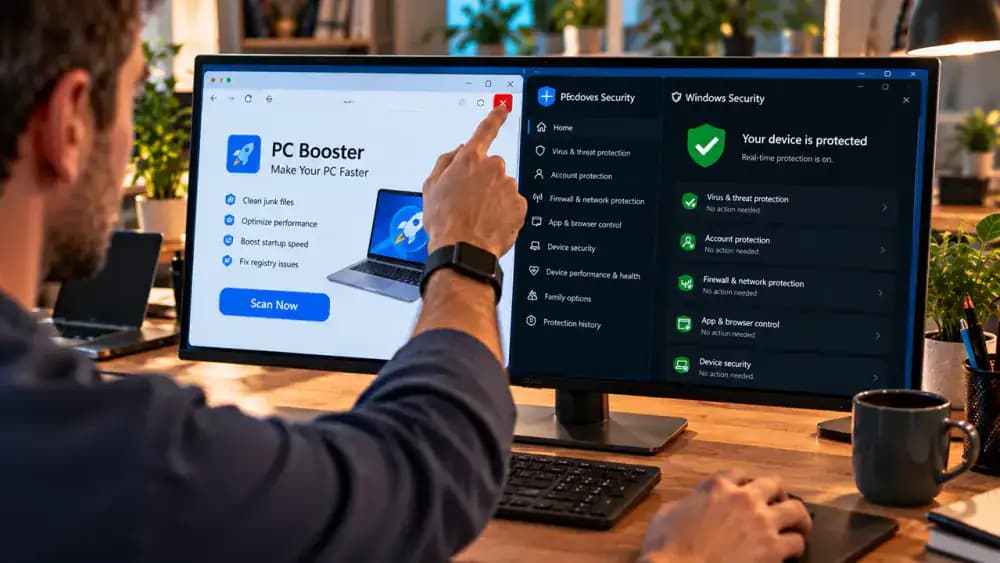
Avoid PC Speed Boosters and Other Risky Optimization Tools
If you encounter advertisements promising instant Windows 11 speed improvements, close them without downloading anything. Avoid registry cleaners, unverified optimization programs, and instructions to disable antivirus protection or delete unfamiliar system files. Instead, use trusted Windows tools such as Task Manager, Storage settings, and Windows Security. Keep real-time protection enabled, as illustrated, and consult official manufacturer support when problems persist. Risky shortcuts can cause instability without addressing the underlying slowdown.
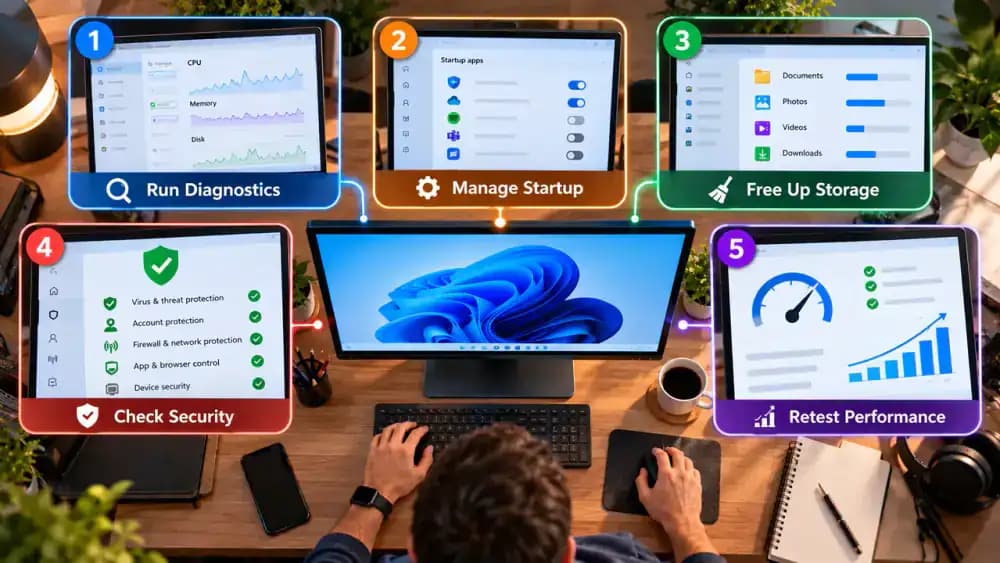
Review the Five Windows 11 Checks You Completed
Review the five troubleshooting checks shown: inspect CPU, memory, and disk usage in Task Manager; disable unnecessary startup applications; safely remove selected temporary files; check Windows Update and Windows Security; and restart to compare performance. Make sure important files remain protected and essential security tools stay enabled. If your computer still struggles with everyday tasks, record the symptoms and contact official manufacturer support for further diagnosis.
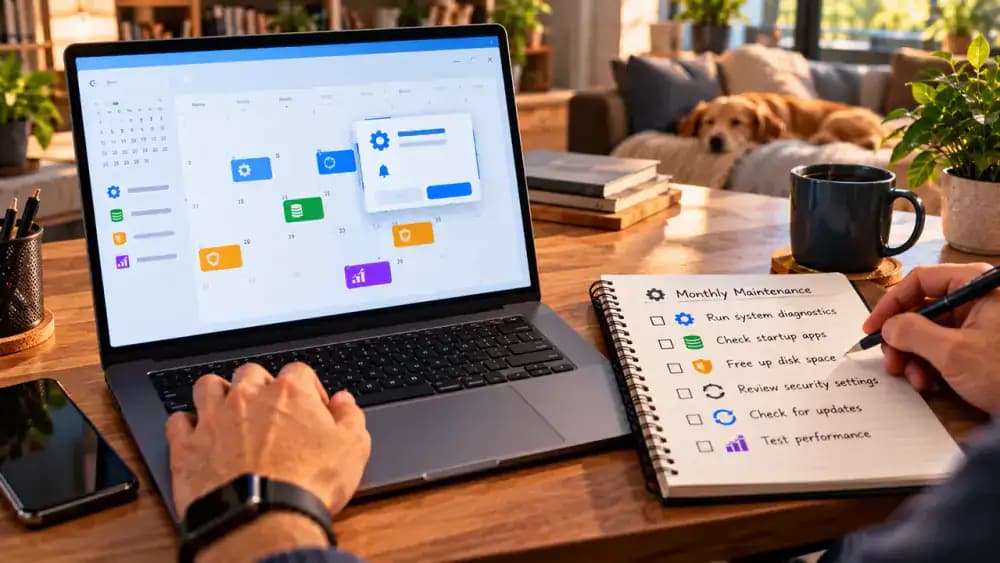
Set a Monthly Reminder for Safe Windows 11 Maintenance
Open your preferred calendar application and create a recurring monthly reminder called Windows Maintenance Review. Add four tasks: review startup applications, check available storage, look for Windows updates, and verify important backups. Save the reminder and choose a convenient time each month. If performance problems persist, keep notes about recurring symptoms and your computer model for official manufacturer support. Regular maintenance helps prevent avoidable issues but cannot eliminate hardware limitations.
Does your Windows 11 computer take forever to start, freeze when you open programs, or struggle with simple everyday tasks? A slow PC can be frustrating, especially when it used to run smoothly. Before spending money on new hardware or paying for repairs, it's worth checking a few common problems you can investigate yourself. Windows 11 includes free tools that help you identify resource-hungry applications, reduce unnecessary startup activity, clear temporary files, and check for updates or security threats. Depending on what's causing the slowdown, these adjustments may make your computer noticeably more responsive.
This guide walks you through five practical checks using features already built into Windows 11. You'll learn how to examine CPU, memory, and disk usage, manage startup apps, review storage safely, and check Windows Update and Windows Security. You'll also compare performance before and after making changes. No registry cleaners, questionable optimization programs, or risky system modifications are required. Keep in mind that software adjustments cannot fix every problem, especially when aging or failing hardware is responsible.
Where people go wrong
Ending Unfamiliar Processes in Task Manager. Seeing high CPU, memory, or disk usage doesn't mean every busy process should be stopped. Ending unfamiliar Windows processes can cause instability, interrupt important tasks, or lose unsaved work. Identify applications before taking action, and avoid stopping essential system processes or security services.
Disabling Every Startup Application. Turning off all startup applications might seem like an easy way to improve boot times, but some programs provide essential security, accessibility, or device functionality. Open Settings > Apps > Startup and disable only applications you recognize and don't need running automatically when Windows starts.
Deleting Files Without Checking What They Contain. Freeing up storage can improve performance when disk space is limited, but careless cleanup may permanently remove important files. Review each category under Settings > System > Storage before deleting anything. Protect your Downloads folder, personal documents, and backups, and never manually delete unfamiliar Windows system files.
Installing PC Cleaners Instead of Checking Windows. Third-party optimization utilities and registry cleaners often promise dramatic speed improvements without addressing the actual problem. Start with Windows 11's built-in performance, storage, update, and security tools instead. Restart and compare the same task afterward. Persistent slowdowns may indicate hardware limitations requiring manufacturer support.
Questions people ask
A sudden slowdown can happen when applications consume too much CPU or memory, storage space runs low, or background tasks compete for system resources. Press Ctrl + Shift + Esc to open Task Manager and check the Processes and Performance tabs. Look for unusual resource usage without ending unfamiliar Windows processes.
Fixed it?
Get one guide like this every Thursday.