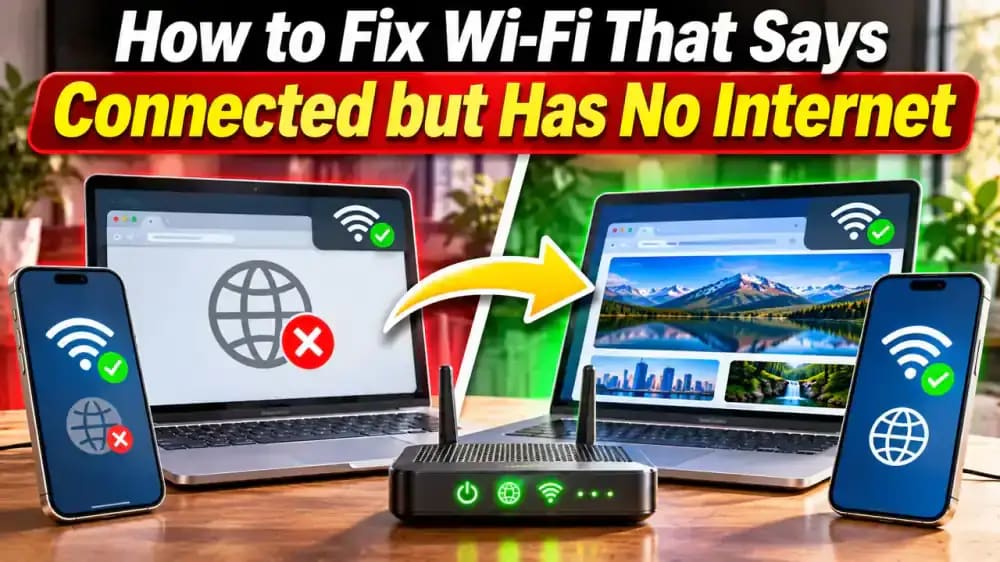
How to Fix Wi-Fi That Says Connected but Has No Internet
Your Wi-Fi shows a strong signal, but nothing loads? Learn how to pinpoint the problem, check your devices, restart your router and modem, and get back online without losing your settings.
What you’ll need
Tap to tick things off before you start.
Connected to Wi-Fi, but Nothing Loads
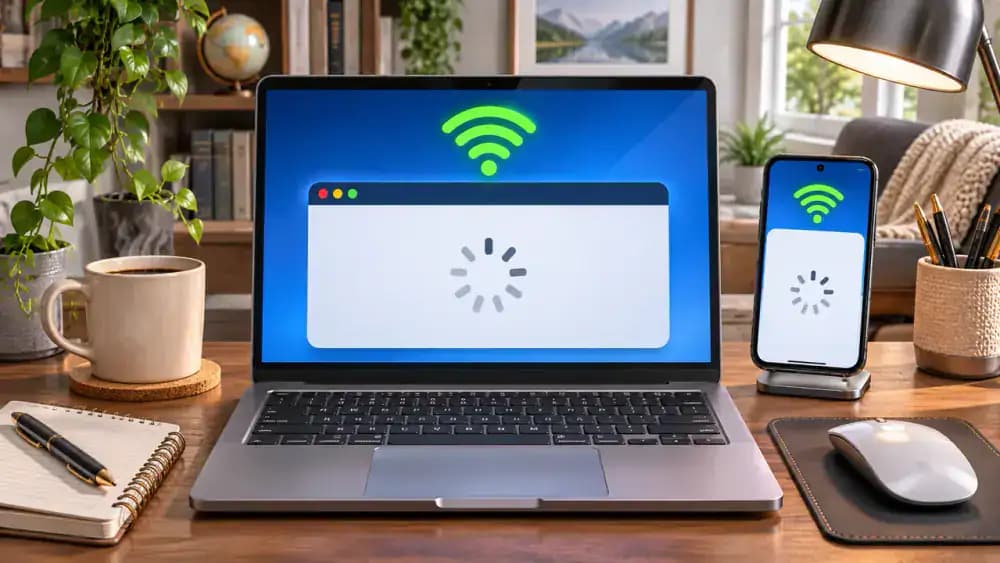
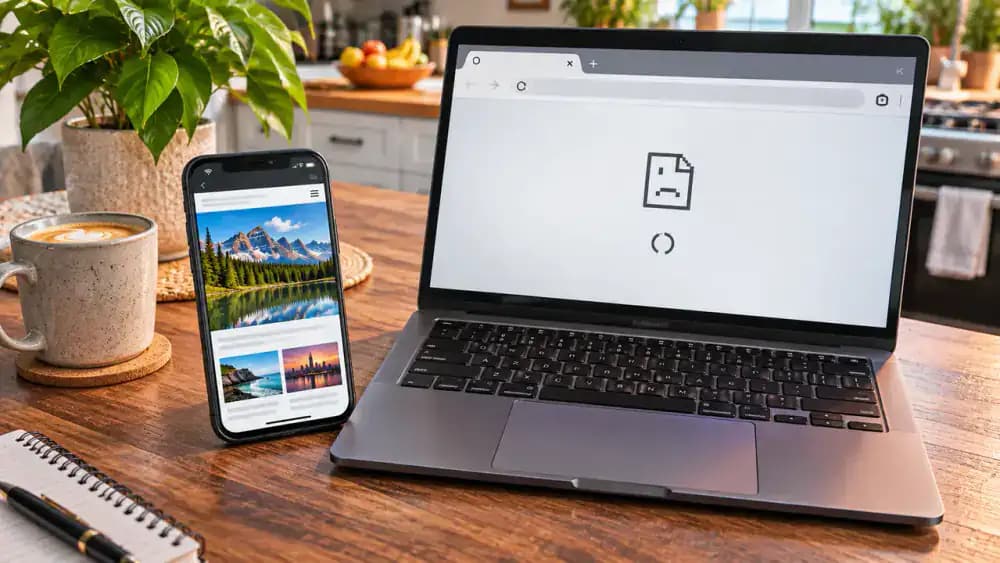
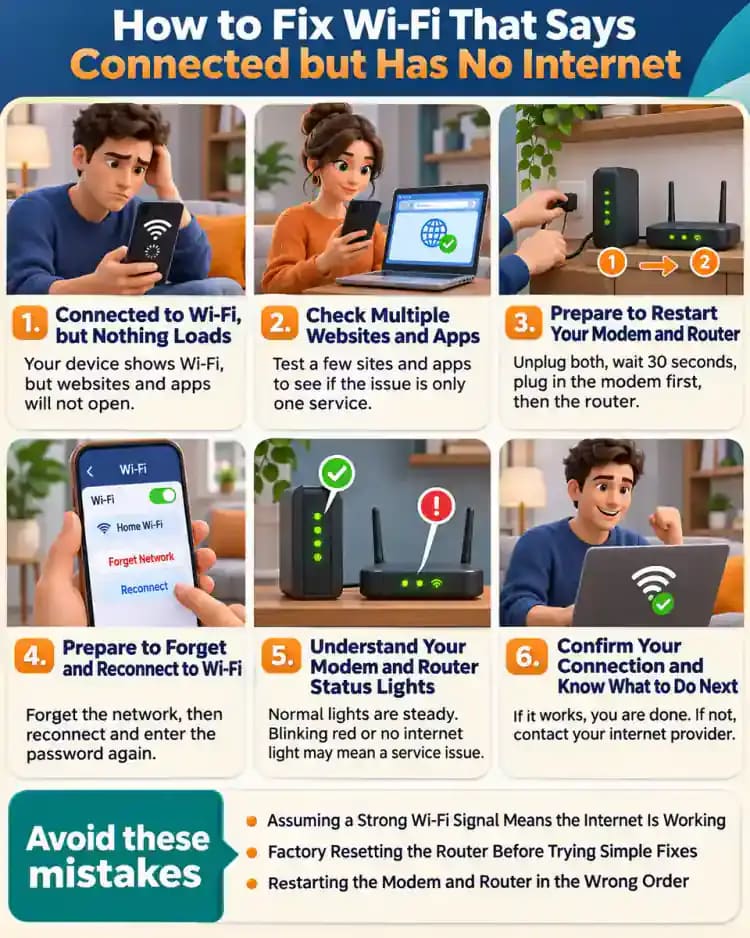
Look at the laptop and smartphone showing strong Wi-Fi signals even though the browser displays a connection error and the app cannot refresh. This means the devices can communicate with the wireless router, but internet access may still be unavailable. To confirm the problem, open two or three different websites and try refreshing an app. If nothing loads, note which devices are affected before changing any network settings.
Understand Where the Connection Breaks
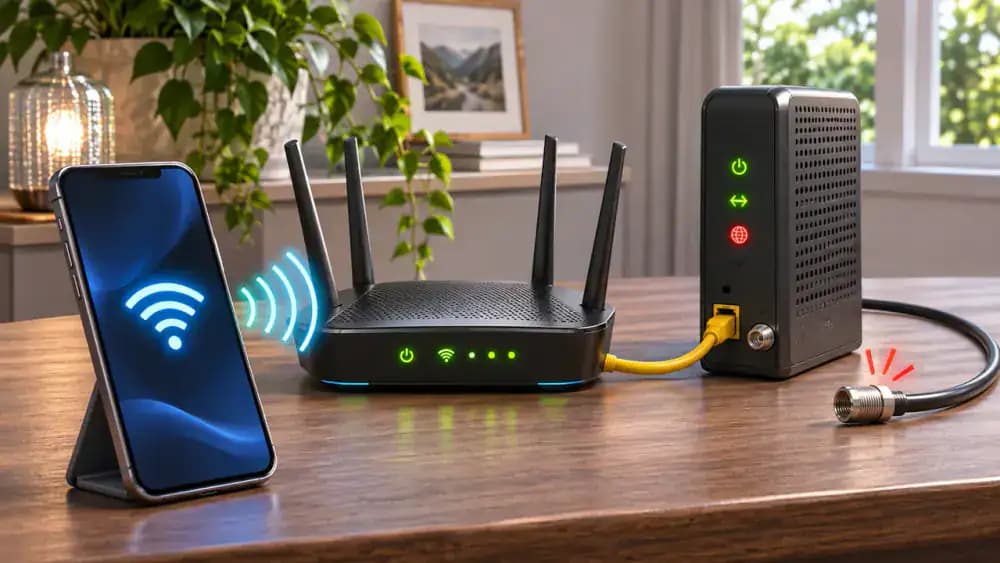
Follow the connection path from your phone to the Wi-Fi router, then through the modem to your internet provider. Each link must work for websites and apps to load. The red connection highlights one possible failure between the modem and provider, even when your Wi-Fi signal is strong. Some homes use a combined modem-router gateway instead of separate devices. Identify which equipment you have before troubleshooting further.
Identify Your Modem and Router
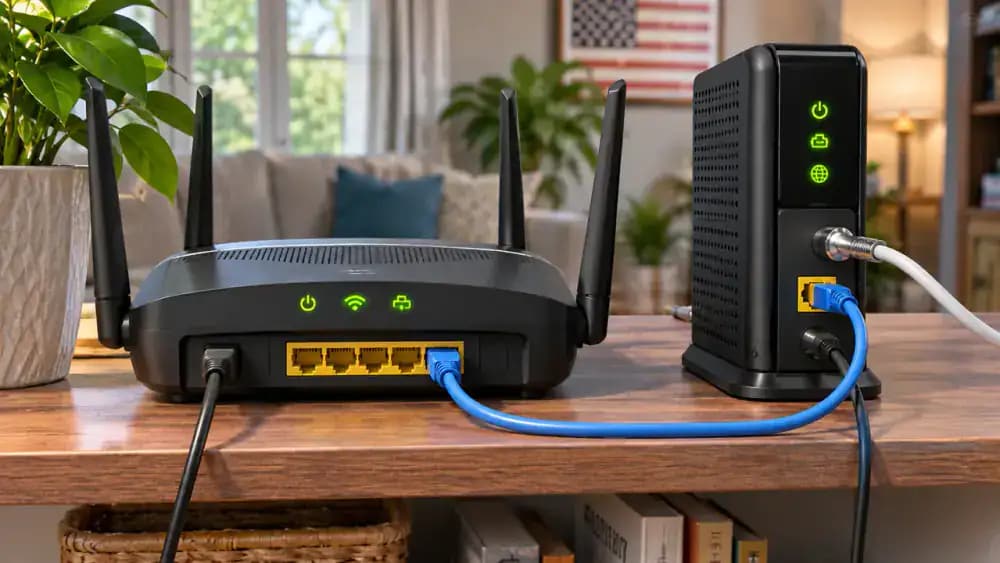
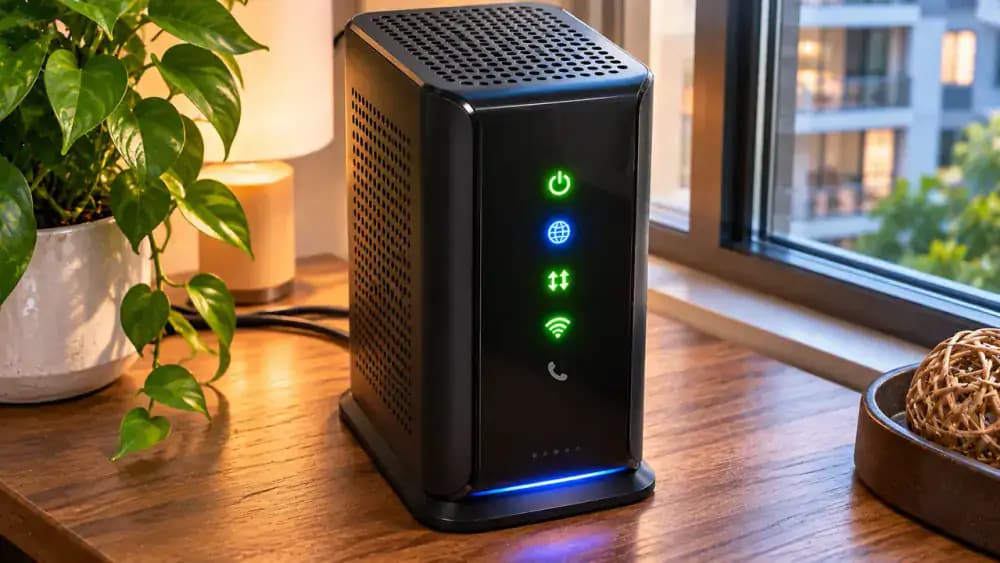
Locate your home networking equipment and identify the router, which provides Wi-Fi, and the modem, which connects to your internet provider. As shown, check the power connections, Ethernet cable, service cable, and status lights without unplugging anything yet. Your setup may use two separate devices or one combined gateway. Look for visibly damaged cables or blocked ventilation, and keep any network passwords, administrator credentials, and serial numbers private.
Check Equipment Safety Before Troubleshooting
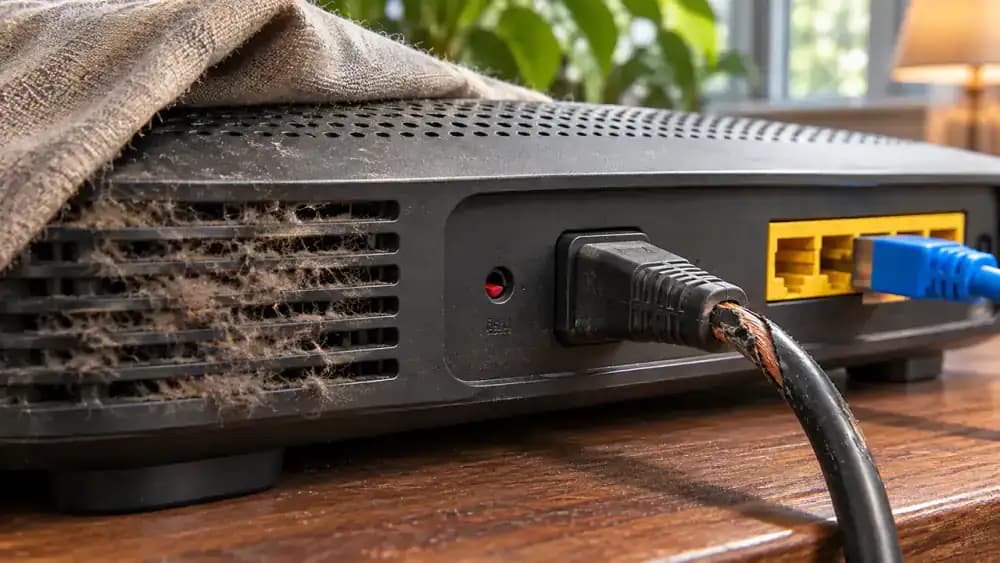
Inspect your modem or router for loose connections, damaged cables, excessive heat, and blocked ventilation. Check visible cords without touching exposed wiring, and move papers or other objects away from ventilation openings to improve airflow. Never open the equipment or press the factory reset button, which can erase saved settings. If you notice frayed cables, overheating, or physical damage, disconnect power only if safe and contact your provider or equipment manufacturer.
Test the Internet Connection on Two Devices
Connect your phone and laptop to the same Wi-Fi network, then open the same website on both devices. As illustrated, if the phone loads the page but the laptop shows an error, the problem is likely specific to the laptop. If both devices fail, investigate your router, modem, or internet provider. Try a second website on each device to rule out a problem with one particular site.
Check Multiple Websites and Apps
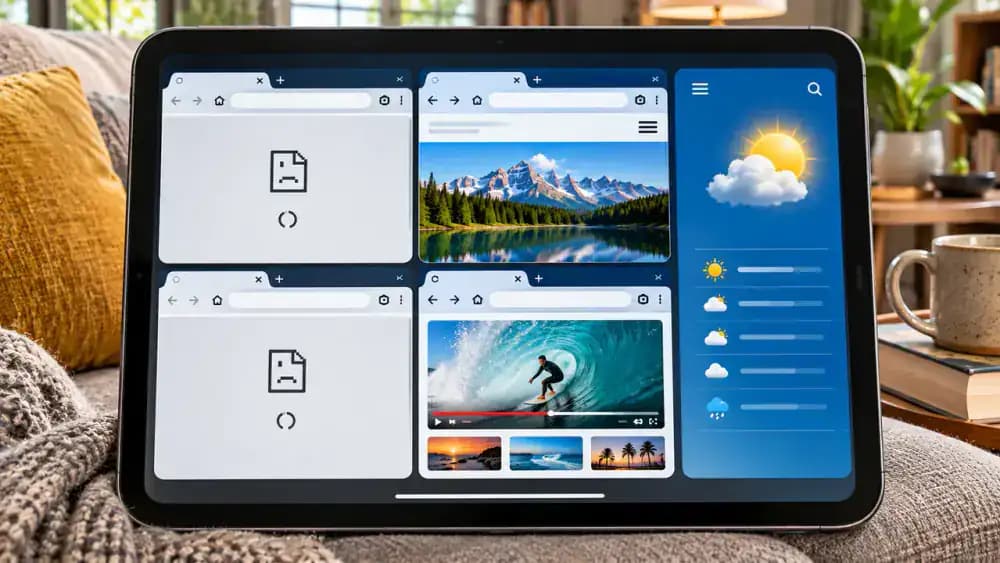
On the device experiencing connection problems, open three unrelated websites, such as news, weather, and shopping pages, and check whether each loads. Then open an app that requires internet access. As illustrated, one failed website alongside working services suggests a problem with that particular site. If every website and app fails, the issue is more likely related to your device or network. Record which services work before continuing.
Compare Wi-Fi with Cellular Data
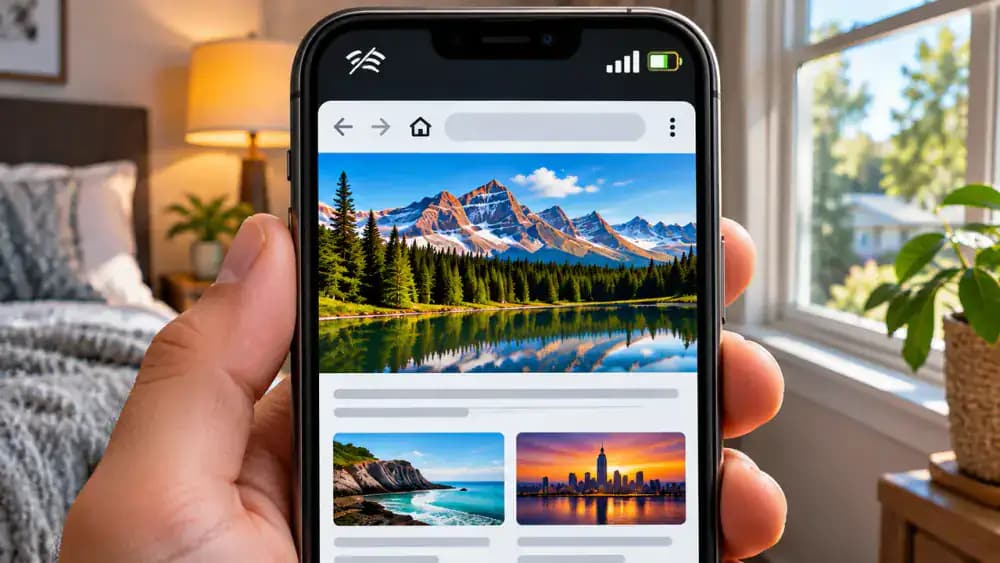
On your smartphone, open Settings, turn off Wi-Fi, and confirm that cellular data is enabled. Return to your browser and try loading the same website that failed over Wi-Fi. As illustrated, if the page loads using cellular data, the website is accessible through another connection. This suggests a possible home network issue but does not identify its cause. Remember to turn Wi-Fi back on after completing the comparison.
Check Wi-Fi and Airplane Mode Settings
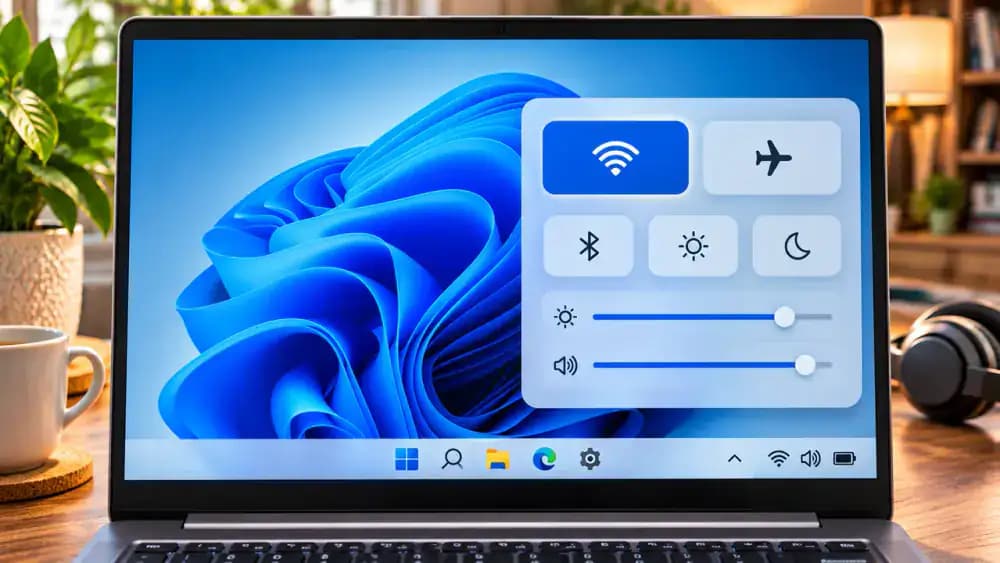
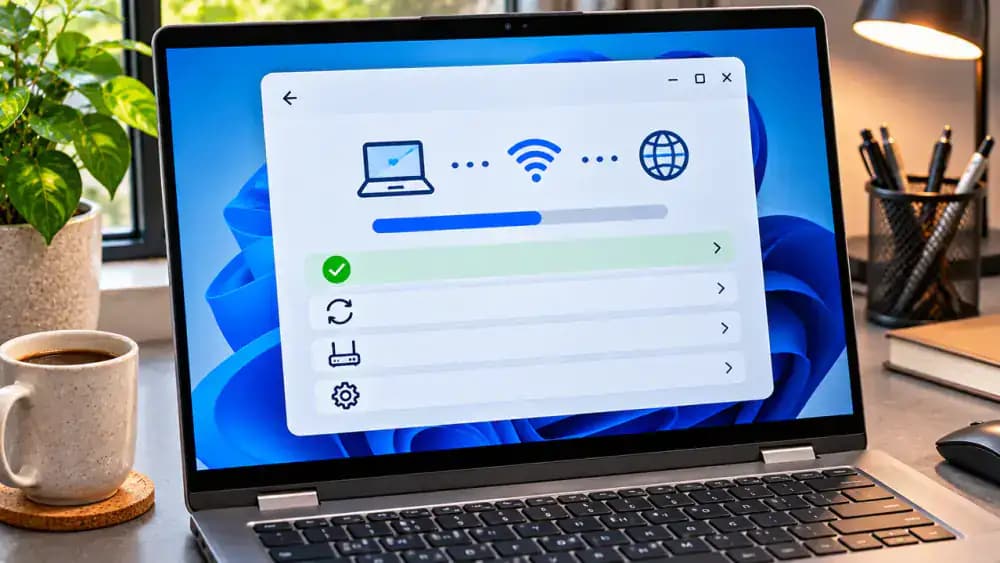
On your Windows laptop, click the network area in the taskbar to open Quick Settings. Confirm that Wi-Fi is enabled and Airplane mode is disabled. On Android or iPhone, check these controls in Settings, while Mac users can open the Wi-Fi menu. Also verify that your device is connected to the correct network. If the settings look correct, turn Wi-Fi off and back on, then test a website again.
Make Sure You Are Connected to the Correct Wi-Fi Network
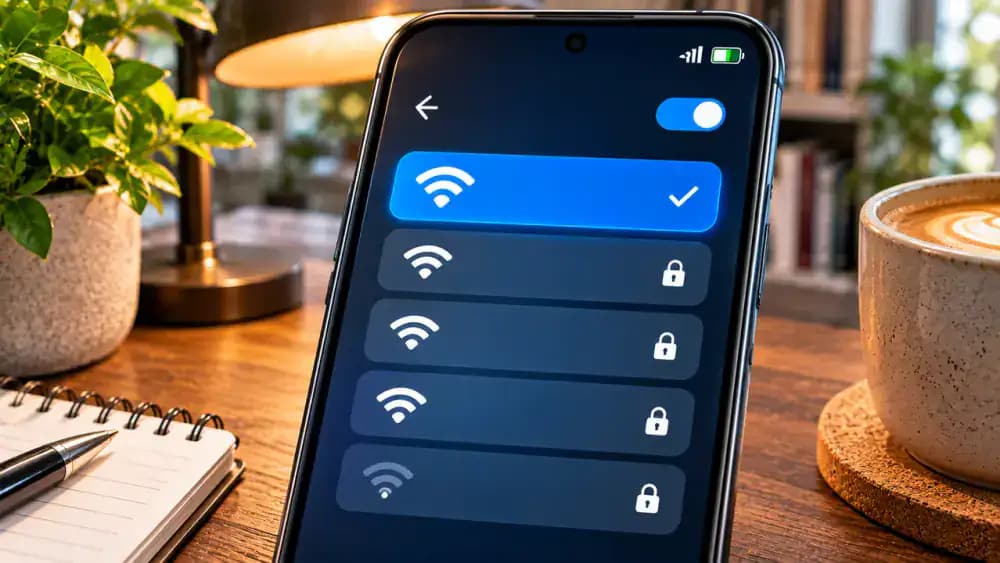
Open your device's Wi-Fi settings and check the name of the currently connected network. As illustrated, a phone might connect to Guest-WiFi instead of the intended Home-WiFi network. Select your correct home network and wait for the connection confirmation. If prompted for a password, enter it only for a network you recognize. Once connected, open a website to check internet access. Avoid unfamiliar networks, even when their signals appear stronger.
Refresh Your Wi-Fi Connection
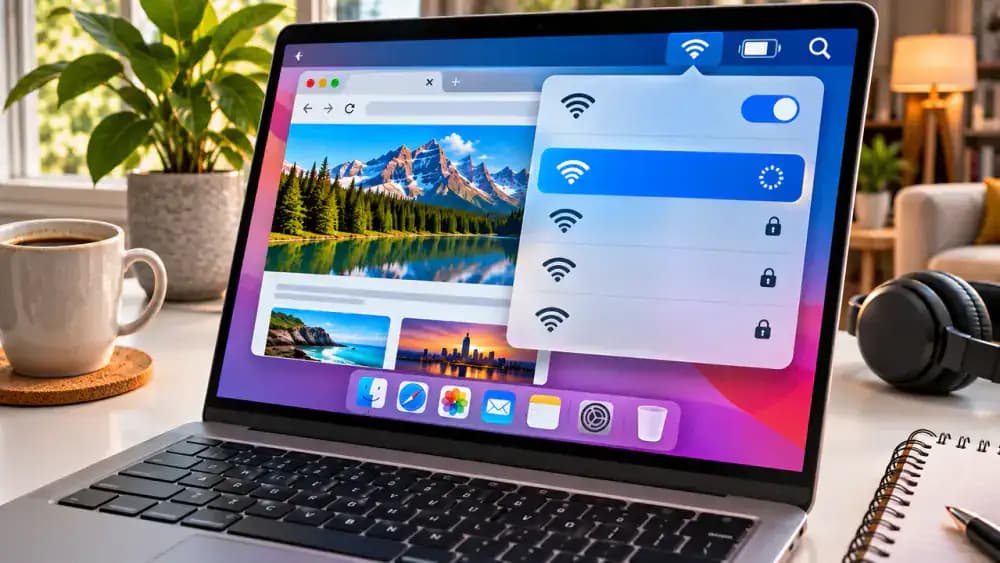
On your Mac, open the Wi-Fi menu in the upper-right corner of the screen and turn Wi-Fi off. Wait a few seconds, then turn it back on. Your Mac should reconnect automatically, but you can select your saved home network if needed. This refreshes the wireless connection without deleting passwords or changing router settings. Once the Wi-Fi indicator returns, open a website to check whether internet access has been restored.
Check Whether a VPN Is Blocking Internet Access
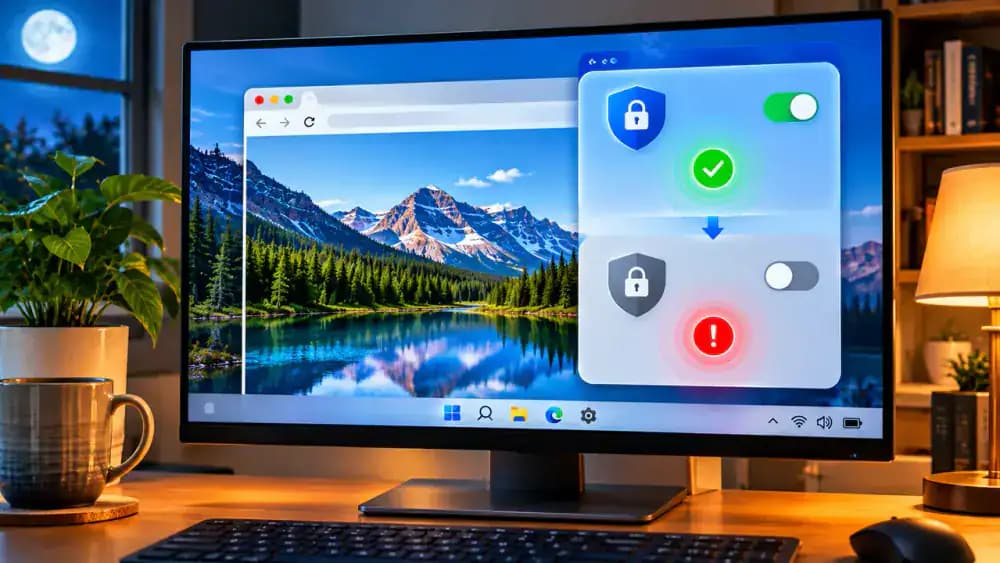
Open your VPN application and check whether it shows an active connection. If your security requirements allow it, click Disconnect to temporarily disable the VPN, as illustrated. Then open a website to see whether internet access returns. If the website loads, your VPN may be causing the problem. Check its settings or contact VPN support before reconnecting. Remember that disconnecting changes your privacy protections and may violate workplace security policies.
Prepare to Restart Your Modem and Router
Locate the power adapters for your modem and router, then carefully trace each cord to its corresponding device, as shown. Label the plugs if needed so you can identify them easily during the restart. Before disconnecting power, make sure nobody is using the internet for an important call, meeting, or download. A normal power restart preserves your network settings, unlike a factory reset. Do not handle damaged cables or exposed wiring.
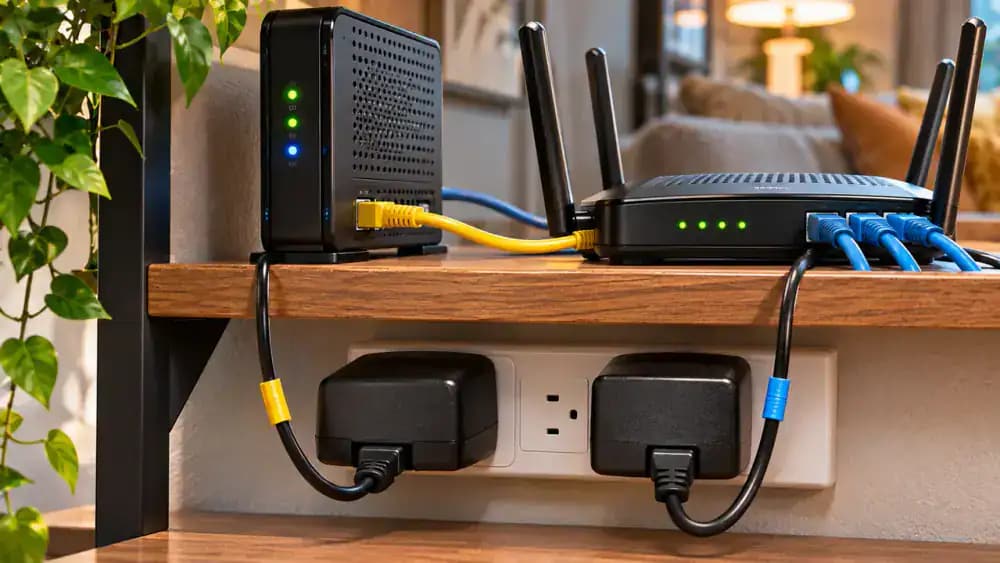
Power Down the Modem and Router
With dry hands, carefully unplug the router's power adapter first, followed by the modem's power adapter. Grip each plug by its insulated housing rather than pulling the cord. As illustrated, both devices should lose their indicator lights once disconnected. Leave them powered off for about 30 seconds before restarting. Keep Ethernet and internet service cables connected, and never handle damaged wiring or press the factory reset buttons during this process.
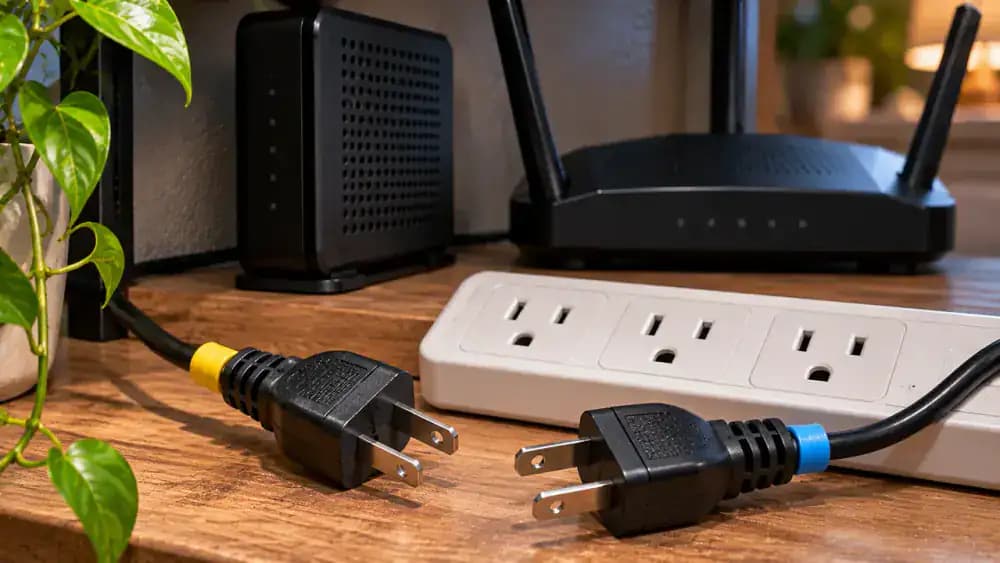
Reconnect the Modem First
Reconnect the modem's power adapter while leaving the router unplugged, as illustrated. Watch the modem's indicator lights as it starts and attempts to establish a connection with your internet provider. This process may take several minutes. Check your modem's manual to identify the normal online or internet status, since indicator meanings vary by manufacturer. Wait until the modem finishes starting before powering on the router. Status lights alone cannot confirm internet access.
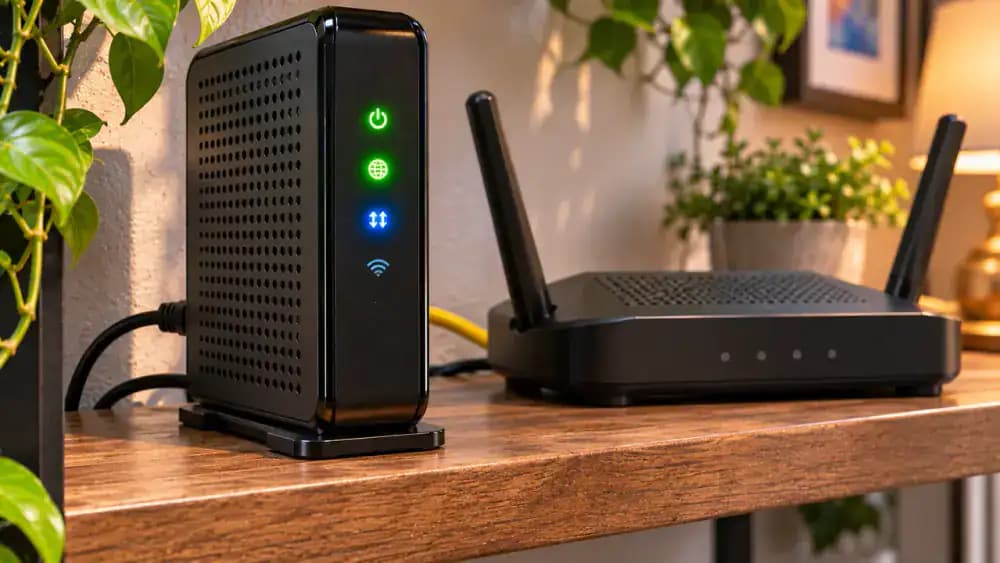
Reconnect the Router After the Modem Is Ready
Once the modem displays its normal online status, reconnect the router's power adapter while leaving the Ethernet cable connected to its WAN port. Watch the router's indicator lights as it starts and begins broadcasting Wi-Fi again. Allow startup to finish, then check whether your phone or computer reconnects automatically. If necessary, select your saved home network manually. A connected Wi-Fi indicator does not guarantee internet access, so test a website afterward.
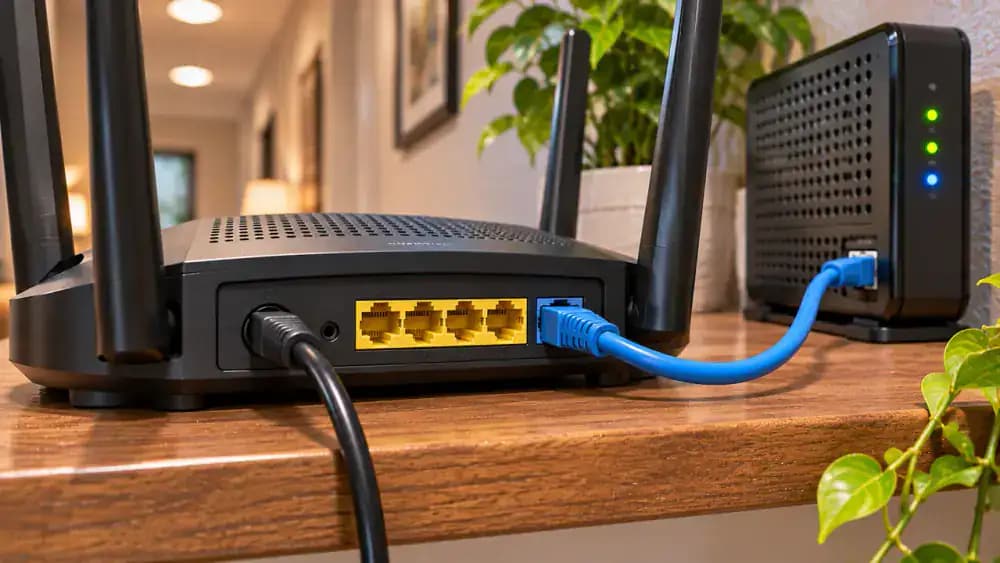
Restart a Combined Modem-Router Gateway
If your home uses a single combined modem-router gateway, unplug its power adapter by gripping the insulated plug, as illustrated. Leave the device disconnected for about 30 seconds, then reconnect power. Allow several minutes for startup and check the normal indicator lights using the manufacturer's documentation. Once your phone reconnects to Wi-Fi, open a website to verify internet access. If the connection still fails, continue troubleshooting without pressing the factory reset button.
Test Internet Access After Restarting
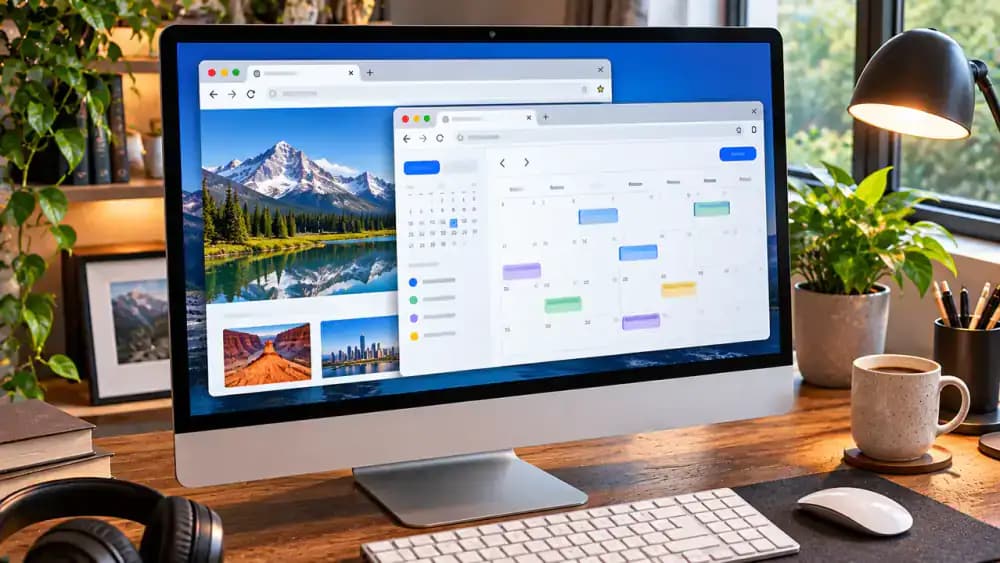
Reconnect your computer to your home Wi-Fi network after the modem and router finish restarting. Open a fresh browser tab and load a website, then check a second unrelated site and an internet-dependent app, as illustrated. If everything works normally, the restart may have resolved the connection problem. If pages still fail to load, note whether other devices work before troubleshooting your computer's saved Wi-Fi connection.
Prepare to Forget and Reconnect to Wi-Fi
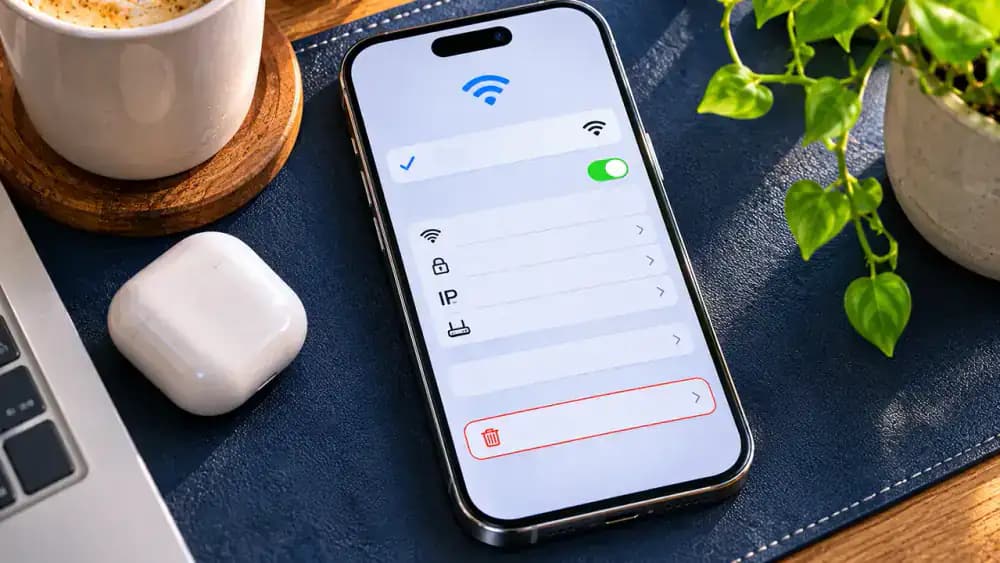
On your iPhone, open Settings, select Wi-Fi, and tap the information icon beside your home network. Locate the Forget This Network option, as illustrated, but do not select it yet. First, make sure you know your Wi-Fi password because forgetting the network removes its saved connection details. Keep your password private, and check with your administrator before making changes on a shared or managed device. Reconnecting will require your credentials.
Forget and Reconnect to Your Home Wi-Fi Network
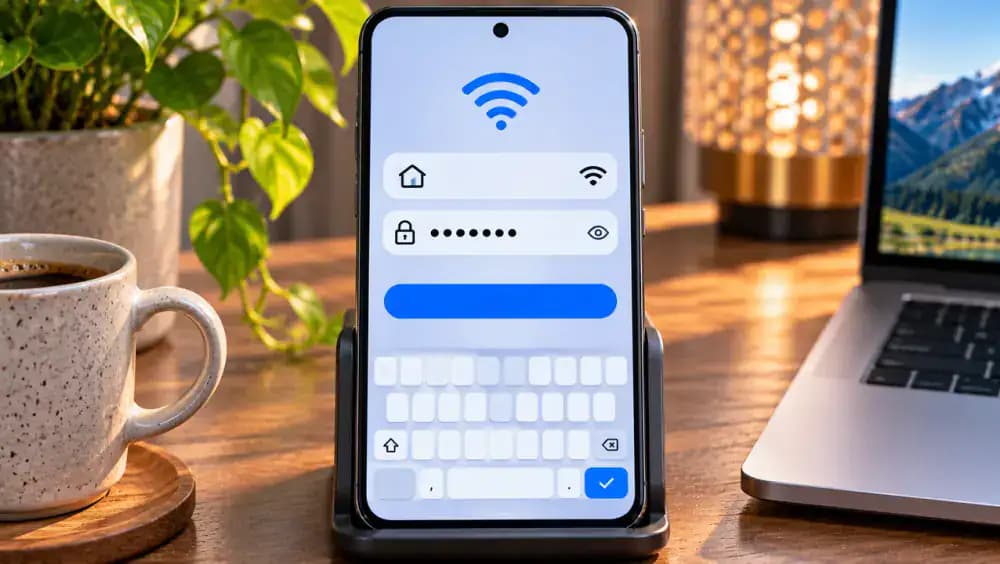
On your Android phone, open Wi-Fi settings, select your saved home network, and tap Forget. Confirm the removal, then find the same network in the available connections list. Select it, enter your Wi-Fi password privately, and tap Connect, as illustrated. Once your phone reconnects, open a fresh browser tab and test a website. This rebuilds the saved wireless connection without resetting your router or affecting other devices.
Run Windows Network Diagnostics
On your Windows computer, open Settings, select Network and internet, then Advanced network settings. Choose Network troubleshooter if available, or use the Get Help app for network troubleshooting. Follow the on-screen instructions and review any suggested repairs before applying them. As illustrated, Windows may offer recommendations without identifying a definite cause. If diagnostics find nothing, continue investigating rather than assuming your internet provider is responsible for the connection problem.
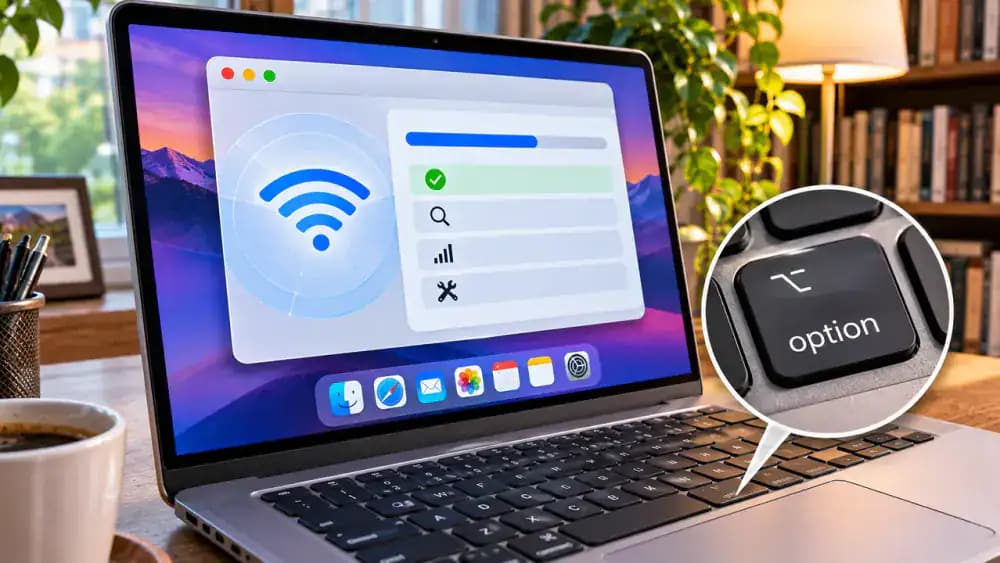
Run Wireless Diagnostics on Your Mac
On your Mac, hold the Option key and click the Wi-Fi icon in the menu bar. Select Open Wireless Diagnostics if the option appears, then follow the guided checks shown on screen. Review any recommendations carefully before making changes to your network settings. As illustrated, the tool can help identify wireless connection issues, but it cannot confirm whether your internet provider is functioning correctly. Keep diagnostic reports and network information private.
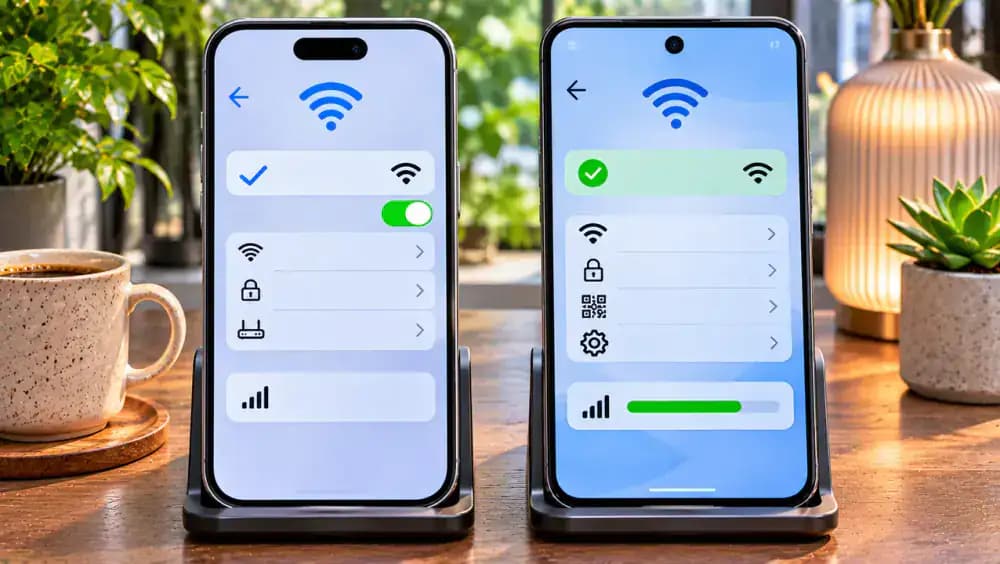
Check Network Status on iPhone and Android
On iPhone, open Settings, tap Wi-Fi, and select the information icon beside your connected network to review its details. On Android, open Settings, choose Network and internet or Connections, then select your Wi-Fi network to check its status. Look for warnings indicating limited or unavailable internet access, as illustrated. Menu names vary by device. After reviewing the connection information, open a webpage to verify whether internet access works.
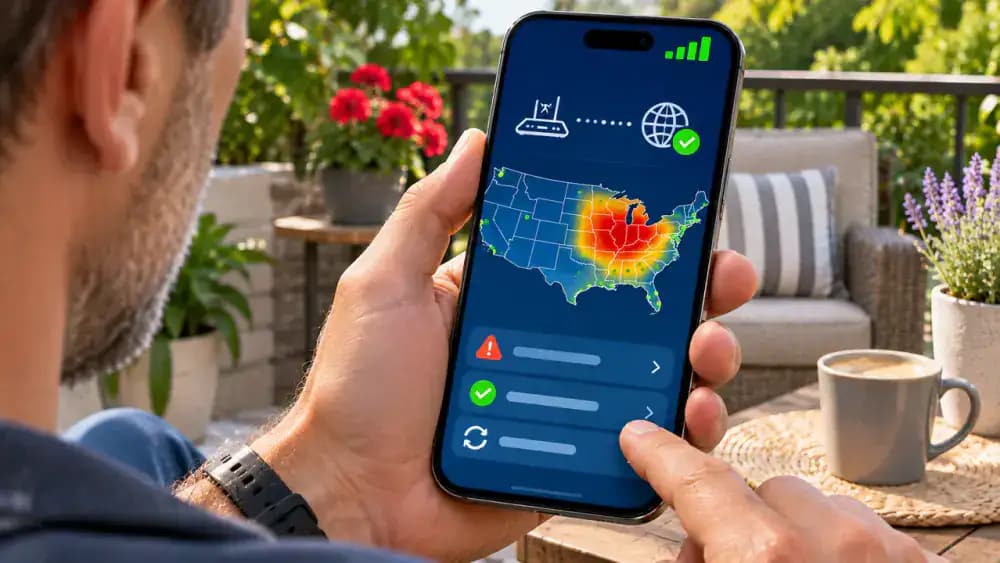
Check for an Internet Provider Outage
Turn off Wi-Fi on your phone and use cellular data to visit your internet provider's official website or app. Find the Service Status or Outages section and check for reported disruptions affecting your area, as illustrated. A service alert may explain why multiple devices cannot connect. However, no reported outage does not guarantee your service is working. If problems continue, note any alerts before contacting provider support.
Understand Your Modem and Router Status Lights
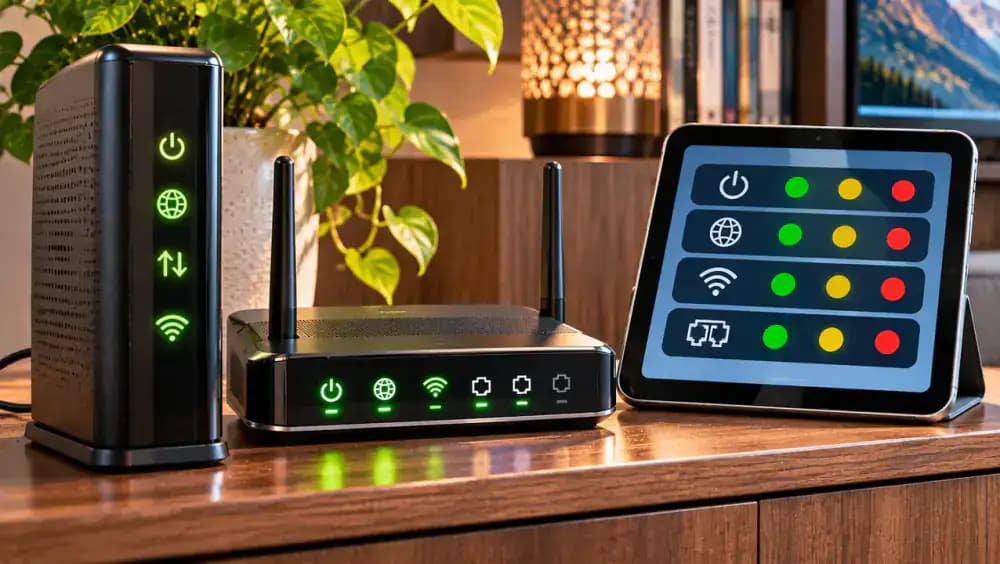
Look closely at the power, internet, and Wi-Fi indicator lights on your modem and router, as illustrated. Note whether each light is steady, blinking, or off. Open the manufacturer's official manual and compare the patterns with its indicator reference chart. Blinking lights may be normal during startup, so avoid assuming they indicate a failure. Record any unusual patterns to help your internet provider diagnose the problem if you need support.
Know When to Contact Your Internet Provider
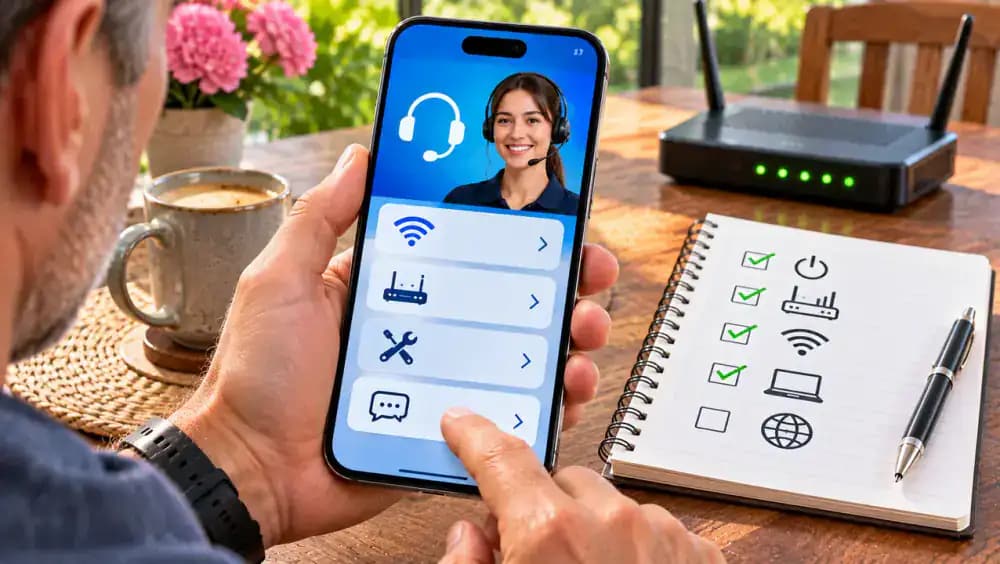
If multiple devices remain offline after restarting your network equipment, open your internet provider's official app or website and select Contact Support. As illustrated, prepare a brief description of when the problem started, which devices are affected, and which troubleshooting steps you completed. Include any unusual modem status lights and ask the provider to check your connection. Never share Wi-Fi passwords, router administrator credentials, or unnecessary personal network information.
Verify That Internet Access Is Working Again
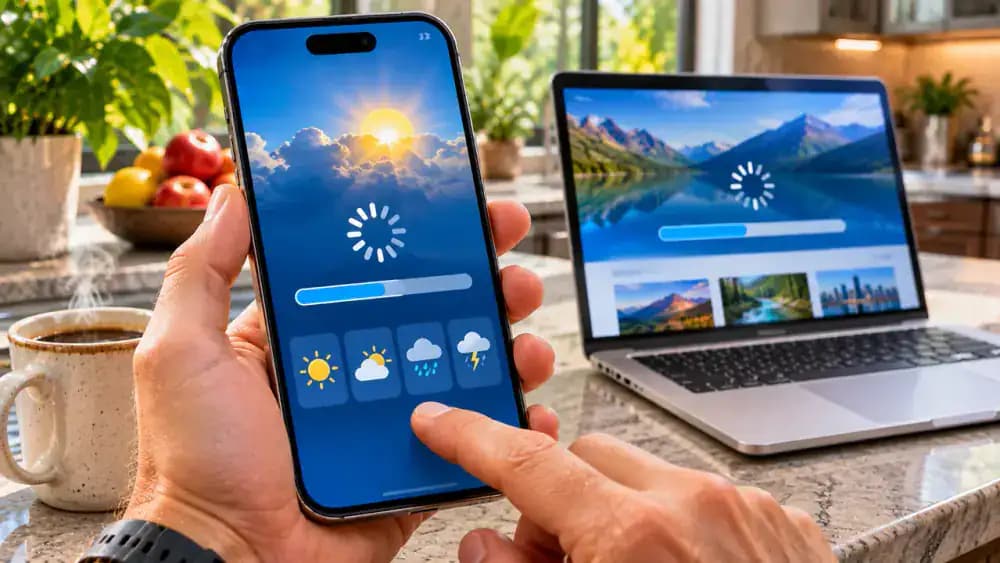
Connect your phone and computer to your home Wi-Fi network, then open a different website on each device, as illustrated. Refresh an internet-dependent app to confirm that new content loads rather than previously cached information. If both devices can access fresh content, your connection appears to be working again. Continue monitoring for unexpected interruptions, and note when any recurring problems occur so you can identify patterns or report them to your provider.
Track Recurring Internet Connection Problems
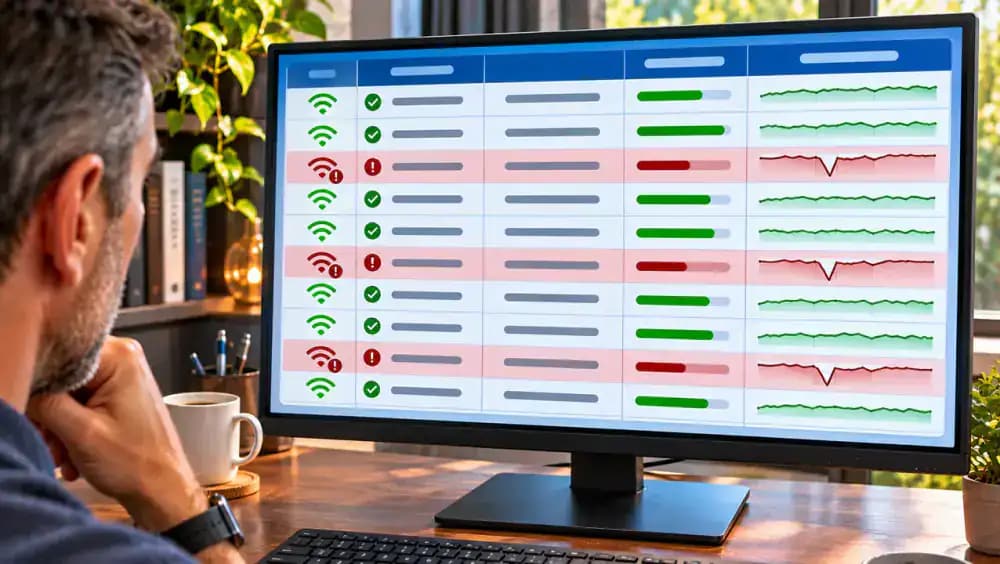
Create a simple spreadsheet to record future internet interruptions, as illustrated. Include the date and time, affected devices, outage duration, and any unusual modem lights or provider alerts. Compare entries to see whether problems repeatedly affect one device or your entire network. Record observations rather than guessing at causes. If interruptions continue, share the relevant details with your internet provider to help support identify patterns and investigate the issue.
Keep Your Devices Updated and Router Ventilated
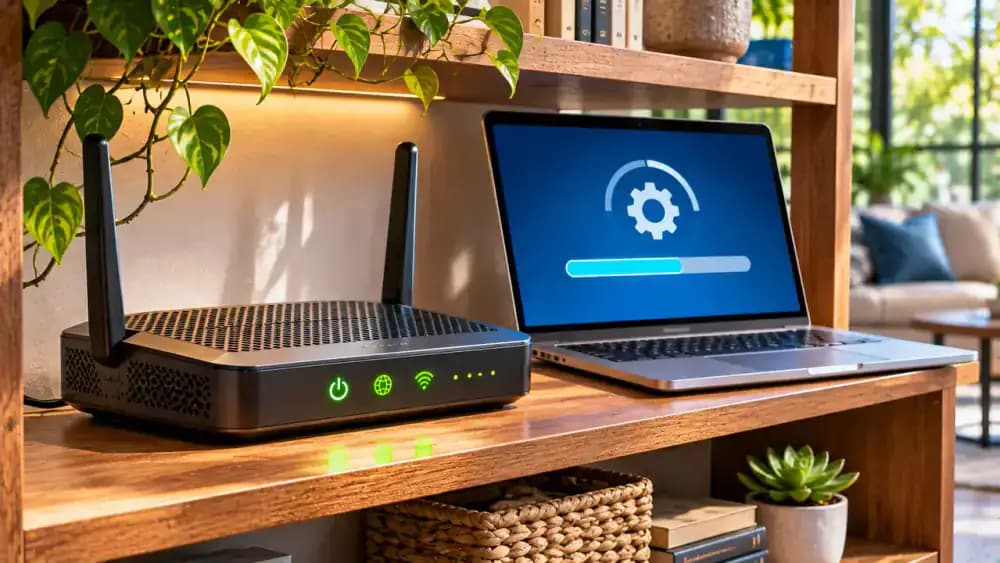
Keep your router on an open shelf with enough space around its ventilation openings, as illustrated. Move nearby objects away and avoid placing equipment beside heat sources. Check for firmware updates through the manufacturer's official app or support instructions, and keep your phone and computer updated. Review update requirements before proceeding, and schedule any necessary restarts when nobody needs the connection. Avoid unnecessary changes to advanced router settings or saved configurations.
Review the Safe Wi-Fi Troubleshooting Checklist
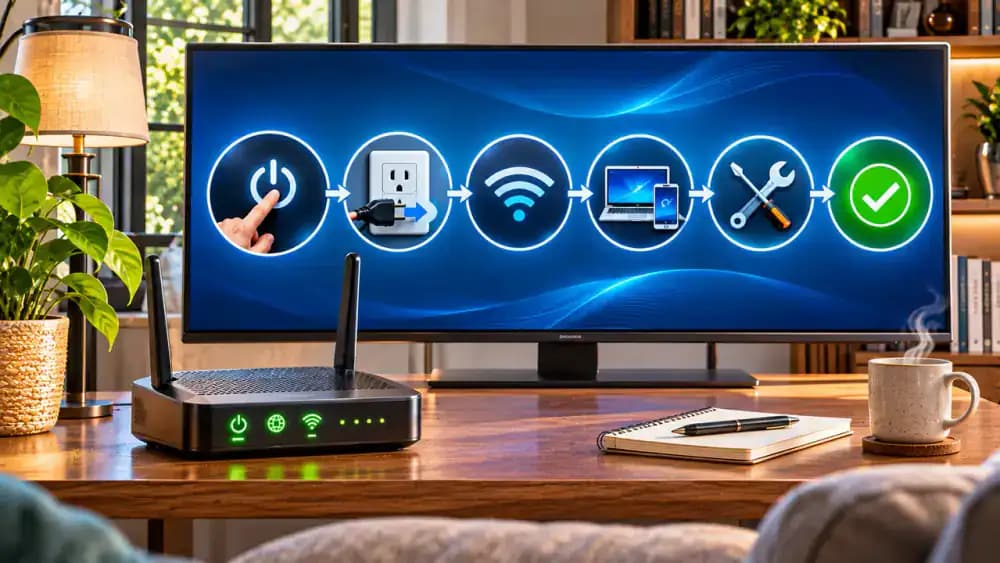
Follow the checklist to troubleshoot connection problems in a safe, logical order. Compare devices, check Wi-Fi settings, restart your modem and router, reconnect to your network, run diagnostics, and check your provider's service status. As illustrated, these steps help narrow down possible causes without unnecessary resets. Always verify internet access by loading fresh website content and refreshing an online app. Keep Wi-Fi passwords and router administrator credentials private throughout troubleshooting.
Confirm Your Connection and Know What to Do Next
Open a fresh webpage on your laptop and check another device to confirm that internet access works across your home network, as illustrated. If both devices load new content, monitor the connection for further interruptions. If problems continue, contact your internet provider with your troubleshooting notes and equipment status details. Avoid unnecessary factory resets, keep network credentials private, and explore more practical solutions in our Tech and Device Fixes collection.

Your laptop says it's connected to Wi-Fi, the signal bars are full, and everything looks normal. But when you open a website, check your email, or launch an app, nothing loads. It's a frustrating problem because your device appears to be online when it actually isn't. The important distinction is that a Wi-Fi connection only means your device can communicate with your router. It doesn't guarantee that the router has a working connection to the internet. The issue could be as simple as a temporary device glitch or as widespread as an outage from your internet service provider.
Fortunately, most connection problems can be diagnosed without technical expertise or complicated router settings. This guide walks you through checking other devices, reviewing basic Wi-Fi settings, safely restarting your modem and router, and using built-in network diagnostics on Windows, macOS, iPhone, and Android. You'll also learn how to recognize when the problem is outside your home network and when to contact your provider, all without unnecessary factory resets or risking your saved network configuration.
Where people go wrong
Assuming a Strong Wi-Fi Signal Means the Internet Is Working. Full Wi-Fi signal bars only confirm that your device has a good connection to the router, not that the router can reach the internet. Before changing settings, try loading several websites on two different devices. This helps identify whether the problem affects one device or your entire network.
Factory Resetting the Router Before Trying Simple Fixes. A factory reset can erase your Wi-Fi name, password, and customized network settings, potentially creating more problems than it solves. Start by checking cables, toggling Wi-Fi, and restarting your equipment normally. Avoid changing advanced router settings unless you have documented the existing configuration and understand what you're modifying.
Restarting the Modem and Router in the Wrong Order. When using separate devices, restarting everything at once can make troubleshooting confusing. Power down both devices, restart the modem first, and allow it to finish connecting before restarting the router. If you have a combined modem-router gateway, restart that single device and wait for startup to finish before testing.
Changing Device Settings Without Checking for an ISP Outage. If every device loses internet access simultaneously, the problem may be with your internet service provider rather than your Wi-Fi settings. Check your provider's official outage information using cellular data before making additional changes. Review your equipment's indicator lights using manufacturer documentation, and contact provider support if the connection remains unavailable.
Questions people ask
Your device can connect successfully to a Wi-Fi router even when the router has no working internet connection. This can happen because of an internet service provider outage, a temporary modem problem, or incorrect device settings. Test multiple websites on another connected device to determine whether the issue affects your entire network.
Fixed it?
Get one guide like this every Thursday.