How to Fix an Android Phone Battery That Drains Too Fast
Is your Android phone running out of power before dinner? Learn how to find battery-draining apps, adjust display and background settings, enable Battery Saver, and recognize when an aging battery needs professional attention.

What you’ll need
Tap to tick things off before you start.
Why Your Android Battery Drains So Fast
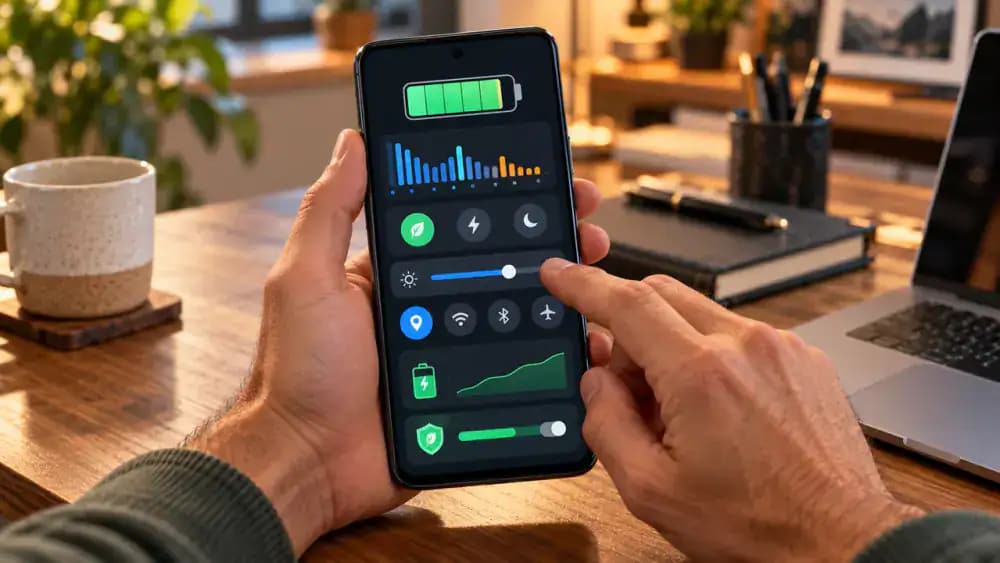
Notice how the phone shows 100% battery in the morning but only 12% by late afternoon, even without obvious heavy use. These percentages are illustrative, not measured results. Pull down the notification shade to check your current battery level, then note when you last charged the phone and how much you used it. This gives you a useful starting point before investigating background apps, display settings, or possible battery wear.

Find the Cause Before Changing Settings
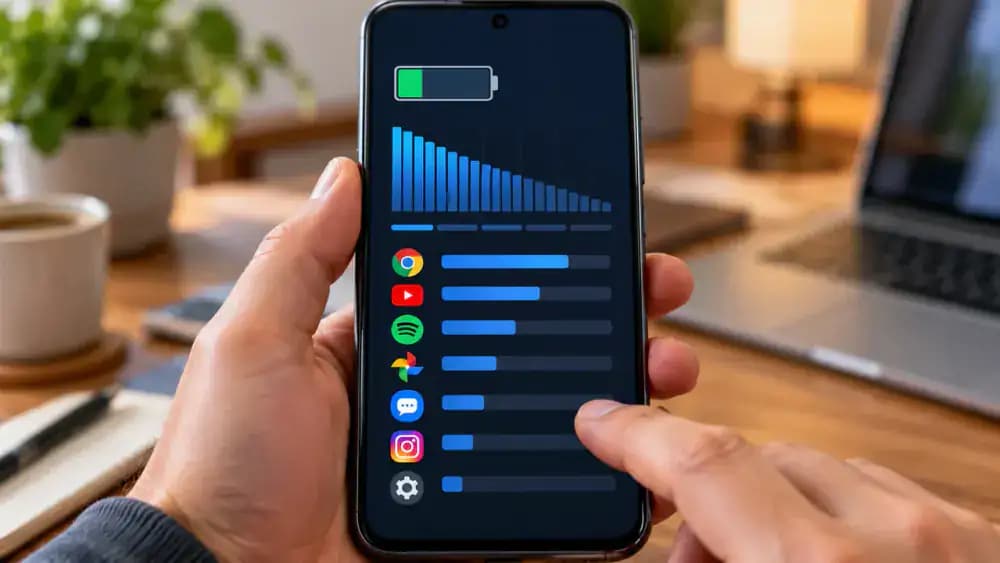
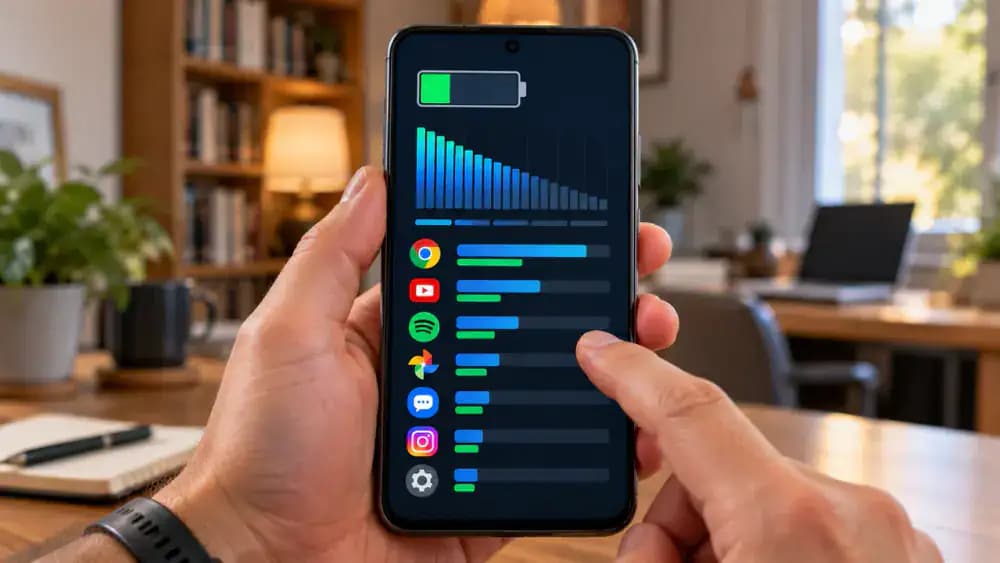
Open your phone's Settings app, tap Battery, and select Battery usage to see which apps consume the most power. As shown, Android displays a usage graph and individual app entries to help identify unusual activity. Next, locate Display, app background activity, Location permissions, and Battery Saver settings without changing anything yet. Menu names vary by Android version and manufacturer. Start by noting the highest-consuming app and whether its usage seems reasonable.
Check Your Phone for Battery Safety Issues
Place your unplugged Android phone on a clean, flat surface and gently inspect its exterior. Check the back panel for bulging, examine the screen edges for lifting, and look for visible damage or unusual heat. The warning examples shown are illustrative, not actual inspection findings. If you notice swelling, overheating, or physical damage, stop using and charging the phone and contact authorized service. Never open or replace the battery yourself.

Record Your Battery Level Before Making Changes
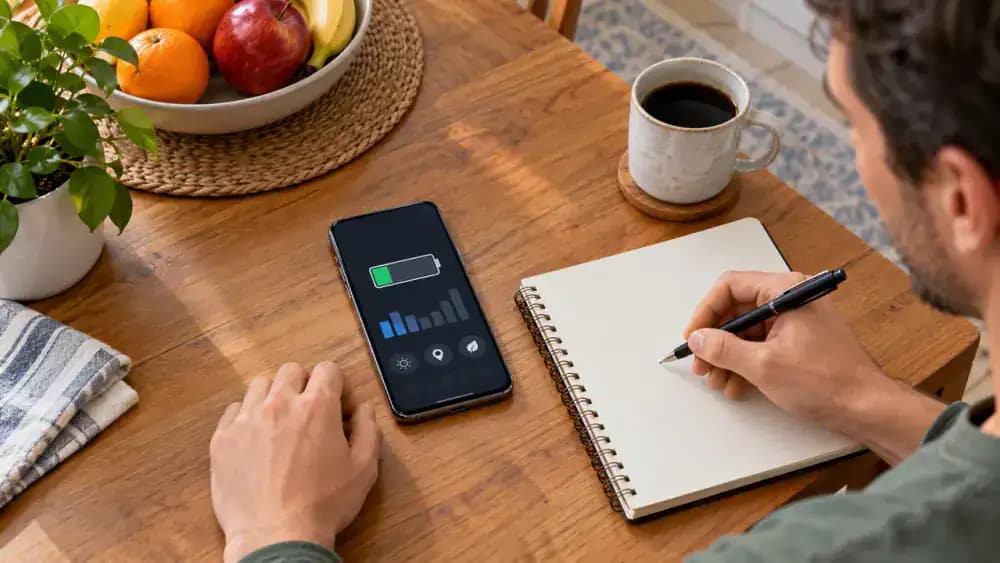
Open your Android phone's Settings app and tap Battery to find the current charge percentage. As shown, write the percentage, approximate time, and today's usage level in a notebook. The example readings of 67%, 9:15 AM, and moderate usage are illustrative, not actual measurements. If you cannot find Battery, use the Settings search bar. Keep these notes so you can compare battery performance under similar conditions after making adjustments.
Open Android Battery Usage Statistics
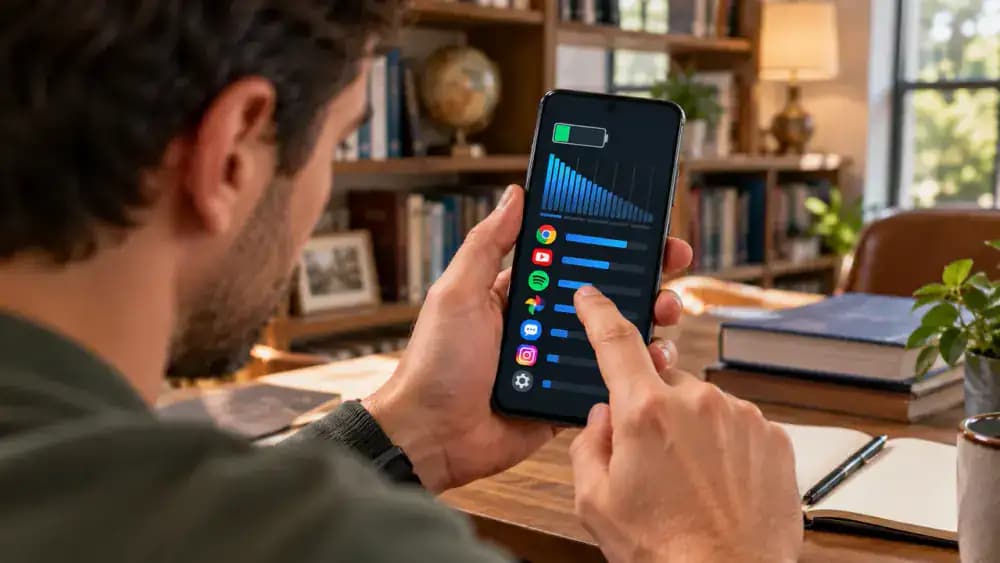
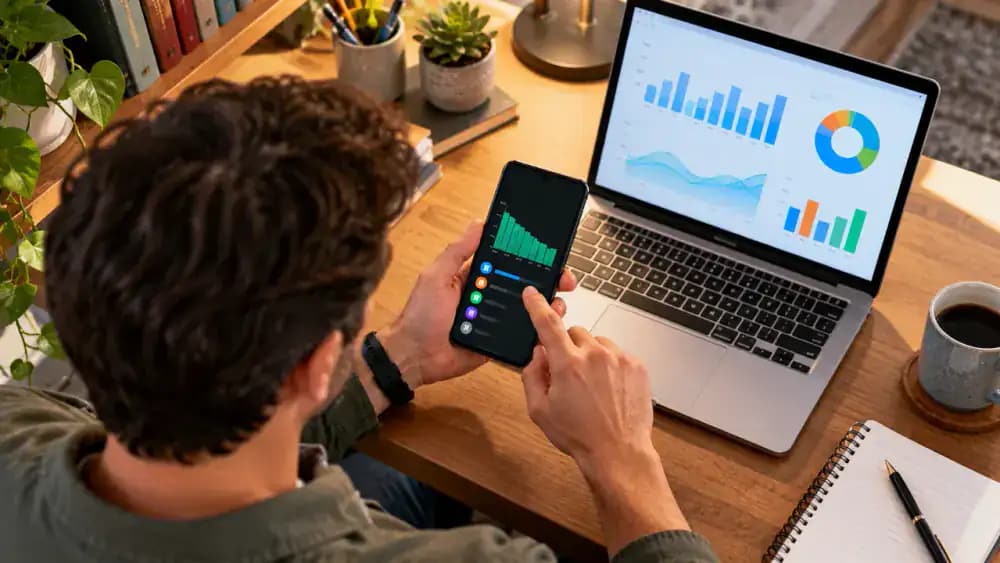
In your Android phone's Settings app, select Battery, then tap Battery usage or the equivalent option. The screen displays a graph of battery activity over time and a ranked list of apps consuming power. Review the graph for noticeable drops and note which apps appear near the top. Menu names and layouts vary by manufacturer, so use Settings search if needed. The percentages shown are illustrative, not measured results.
Spot Apps That Use More Battery Than Expected
Review the Battery usage list and compare each app's percentage with how often you used it. In the example, Maps uses 28% and Video uses 21%, which may be reasonable after extended use. Tap an infrequently opened app, such as Weather at 8%, to examine its battery details more closely. These percentages are illustrative, not measured results. Look for unexpected consumption before deciding whether an app needs attention.
Compare Screen Time and Background Battery Activity
Tap the app you want to investigate in Android's Battery usage list. If available, review its screen time and background activity separately. The example Weather app shows 4 minutes of screen time but 1 hour 20 minutes of background activity. These values are illustrative, not measured results. Extended background activity deserves closer inspection, but messaging, navigation, and syncing apps may need it to function properly. Do not restrict anything yet.
Understand Normal Battery Drain Versus Unusual Activity
Compare battery usage with what your phone was doing at the time. Active navigation, video calls, and photo uploads can explain higher power consumption, as the navigation example shows. Repeated background activity from an app you rarely open deserves closer attention. Weak cellular signals and recent software updates may also contribute. The displayed statistics are illustrative, not measured results. Check patterns across several days before assuming something is wrong.

Adjust Screen Brightness to Reduce Battery Drain
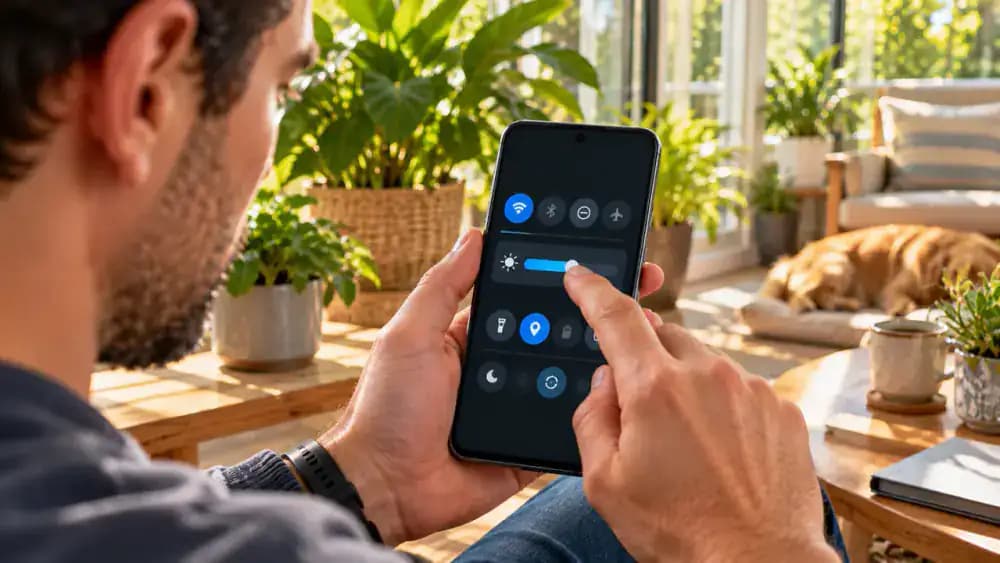
Open Settings on your Android phone and select Display to find the brightness controls. Move the brightness slider down from a high setting until the screen remains comfortable to read, as shown. If your phone supports Adaptive brightness, turn it on to let Android adjust brightness automatically based on surrounding light. Avoid making the screen too dim for safe, comfortable viewing. Actual battery savings depend on your usage and device.
Shorten Screen Timeout to Save Battery
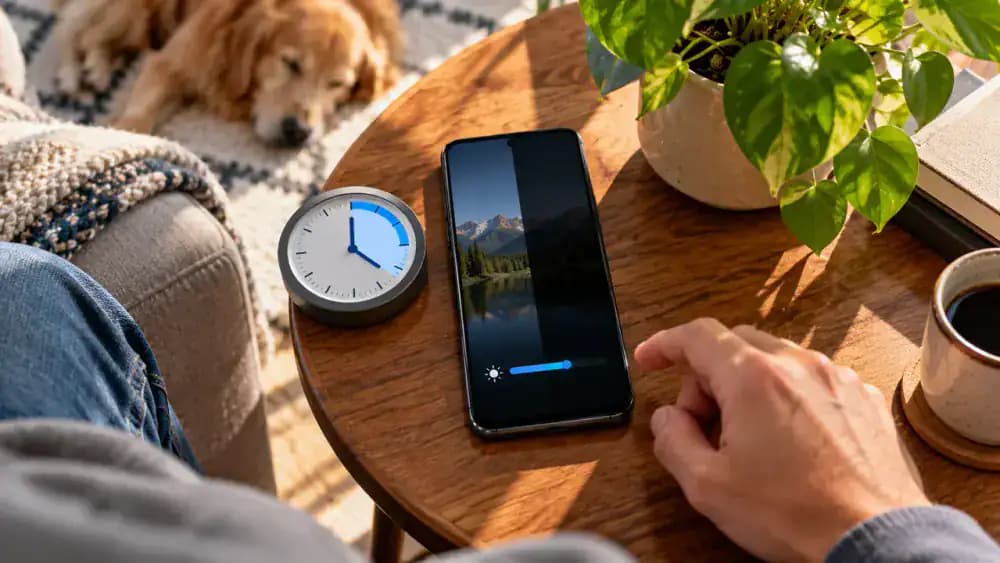
Open Settings, select Display, and find Screen timeout or Sleep, depending on your Android model. As shown, change the timeout from 5 minutes to 30 seconds so the display turns off sooner when you stop using your phone. If 30 seconds feels too short, try 1 minute instead. This reduces unnecessary screen activity without deleting apps or files. The automatic screen shutdown shown is illustrative, not a measured battery test.
Adjust Screen Refresh Rate for Better Battery Life
Open Settings, select Display, and look for Motion smoothness, Smooth display, or a similar refresh rate option. As shown, choose Standard 60 Hz instead of Adaptive up to 120 Hz, then tap Apply if prompted. A lower refresh rate may reduce display power consumption, although scrolling can feel less fluid. Available options vary by Android model. Try the setting during normal use to decide whether the trade-off suits you.

Verify Your Display Settings Are Comfortable
Open a familiar reading app and check whether text remains clear after adjusting your display settings. Scroll through a page to see if the refresh rate feels smooth enough for everyday use. As shown, return to Settings, select Display, and adjust brightness if the surrounding light makes reading difficult. Then reopen the app to check your changes. Prioritize comfortable visibility and responsiveness rather than sacrificing usability for potential battery savings.

Find Apps Running Unnecessarily in the Background
Open Settings, tap Apps, and select an app that showed unexpected battery consumption earlier. As shown, choose Weather, then open Battery or App battery usage to review its background activity controls. Check which options are available without changing them yet. Android menu names vary by manufacturer and version. Remember that messaging, navigation, alarms, and accessibility apps may need background access to deliver important notifications or perform essential functions.
Limit Unnecessary Background Battery Activity
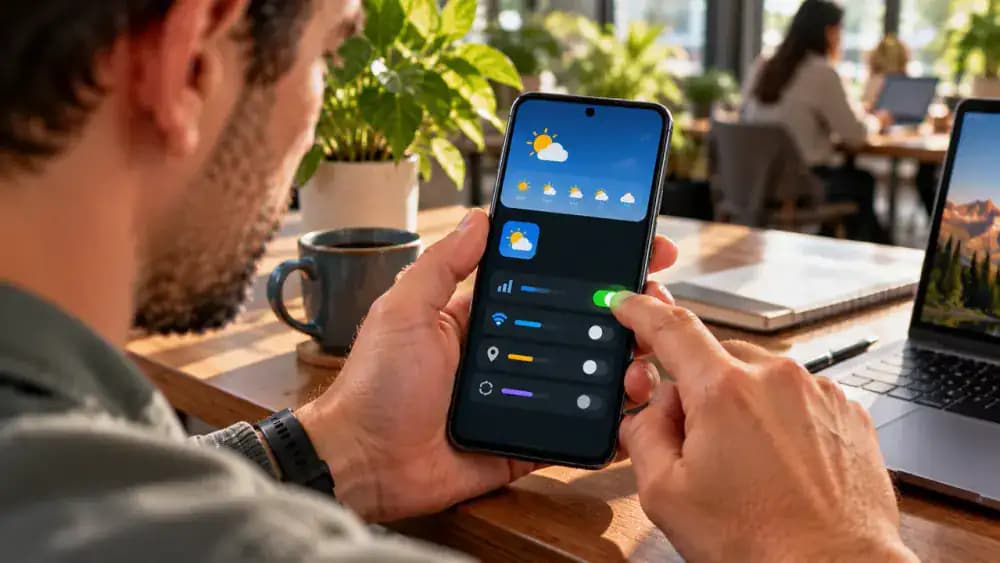
Open the selected app's battery settings and choose Restricted or disable background usage if your Android phone offers that option. As shown, apply the restriction to a nonessential Weather app, then confirm the new setting. This may delay weather alerts and automatic updates. Leave messaging, alarms, navigation, and essential accessibility apps unrestricted when they require background activity. Check that important features still work after making changes.

Review Location Permissions to Reduce Battery Drain
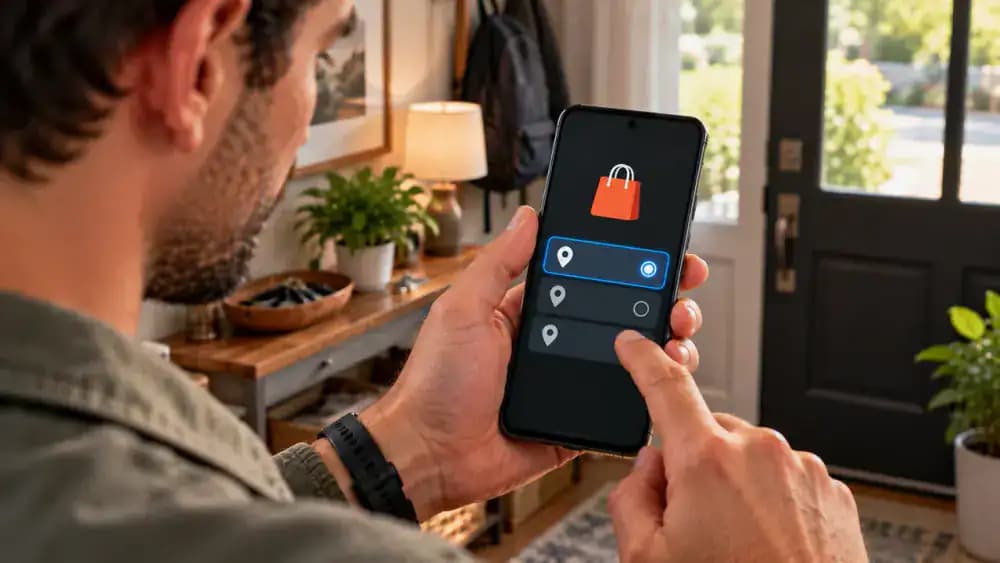
Open Settings, select Location, then tap App location permissions to review which apps can access your position. As shown, select a shopping app under Allowed all the time and change its permission to Allow only while using the app. This can reduce unnecessary location activity while preserving access when needed. Leave essential navigation and emergency features properly configured. Review each app individually, since location permission options vary by Android version.
Remove Location Access From Apps That Do Not Need It
Open Settings, select Location, and tap App location permissions. Choose an app that does not need your position, such as a basic note-taking app. As shown, change its permission to Don't allow, then confirm it appears under Not allowed. Open the app afterward to check that ordinary features still work. Avoid removing location access from navigation, emergency, or accessibility services that depend on it. Battery savings will vary by app.

Verify Essential Apps and Notifications Still Work
Open Settings, select Apps, and check that notifications remain enabled for messaging, alarms, and reminders. As shown, review your messaging app's battery settings to confirm necessary background activity is allowed. Next, verify that your Clock app can deliver alarms and your navigation app retains appropriate location access. If important alerts stop working after earlier changes, restore the required permissions. Test essential functions before continuing with battery adjustments.

Turn On Android Battery Saver
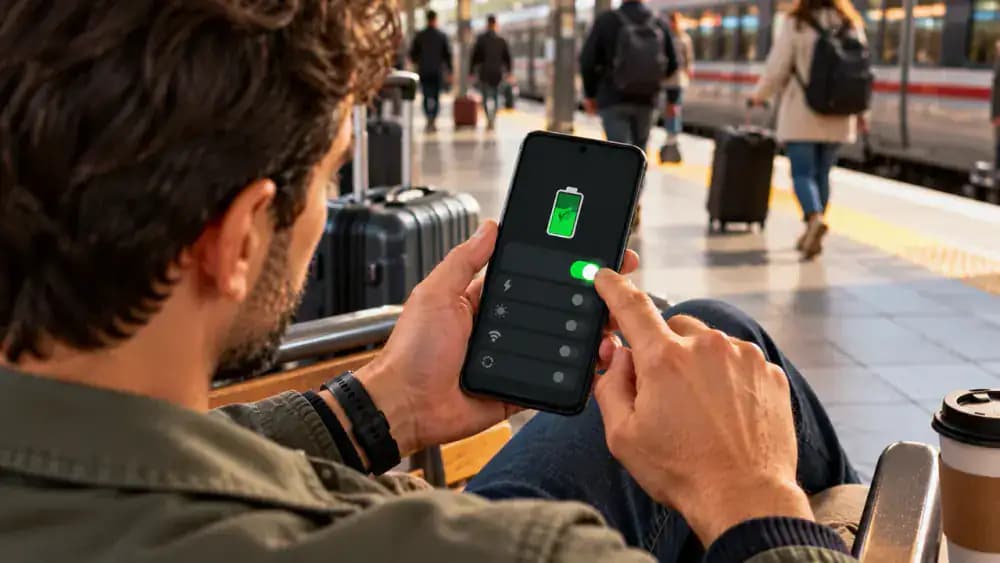
Open Settings, select Battery, and tap Battery Saver or Power saving, depending on your Android model. As shown, switch the feature on and confirm that its status indicator appears. Battery Saver can reduce background activity, syncing, and certain visual effects to help conserve power. Some notifications may arrive later than usual, so check important apps afterward. Use this built-in feature when you need your remaining battery charge to last longer.
Check How Battery Saver Affects Everyday Apps
With Battery Saver enabled, open your messaging and email apps to check that they display recent content and function normally. As shown, return to Settings, select Battery, and review Battery Saver options for possible background syncing or notification limits. Opening an app does not confirm that notifications arrive on time, so monitor important alerts during normal use. If essential updates become unreliable, adjust Battery Saver settings or disable the feature.

Check for Official Android Software Updates
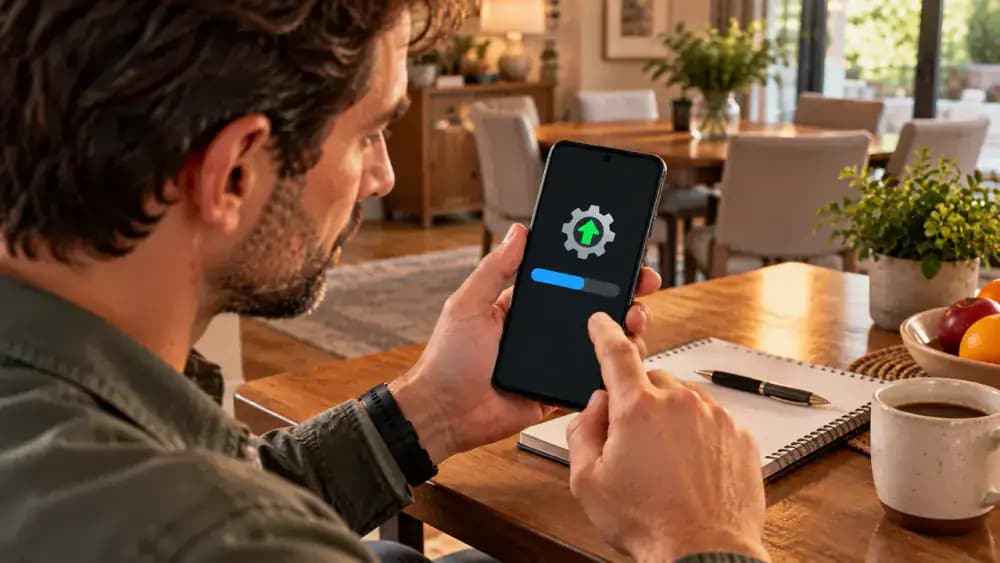
Open Settings, select System, and tap Software update or System update to check for official Android updates. As shown, review any available update details and installation requirements without starting the installation immediately. Before proceeding, check your phone's backup settings to protect important files. Follow the manufacturer's instructions when installing updates, which may address software bugs affecting battery consumption. Updates do not guarantee improved battery life, and menu names vary by device.
Update Apps That May Be Draining Your Battery
Open the Google Play Store, tap your profile icon, and select Manage apps and device. Under Updates available, review pending updates, especially for apps previously showing unusual battery consumption. As shown, tap Update beside the Weather app and allow the official update to finish. Developers sometimes address excessive background activity through updates, but improvements are not guaranteed. Review any new permission requests before accepting them, and avoid unofficial downloads.

Avoid Risky Third-Party Battery Optimizer Apps
Before installing a battery booster, review its promises and requested permissions. As shown, the fictional optimizer asks for accessibility access and broad device control, which should raise concerns when those permissions are unnecessary. Exit the listing without installing it, then open Settings and select Battery to use Android's built-in tools instead. Official battery settings and app updates are safer starting points than unverified apps promising instant improvements.

Restart Your Android Phone After Updating Apps
Open your Android phone's power menu using the button combination supported by your model, then tap Restart. As shown, wait for the normal startup sequence to finish and unlock your phone. Open a familiar messaging app and check the notification shade to confirm everyday functions remain accessible. Restarting may clear temporary software glitches or stuck app processes, but it cannot repair battery wear or guarantee longer battery life.

Compare Battery Usage Under Similar Daily Conditions
Use your Android phone normally for several days, recording battery percentage, screen time, and charging times. As shown, open Settings, select Battery, and review Battery usage while entering your observations into a simple tracking table. Note app activity, screen brightness, and cellular signal quality for each day. Compare days with similar conditions rather than judging one afternoon. The displayed figures are illustrative examples, not actual battery performance measurements.
Check for Signs of an Aging Android Battery
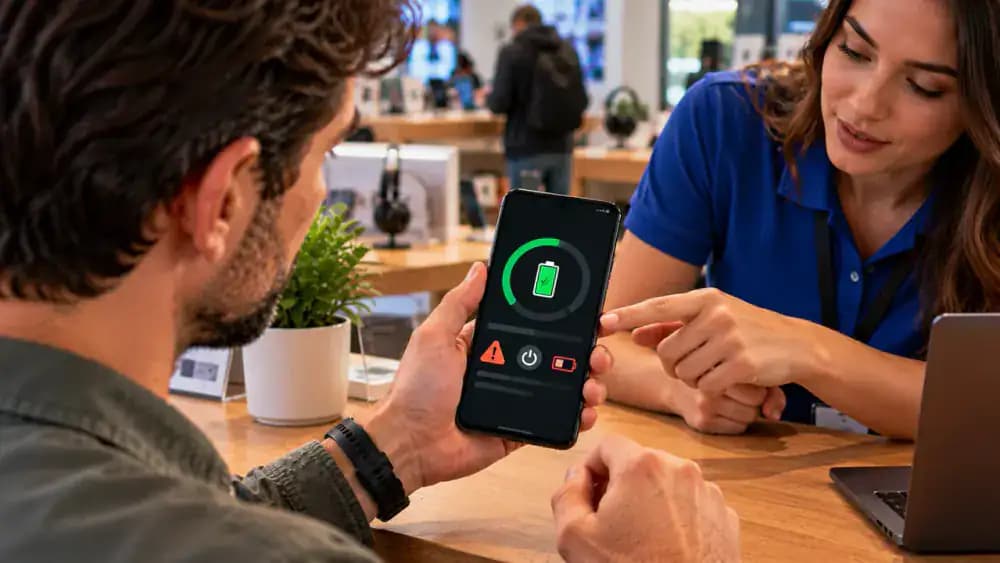
If your phone still drains unusually quickly, open Settings and search for Battery health. On supported Android models, review the available battery condition information, as shown. Also watch for sudden percentage drops, unexpected shutdowns, or noticeably shorter runtime than when the phone was new. These symptoms may indicate battery wear but do not confirm it. If problems persist, contact authorized service for a professional assessment rather than attempting repairs yourself.
Know When to Contact Authorized Battery Service
Contact your phone manufacturer's official support team if rapid battery drain continues despite troubleshooting or battery health information raises concerns. As shown, share your battery usage observations and describe symptoms without revealing personal information. If your phone shows swelling, overheating, or physical damage, stop using and charging it immediately. Never open, puncture, heat, or replace the lithium-ion battery yourself. Authorized technicians can assess the problem and recommend appropriate service.

Build a Simple Battery Maintenance Routine
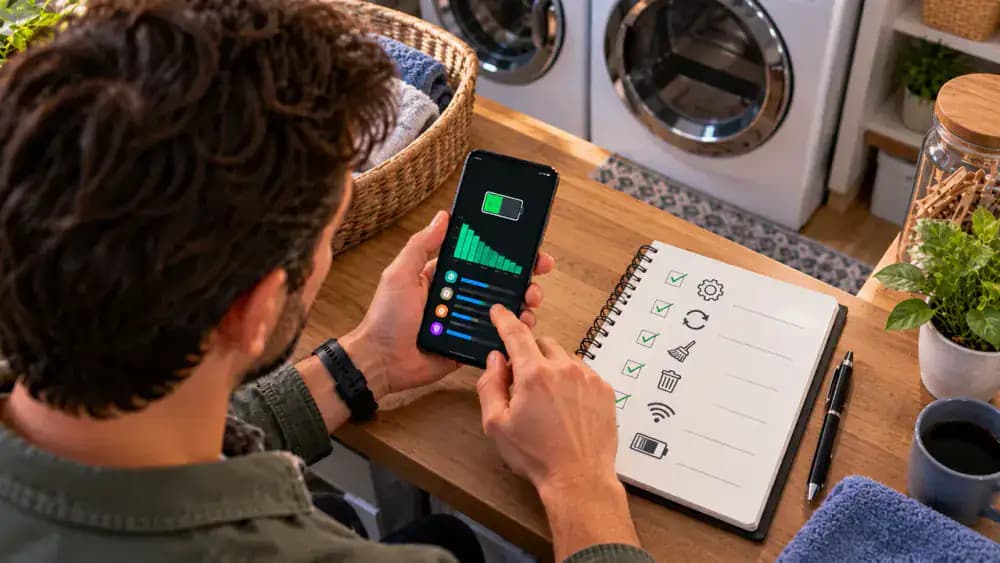
Make a habit of opening Settings, selecting Battery, and reviewing Battery usage for unexpected app activity. As shown, follow a simple checklist covering official Android and app updates, location permissions, display settings, and Battery Saver. Repeat these checks periodically, especially after installing new apps. Keep your phone away from excessive heat and watch for sudden changes in battery performance. The displayed battery statistics are illustrative, not actual measurements.
Review the Five Essential Android Battery Fixes
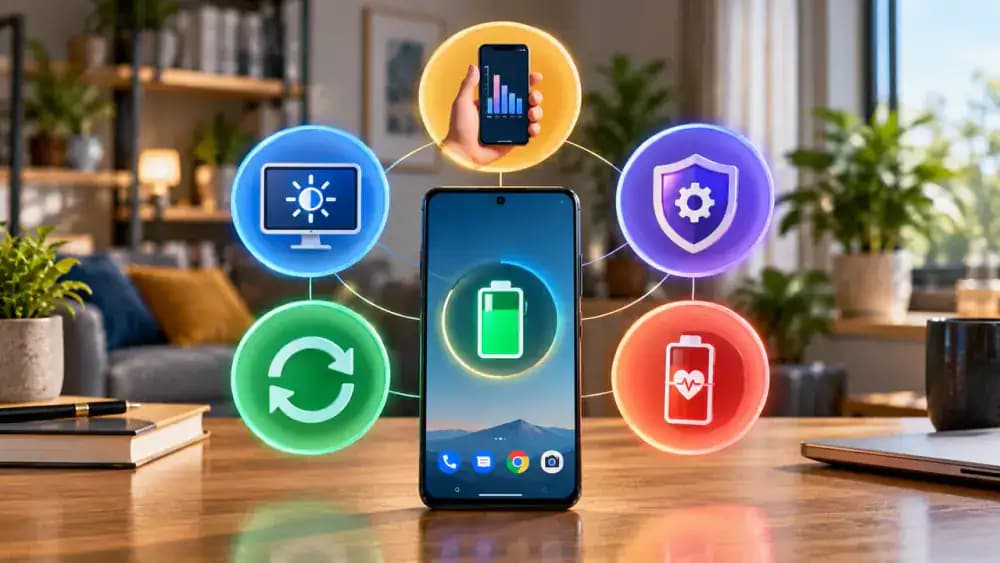
Review the five checks shown beside your Android phone: identify unusual battery usage, adjust brightness and screen timeout, manage unnecessary background activity and location permissions, enable Battery Saver and check official updates, then compare results and assess possible battery wear. Revisit each setting if problems continue, keeping essential notifications and services working. The displayed statistics are illustrative, not measured improvements. Persistent rapid drain may require authorized battery service.
Share Your Android Battery Troubleshooting Results
Open the video's comments section and describe your Android phone model, the battery settings you changed, and what you observed over several comparable days. As shown, review your comment before tapping Post to remove phone numbers, account details, serial numbers, or other personal information. Mention if rapid battery drain continues despite troubleshooting. The example comment is illustrative, not a measured result. Your experience may help others with similar devices.

Keep Your Android Battery Healthy and Reliable
Return to Settings and review Battery usage periodically to catch unusual power consumption. As shown, focus on three habits: identify battery drain, adjust settings carefully, and monitor results over time. Keep essential apps working and install official updates when available. The displayed battery statistics are illustrative, not measured improvements. For persistent problems, seek authorized service. Explore the Tech and Device Fixes playlist for more practical phone troubleshooting guides.

Your Android phone starts the day with a full charge, but by dinnertime, you're already hunting for a charger. If your Android battery is draining faster than usual, the problem could be a power-hungry app, an overly bright screen, unnecessary background activity, or a battery that's showing its age. The good news is that you can investigate most of these issues using settings already built into your phone, without downloading questionable battery-saving apps or attempting risky repairs.
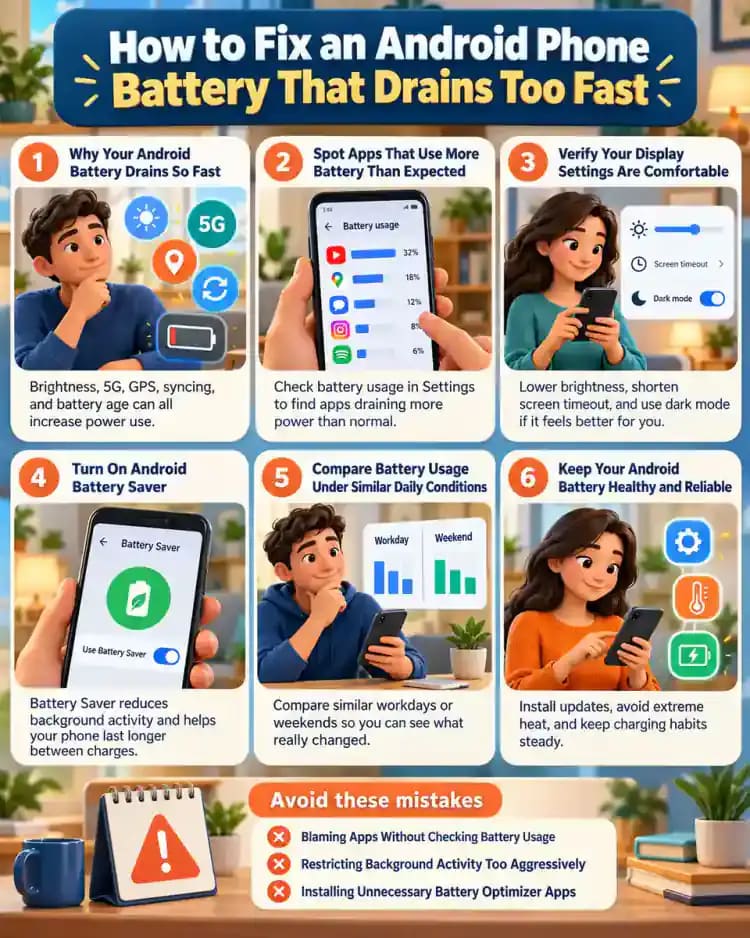
This guide walks you through five practical checks to help identify what's using your battery and reduce unnecessary power consumption. You'll learn how to read Android's battery usage report, adjust display settings, manage background activity and location permissions, enable Battery Saver, and check for official updates. You'll also learn how to compare battery performance under similar daily conditions and recognize signs that professional service may be necessary. If your phone is swollen, physically damaged, or overheating, stop troubleshooting and contact an authorized service provider instead.
Where people go wrong
Blaming Apps Without Checking Battery Usage. Deleting apps simply because they appear near the top of your battery usage report can remove useful features without solving the problem. Check whether consumption comes from active screen time or background activity. Heavy usage may be normal for navigation, streaming, or other demanding apps.
Restricting Background Activity Too Aggressively. Disabling background activity for every app might save power, but it can also delay important notifications or interfere with navigation, alarms, and accessibility features. Review each app individually and restrict unnecessary activity only. Keep essential functions enabled, then verify that important alerts still arrive.
Installing Unnecessary Battery Optimizer Apps. Third-party battery optimizer apps often promise dramatic improvements, but some request excessive permissions or introduce additional background activity. Start with Android's built-in Battery Saver, display controls, and app battery settings instead. Check official system and app updates before considering any additional troubleshooting tools.
Ignoring Battery Damage or Comparing Unequal Usage. Judging battery improvements after one unusually light day can create misleading expectations. Compare similar screen time, app activity, and daily conditions instead. More importantly, never ignore swelling, overheating, or physical damage. Stop troubleshooting and seek authorized service rather than attempting to open or repair the battery yourself.
Questions people ask
Sudden battery drain can result from an app running excessively in the background, increased screen activity, demanding display settings, or a recent software change. Open Settings and find Battery usage to identify unusual consumption. Compare screen activity with background usage, then check for official Android and app updates before making further adjustments.
Fixed it?
Get one guide like this every Thursday.